Shopify
Connect and manage Shopify stores from the desktop. Browse admin, products, orders, and customers.
Products
On this page
- Product table and inline editing
- Columns
- Opening variants in table
- Bulk actions on selected rows
- Product Views
- New product
- Import products (CSV)
- Step 1: Upload
- Step 2: Preview
- Step 3: Column mapping
- Step 4: Options and run
- Export products
- Step 1: Scope
- Step 2: Export type
- Step 3: Configure
- Step 4: Save file
- Collections rail
- Sync
- Widgets and detail panel
The Products tab is a SmartTable tied to your connected store. A collections rail on the left narrows the list. Along the top you get status pills (All, Active, Draft, Archived), a Variants mode, search, Filters, Import, Export, Sync, and + New Product.
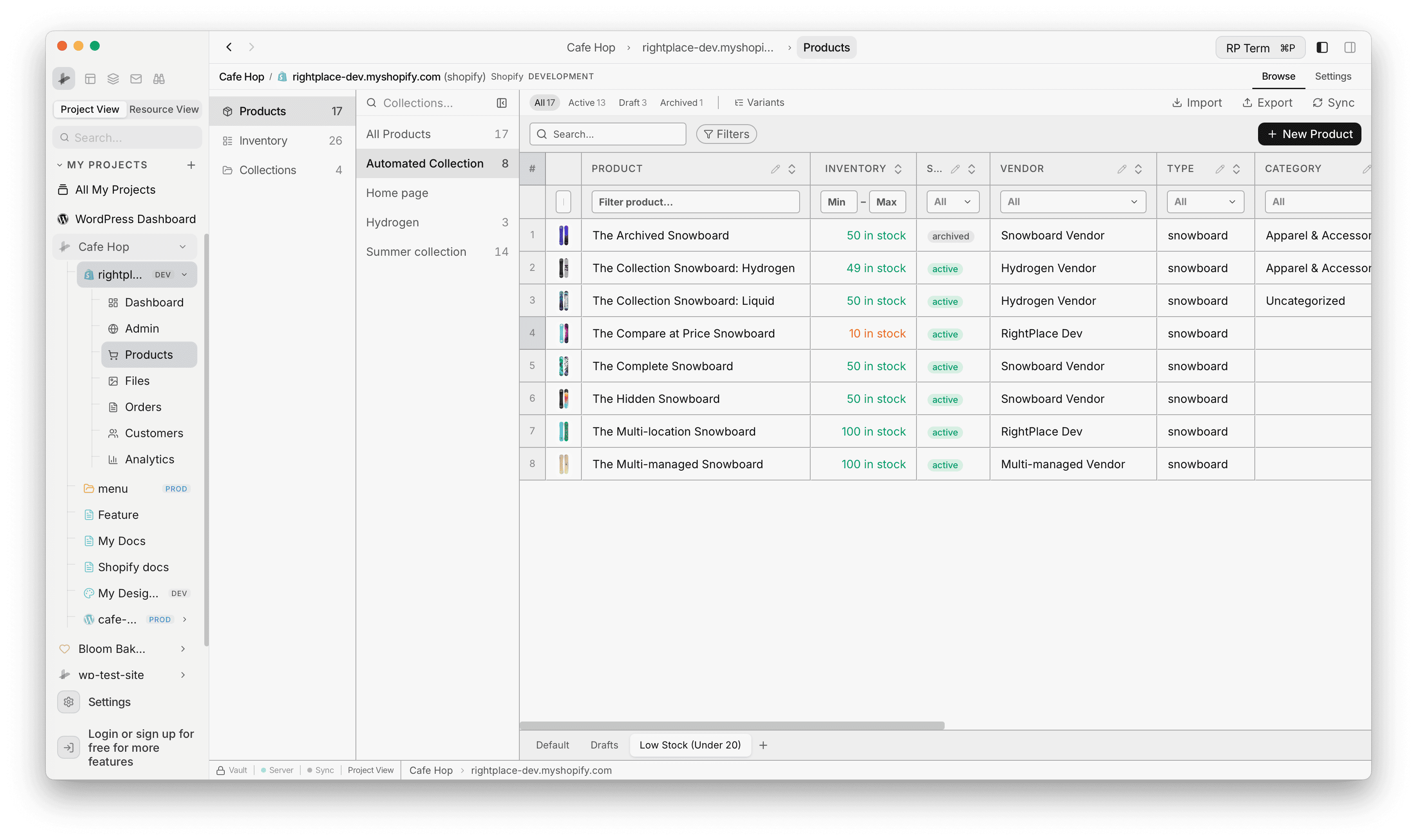
Product table and inline editing
Each row is a product (or a variant sub-row when variant mode is on). Most editable fields open inline editors or pickers. Use the filter row directly under the headers to narrow by text, status, vendor, inventory range, price range, and more.
When you change cells, the table tracks unsaved changes until you Save or Revert so you can batch local edits before they hit Shopify.
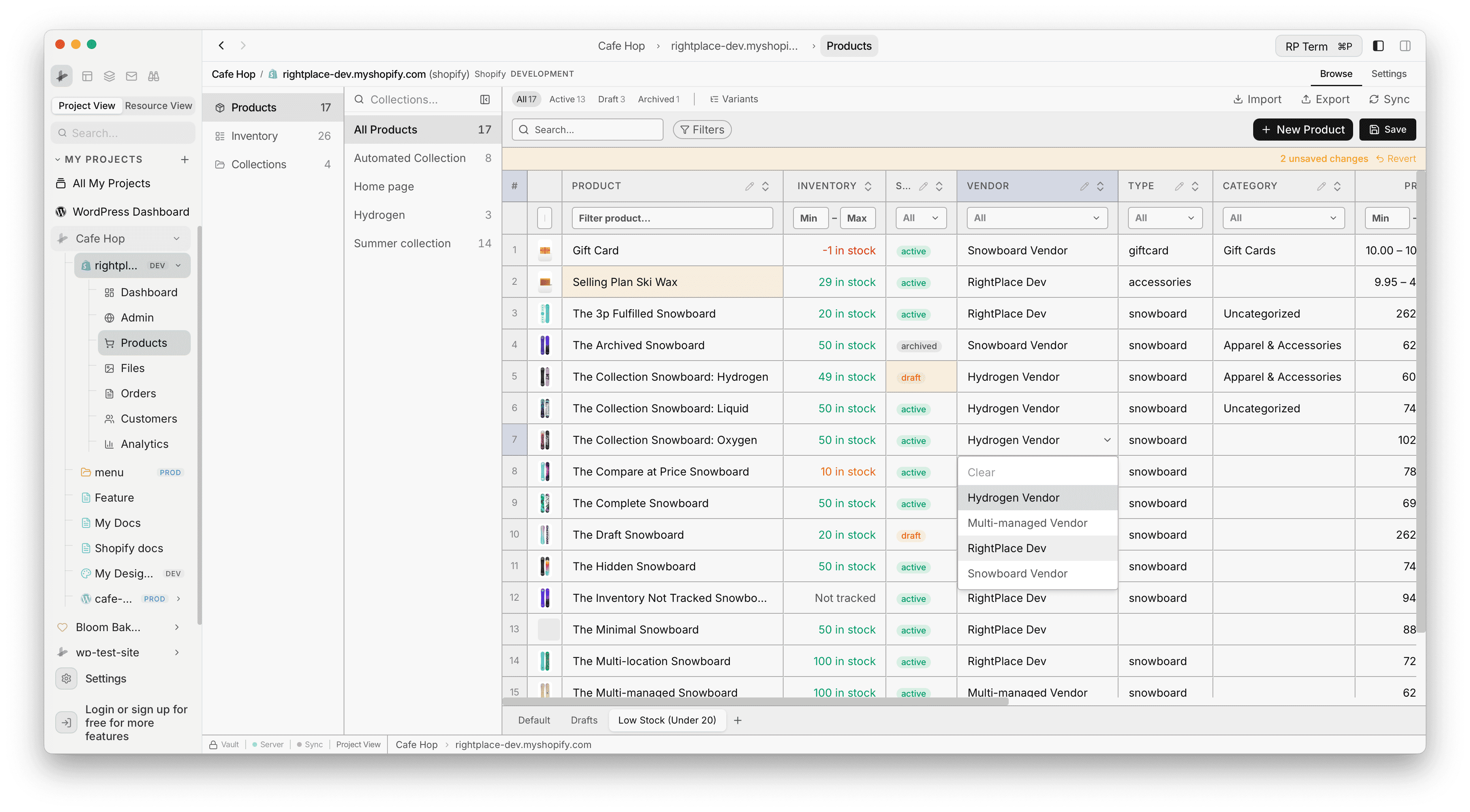
Columns
- Image: product thumbnail
- Title: product name
- Vendor: manufacturer or brand
- Type: product type
- Status: active, draft, or archived
- Price: price range across variants (min-max)
- Inventory: total tracked quantity across all locations
- Tags: comma-separated tags (multi-select)
- Collections: collections the product belongs to (multi-select)
- Category: Shopify product category (dropdown)
- Created / Updated: timestamps
All columns are sortable and filterable. Committed edits are sent to Shopify through the GraphQL API.
Opening variants in table
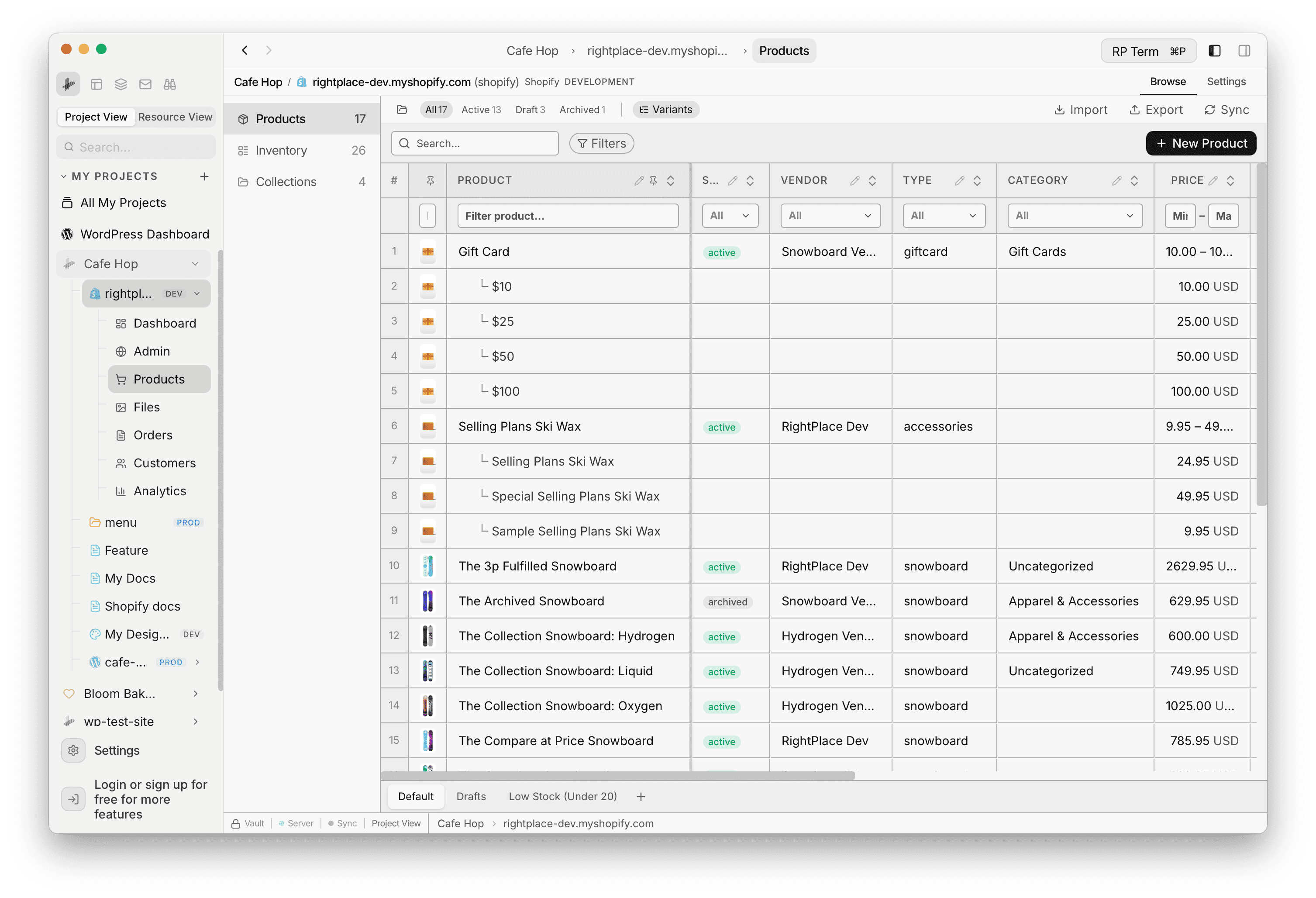
Products that have more than one variant can be shown as parent rows plus indented variant rows. Turn this on with the Variants control in the toolbar (next to the status pills). Toggle it again to collapse back to one row per product.
While variants are expanded, sorting applies to products (variant sub-rows stay with their parent). You can still edit variant-level fields on the sub-rows where the table exposes them.
Bulk actions on selected rows
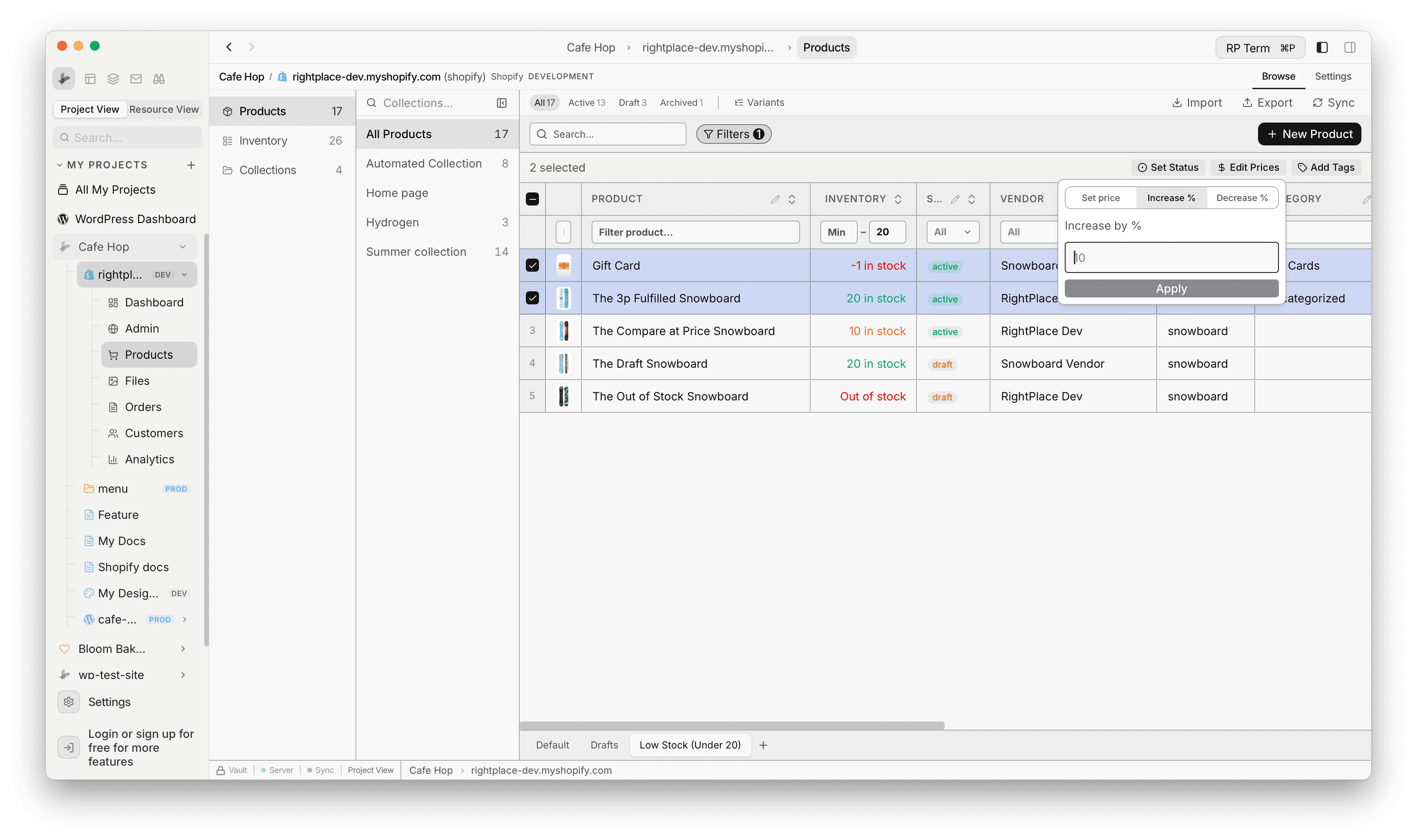
Select one or more products with the checkboxes on the left. A compact bulk action bar appears above the grid with:
- Set Status: move every selected product to active, draft, or archived
- Edit Prices: set a fixed price or adjust by percentage across the selection (modes such as fixed amount, increase %, decrease %)
- Add Tags: merge tags onto all selected products from a searchable tag list
Bulk work runs against Shopify in the background. Watch the bar for progress and errors.
Product Views
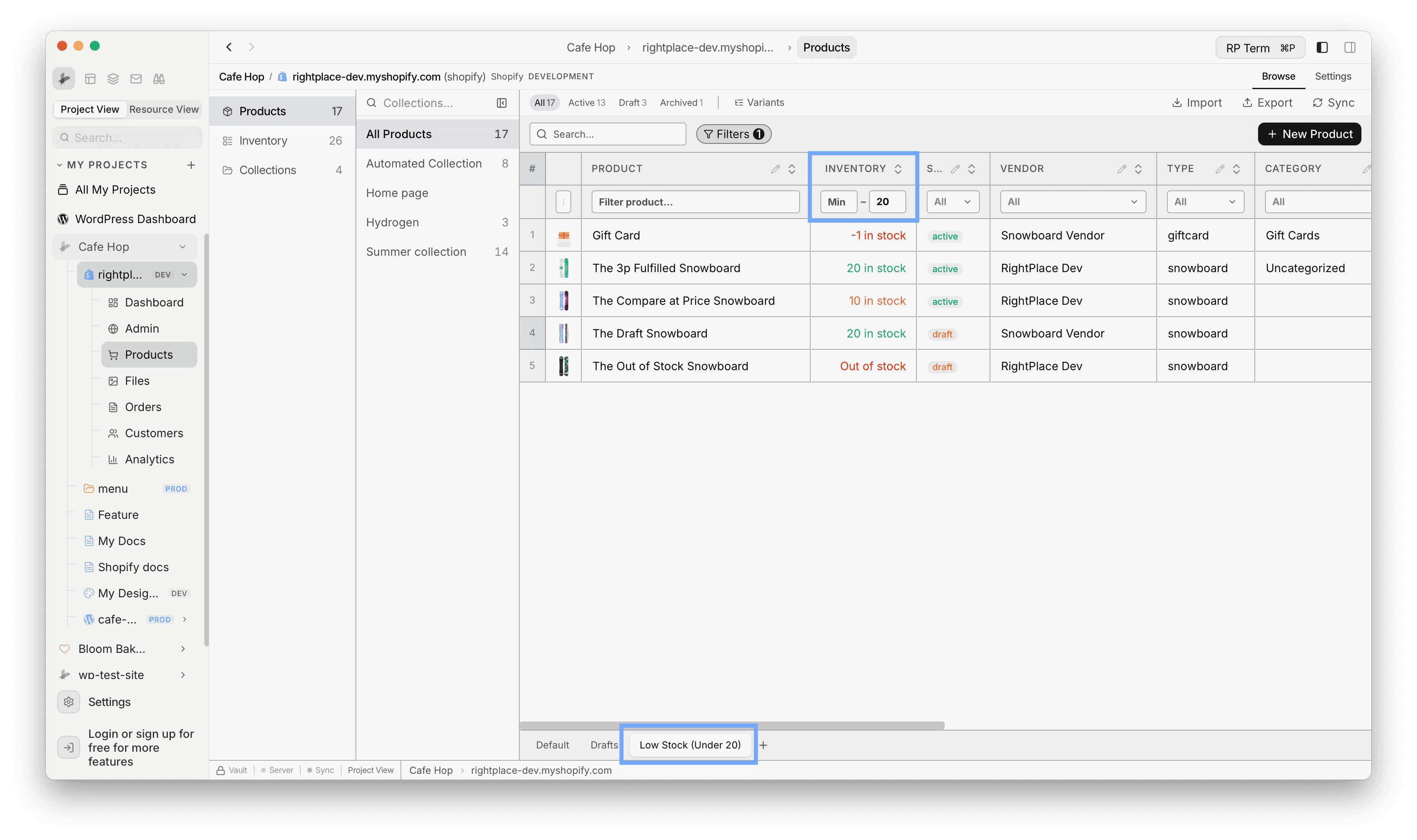
Tabs along the bottom of the table switch between saved views (for example Default, Drafts, or a custom name like Low Stock (Under 20)).
How to use it: Click a view tab so it is active. While that tab is selected, sort and filter changes in the SmartTable (for example the row under the headers and column sort order) are saved into that view. Switch to another tab to load that view’s own saved sort and filters. Click + beside the tabs to add a new view, select it, then set sort and filters so the new view stores that layout.
Views are stored per Shopify applet in your project.
New product
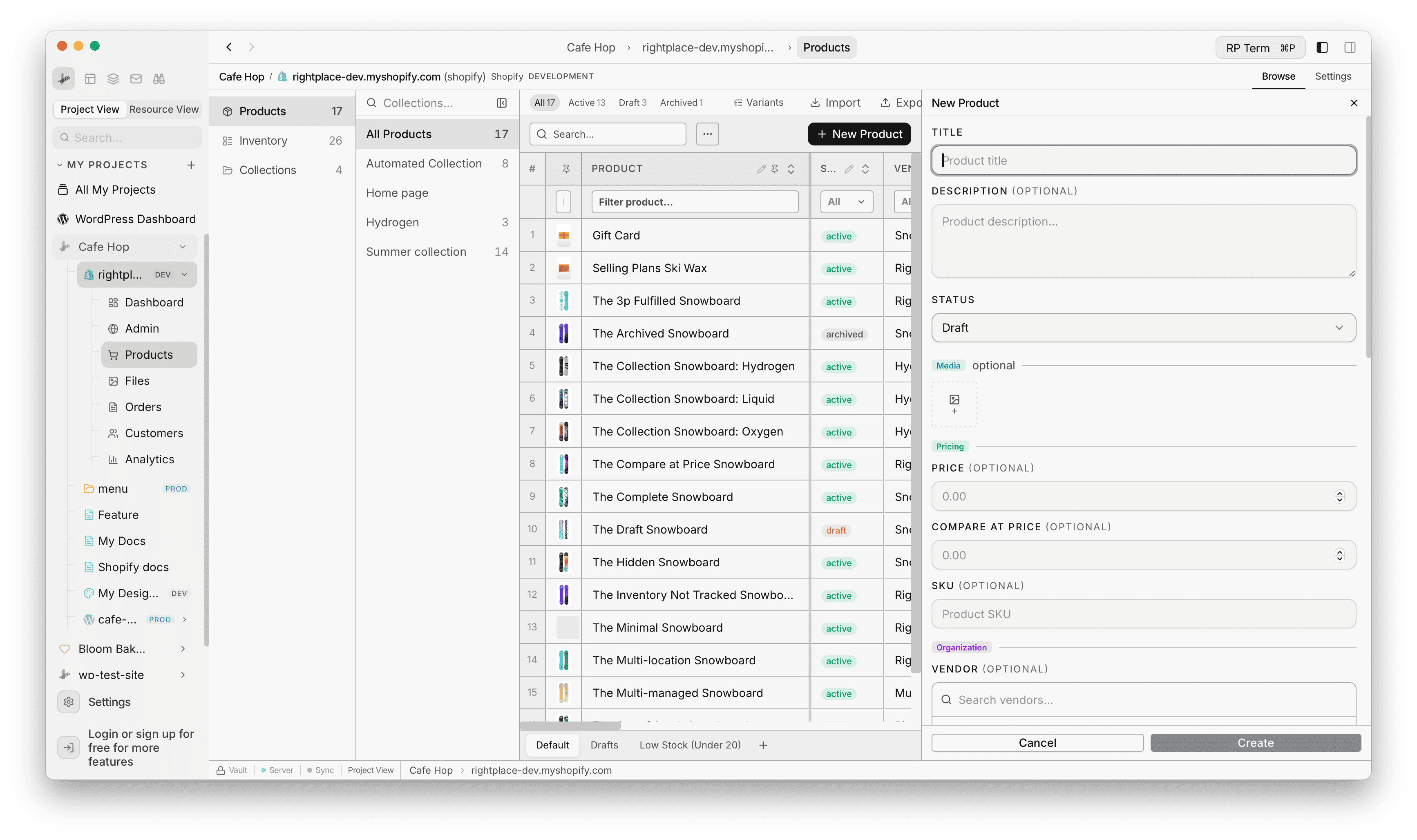
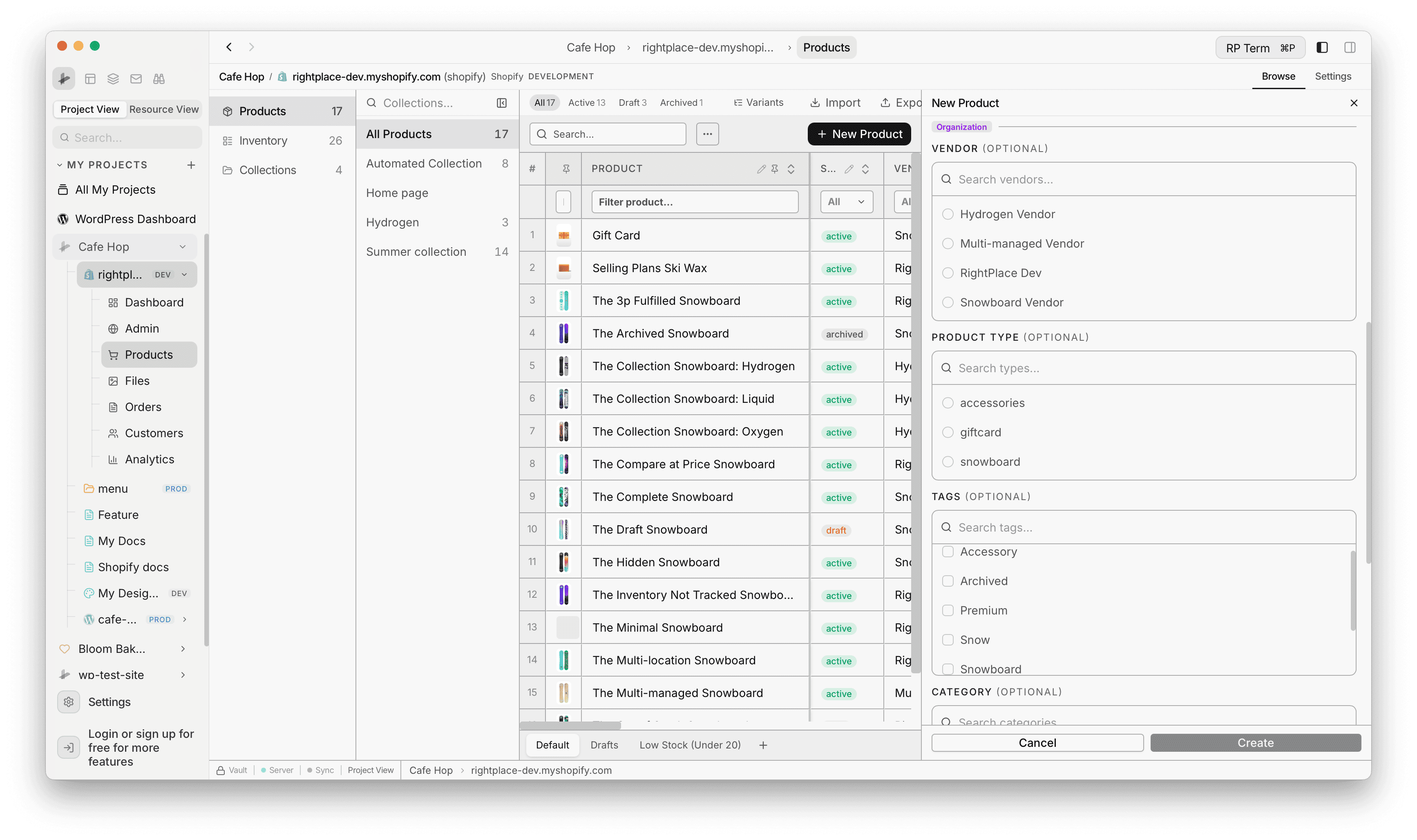
+ New Product opens a right-side drawer instead of leaving the page. Work through:
- Title and optional Description
- Status (for example Draft while you iterate)
- Optional Media upload
- Pricing (price and compare-at), optional SKU
- Organization fields such as Vendor, Product type, Tags, and Category, each with search and pickers
Use Cancel to discard or Create when required fields are valid.
Import products (CSV)
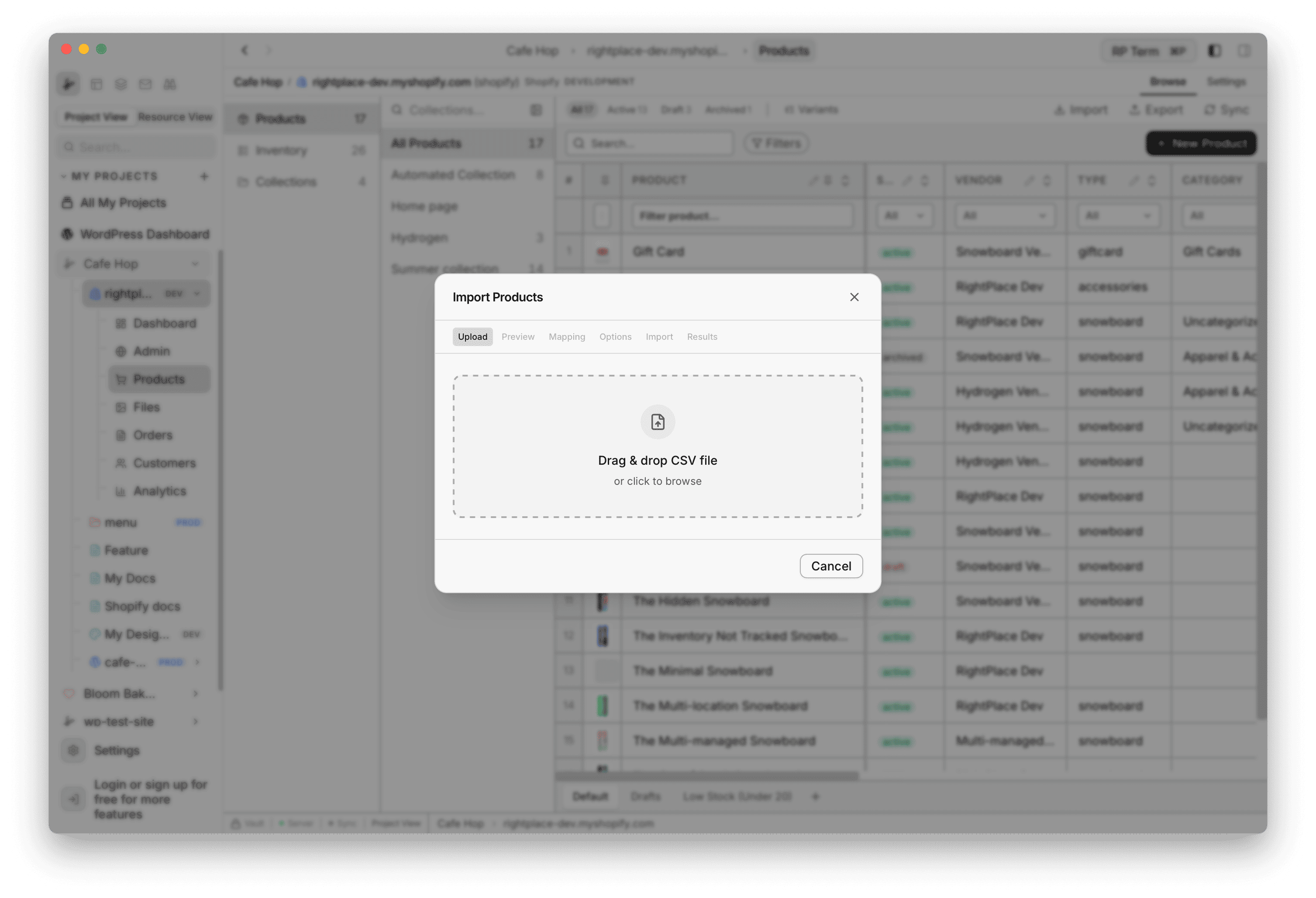
Import starts a guided flow for CSV files (drag and drop or file picker). The dialog runs through the steps below, then Import and Results when you start the job.
Step 1: Upload
Pick your file on the Upload step.
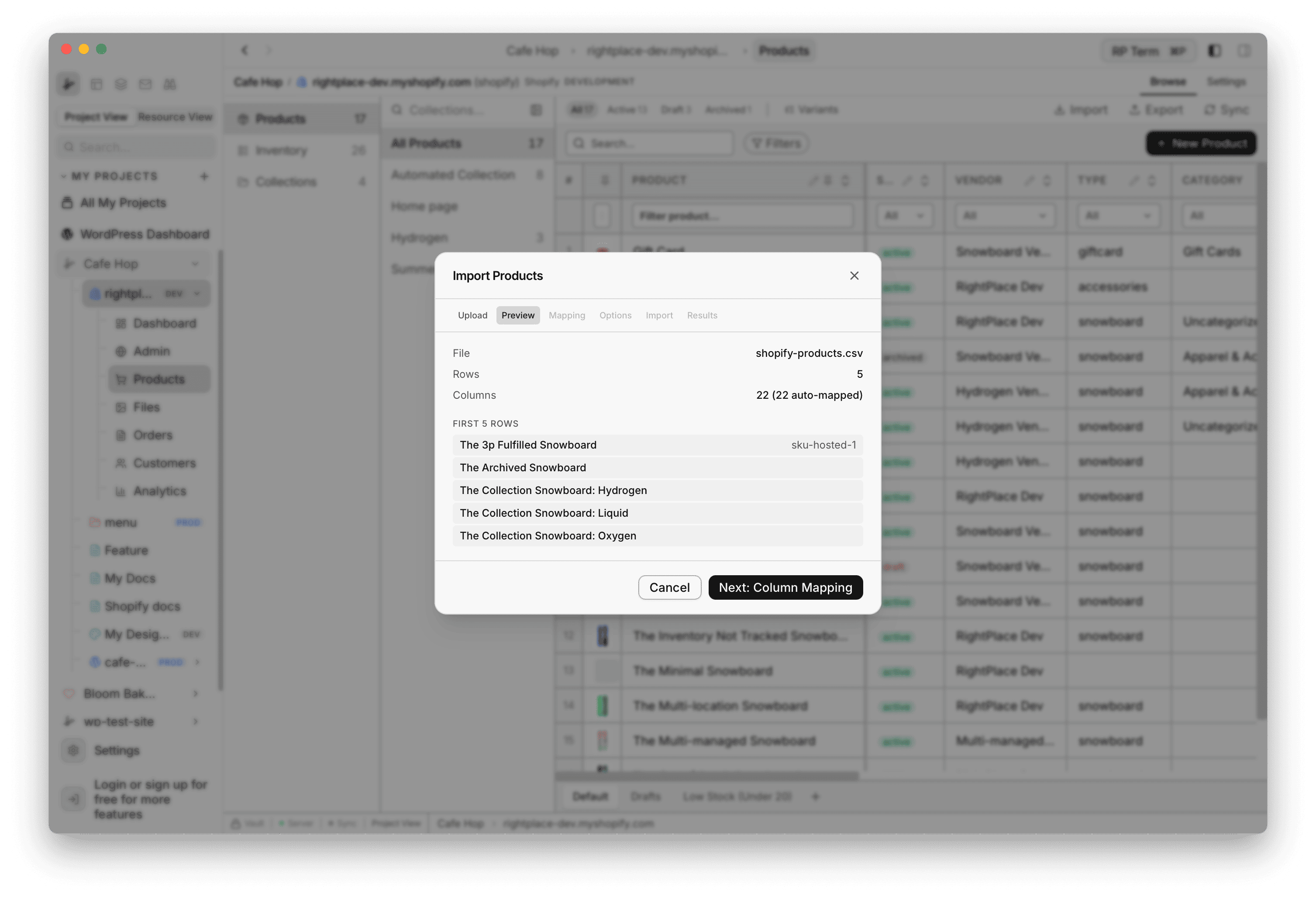
Step 2: Preview
Preview summarizes row and column counts and shows the first rows so you can confirm encoding and headers before mapping.
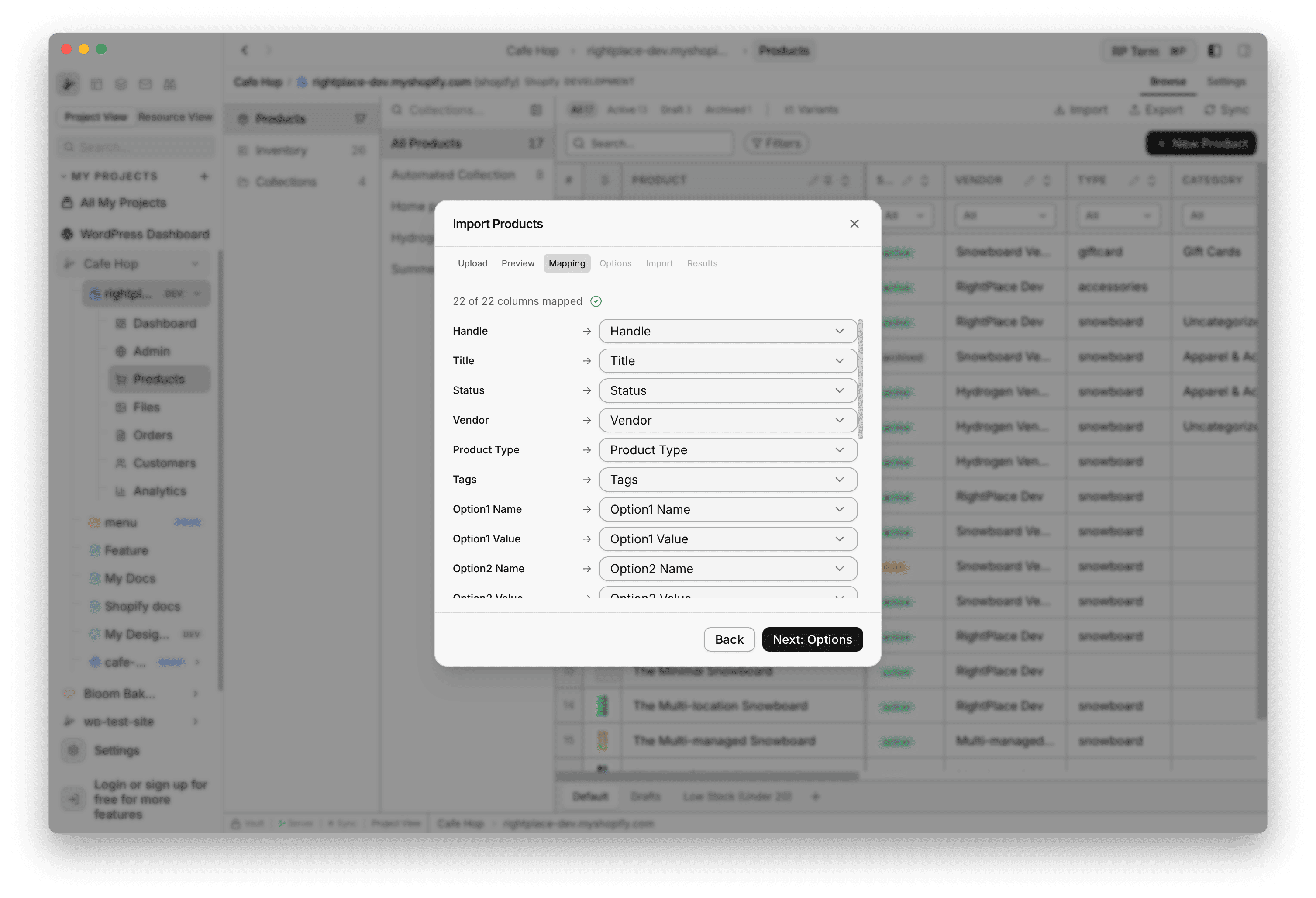
Step 3: Column mapping
Mapping pairs each CSV column to a Shopify field. Auto-mapped columns show a green check. Adjust any dropdown that needs a different target before continuing.
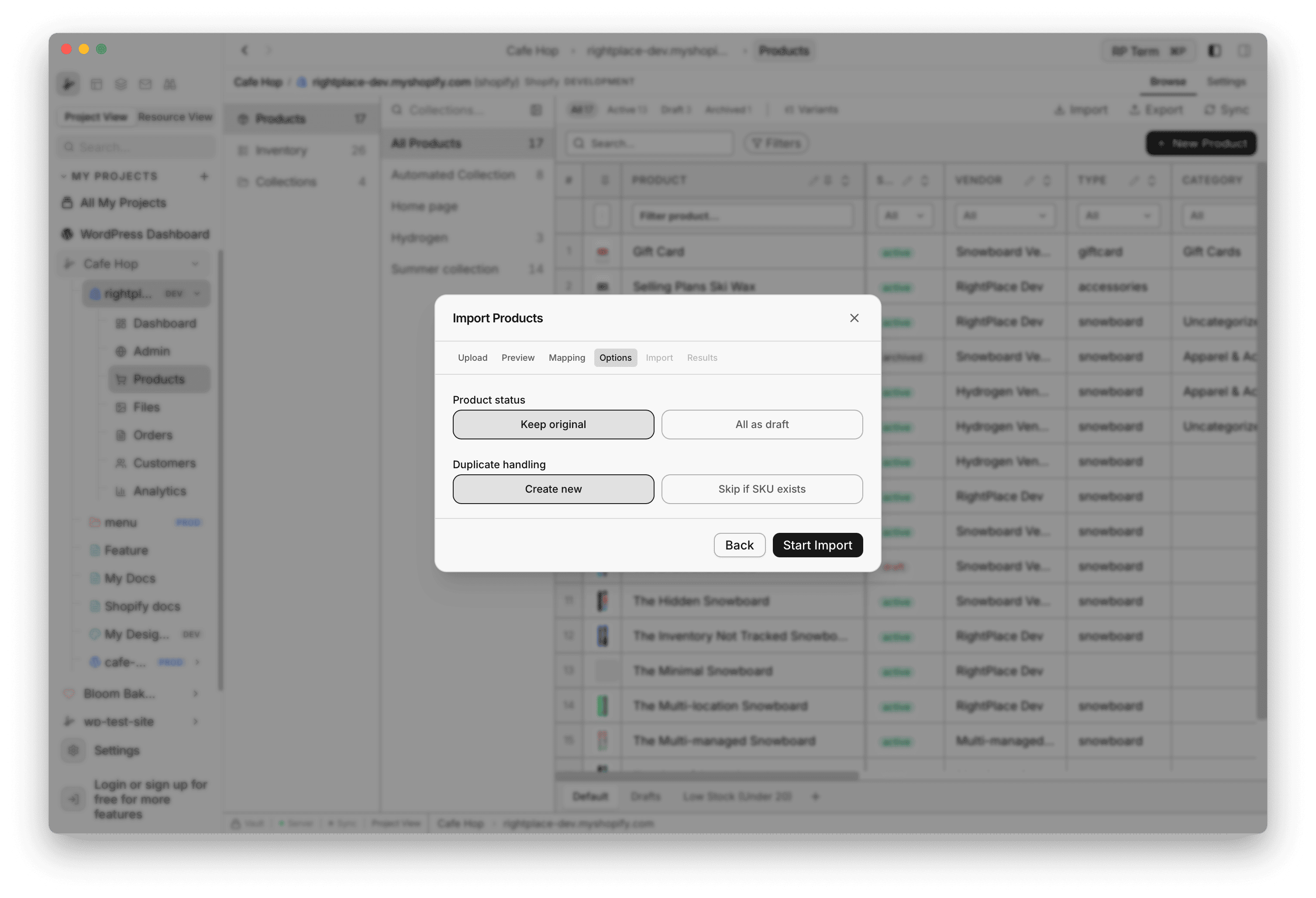
Step 4: Options and run
Options covers import policy (for example keep original status versus force draft, and how to treat duplicate SKUs). When you are ready, start the import and watch the Results step for completion or per-row issues.
Export products
Export opens a multi-step exporter for the current grid selection or everything that matches your filters. Follow the steps in order.
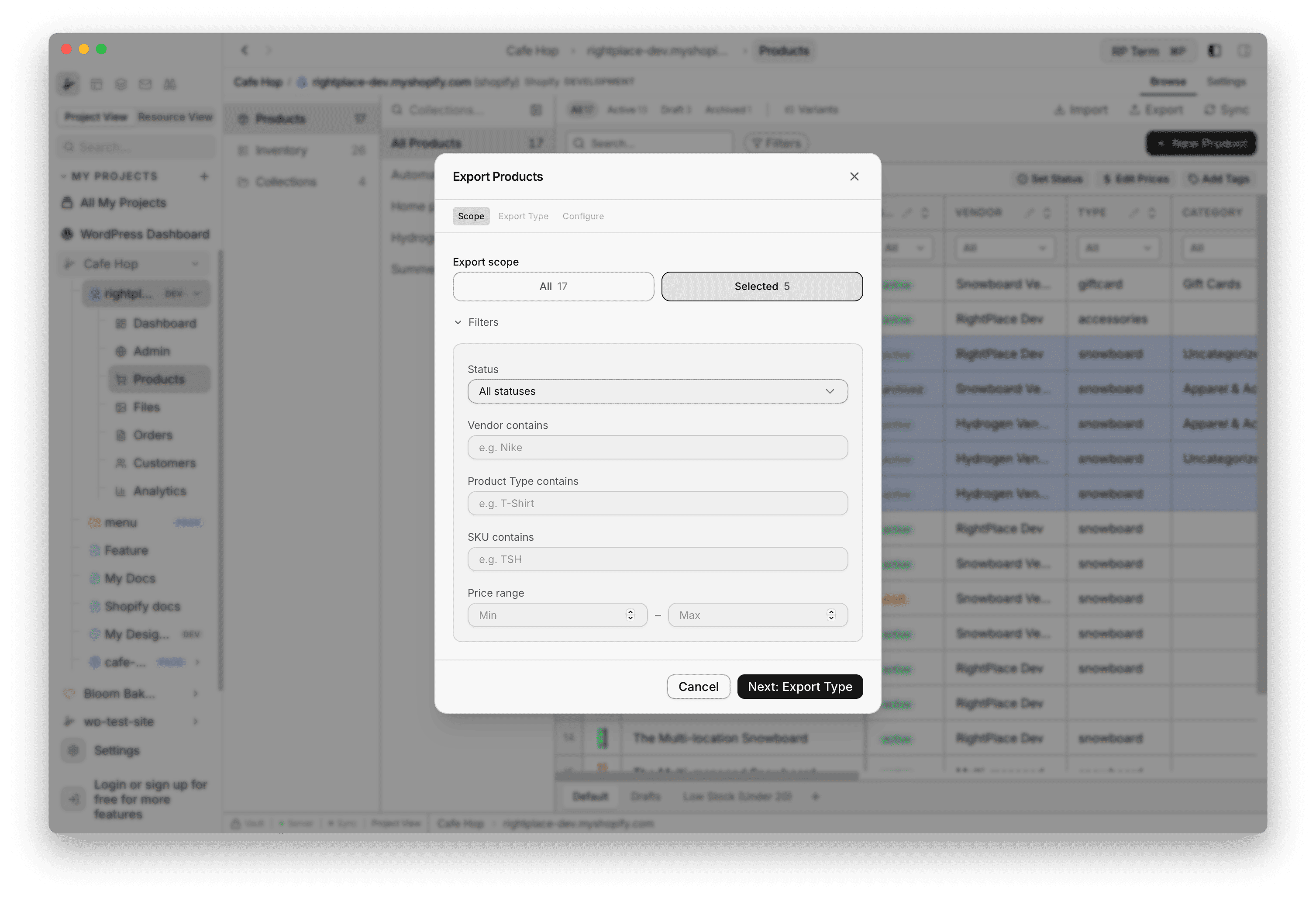
Step 1: Scope
Choose All products in the current filtered set or Selected rows only. Optional filters (status, vendor contains, product type contains, SKU contains, price min and max) further narrow what leaves the store.
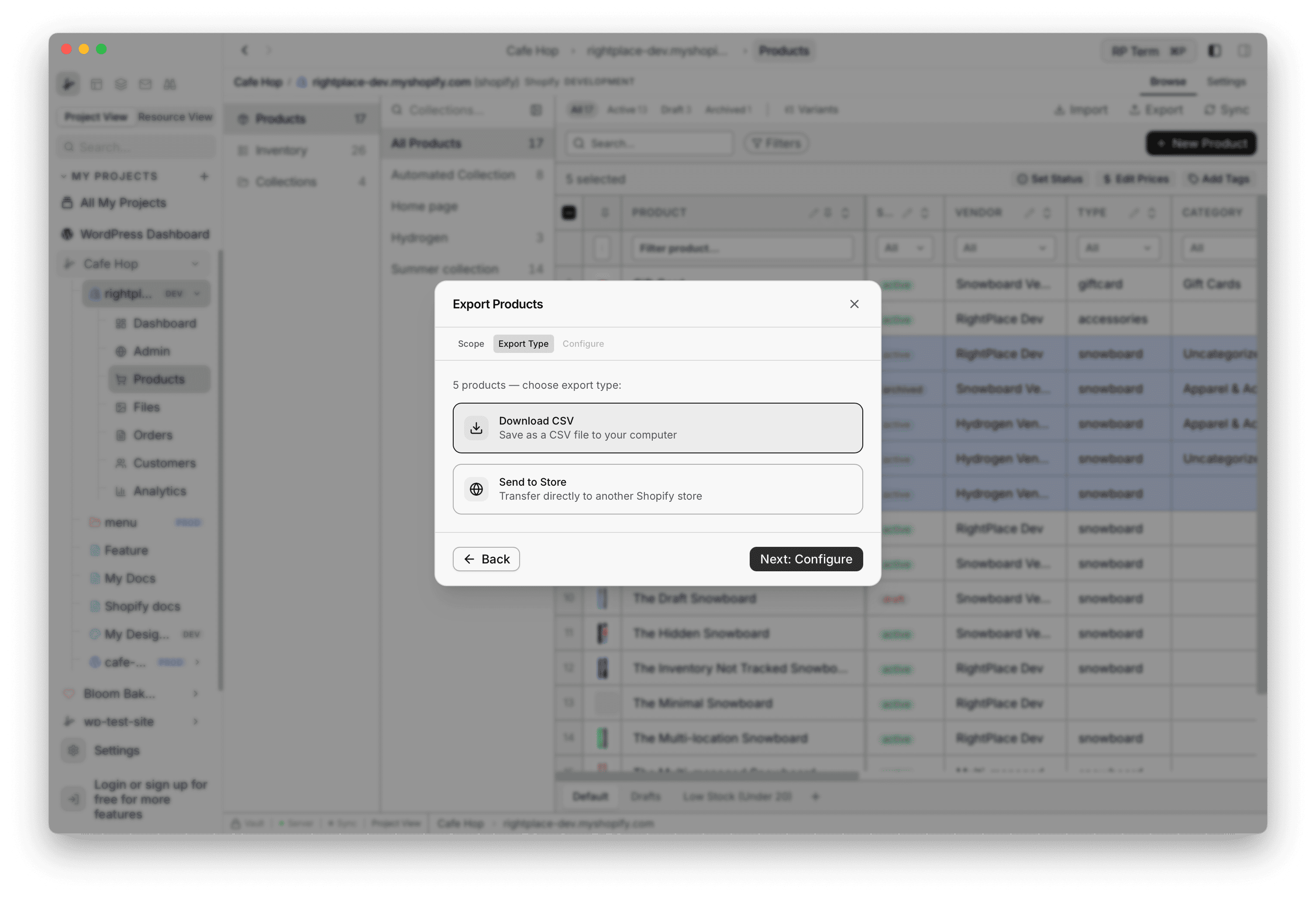
Step 2: Export type
Pick Download CSV to save a file locally, or Send to Store to push the same rows into another connected Shopify applet you choose in the next steps.
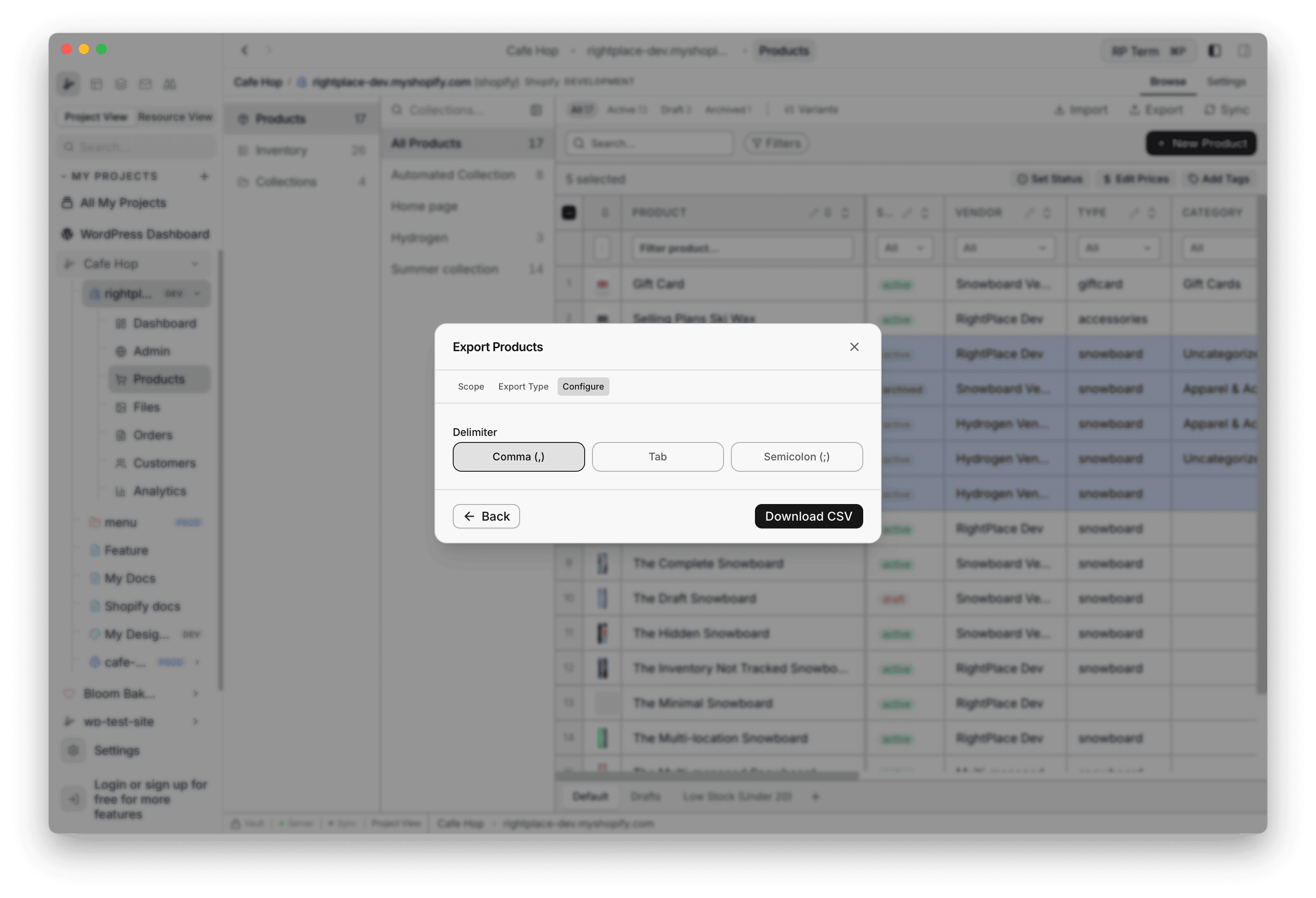
Step 3: Configure
Set CSV options such as delimiter (comma, tab, or another character for spreadsheet tools), then continue to the save step.
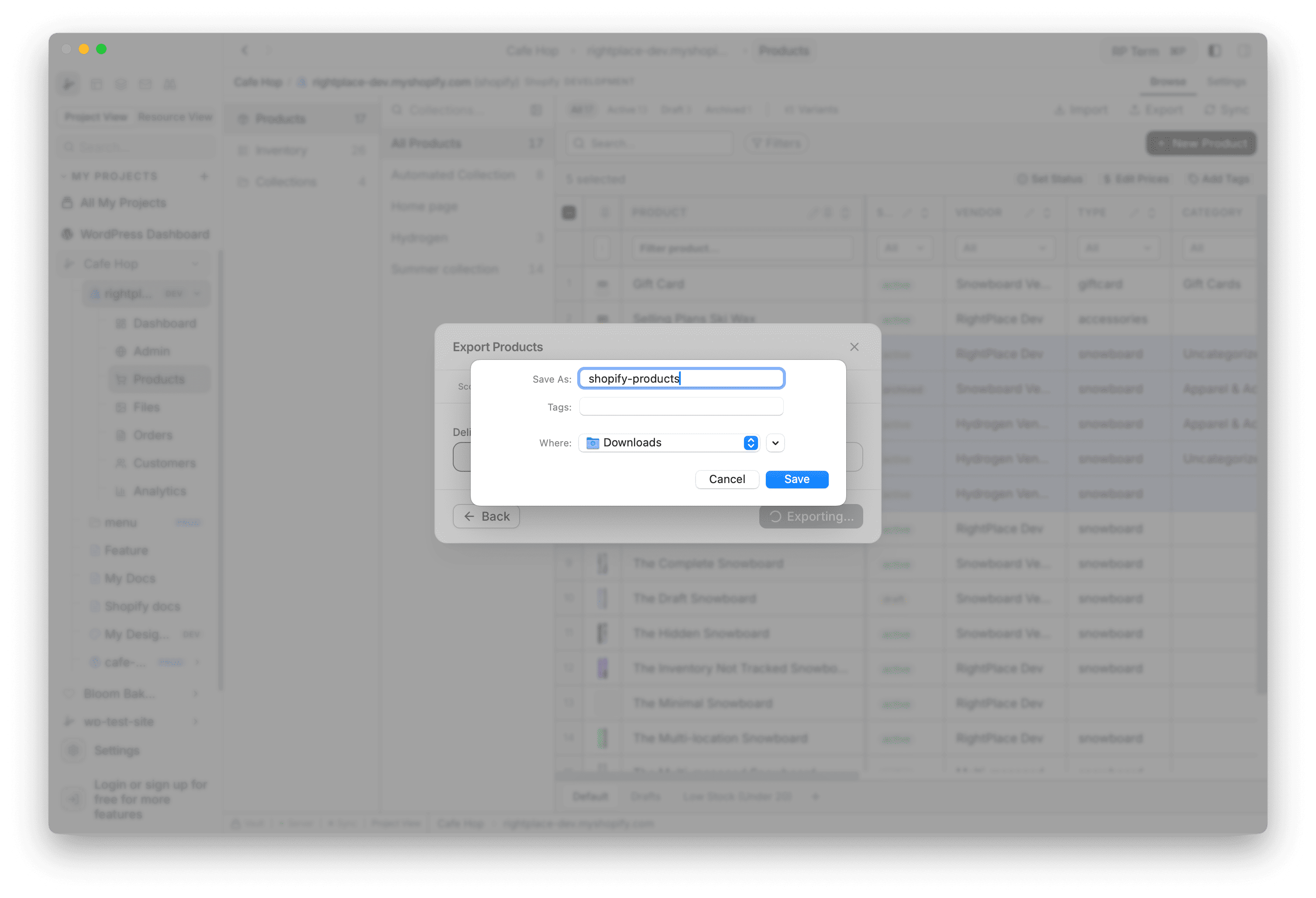
Step 4: Save file
Name the file, add optional tags for your own notes, choose a download location, then Save (or Download CSV depending on step). A progress state appears while the export runs.
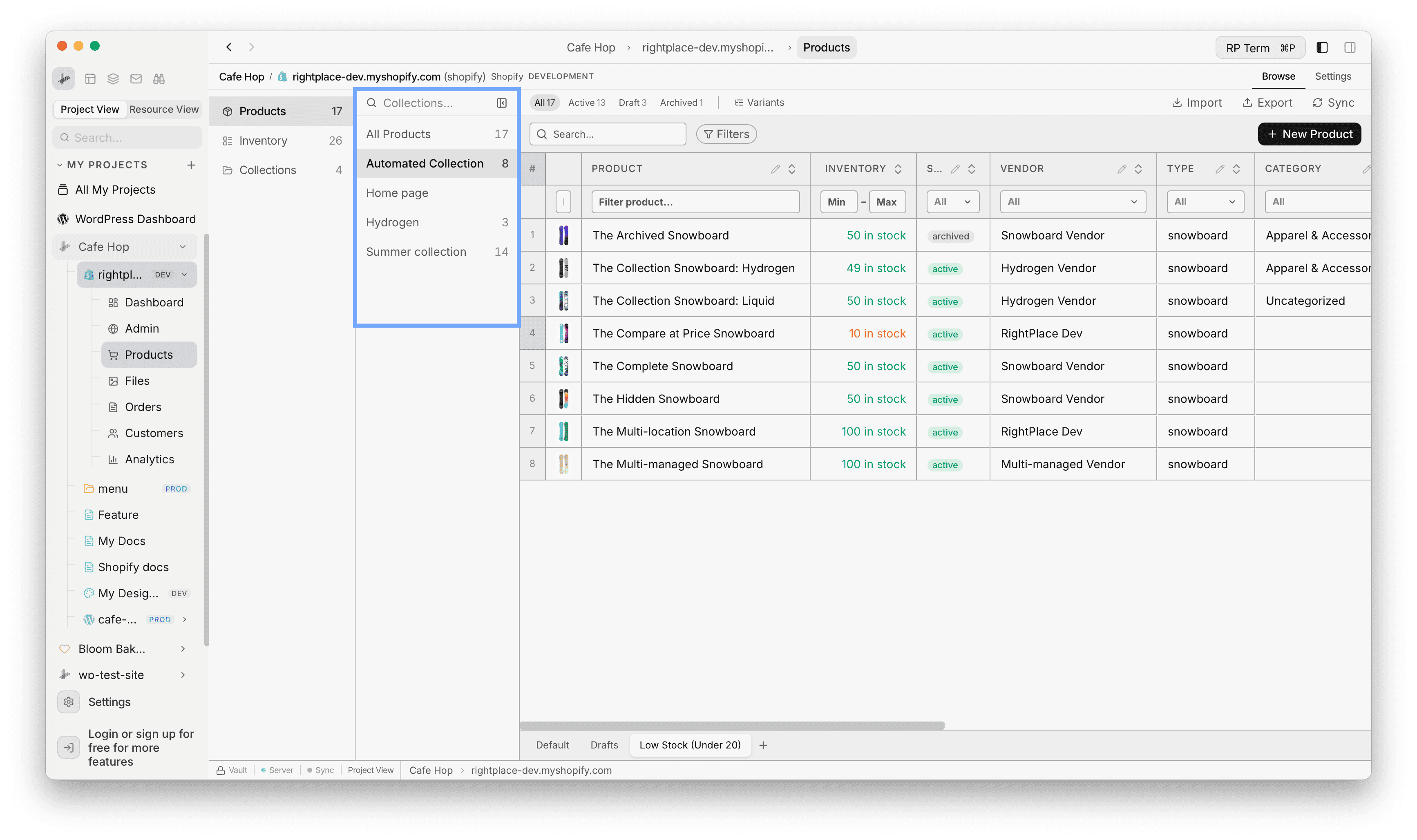
Collections rail
The sidebar beside the product table lists your collections so you can browse products by collection. Choose a collection to filter the main grid to its members, or All Products to drop back to the full catalog.
Managing collections themselves (list, rules, New Collection) is on the Collections page when you select Collections in the middle column.
Sync
Sync in the toolbar pulls the latest product rows from Shopify. Use it after you change data in Shopify admin or another tool so the SmartTable matches the server.
Widgets and detail panel
Selecting a product row opens the Shopify Products widget on the side for deep fields, galleries, linked files, and a shortcut into Shopify admin for that product. See Widgets for the full field list.