Web & CMS
Shopify
Connect and manage Shopify stores from the desktop. Browse admin, products, orders, and customers.
Collections
Browse collections, edit inline, configure smart rules, and create collections from the desktop
Open Collections
- In the Shopify applet, open Products in the left nav
- Pick Collections in the middle column
- The count is how many collections are cached for the store
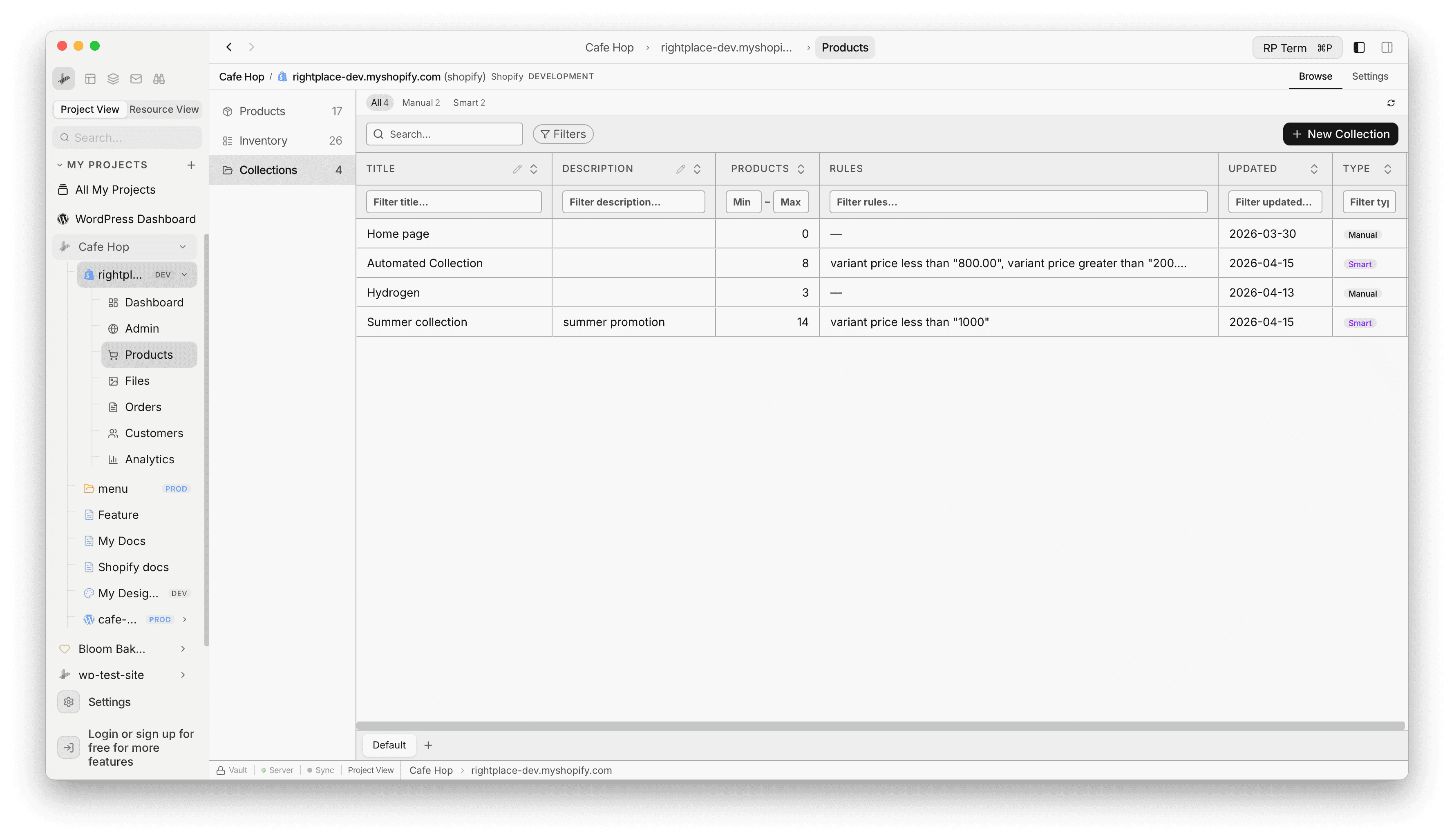
- The main area is a SmartTable with:
- Type filter pills (All, Manual, Smart)
- Search
- Filters
- New Collection
Collections table
Columns
- Title
- Description
- Type (Smart or Manual)
- Products (member count, with numeric range filters)
- Rules (short text when the collection is rule-based)
- Updated (last change date)
Editing
- Title and Description are editable in the grid
- Use Save after edits to push changes to Shopify
Type pills
- All, Manual, and Smart narrow the list
- A row is Smart when the synced collection has at least one rule, otherwise Manual
Smart rules
- If the Rules cell shows text, double-click it or hover and use the pencil to open Conditions
Saved views
- Bottom tabs are saved views for this grid (same idea as Product Views and Inventory Views)
Sync
- Use the toolbar refresh control when the list looks stale
New Collection
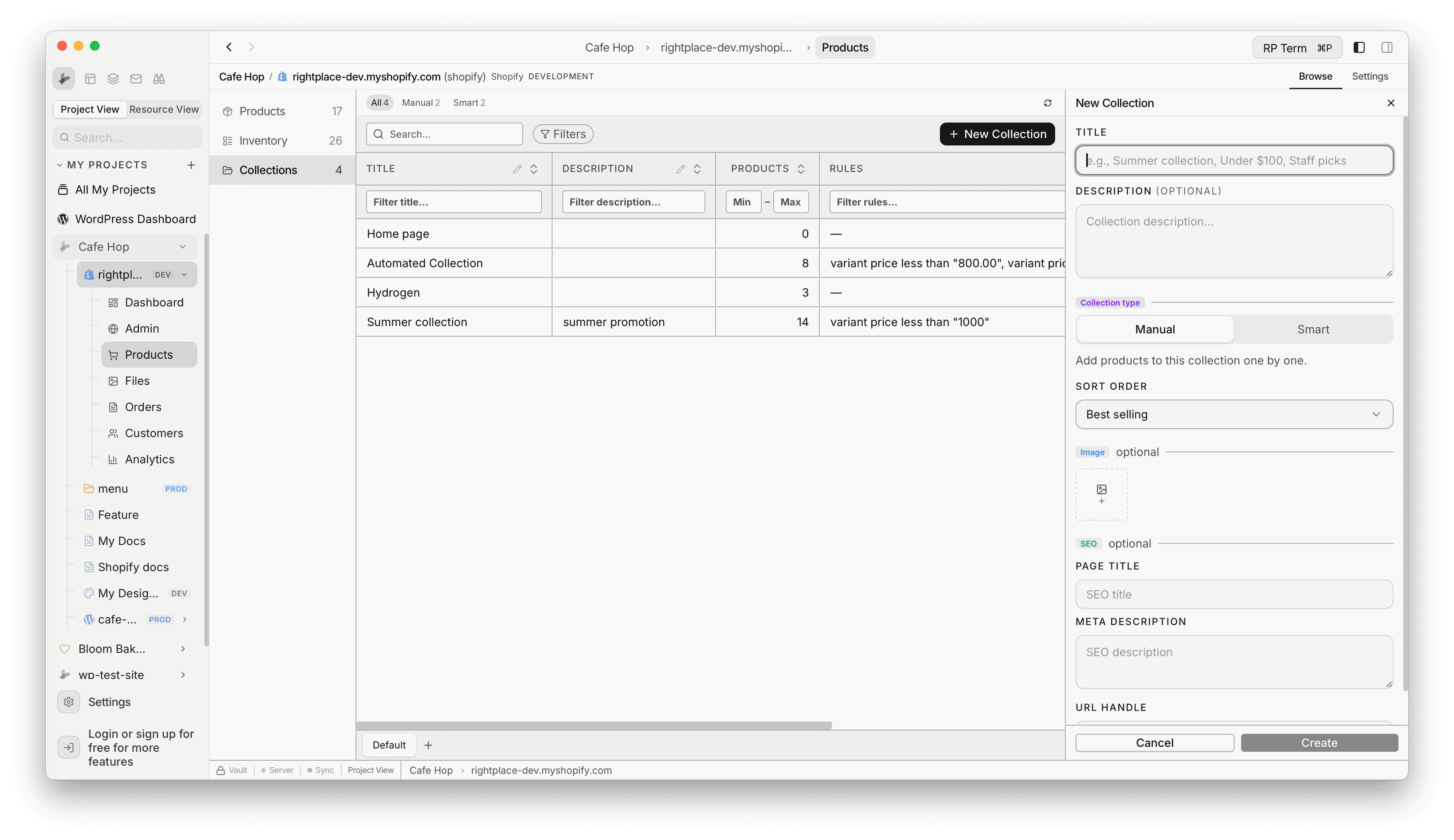
New Collection opens a right-side panel.
- Title (required)
- Description (optional)
- Collection type
- Manual: “Add products to this collection one by one.”
- Smart: “Products matching the conditions will be automatically added.” plus the same Conditions controls as the edit dialog (see below)
- Sort order dropdown, for example Best selling, A–Z, price high/low, created date, or Manual
- Image (optional): Shopify Files picker
- SEO (optional): Page title, Meta description, URL handle
- Cancel closes the panel
- Create submits to Shopify and refreshes the list
Conditions (smart collections)
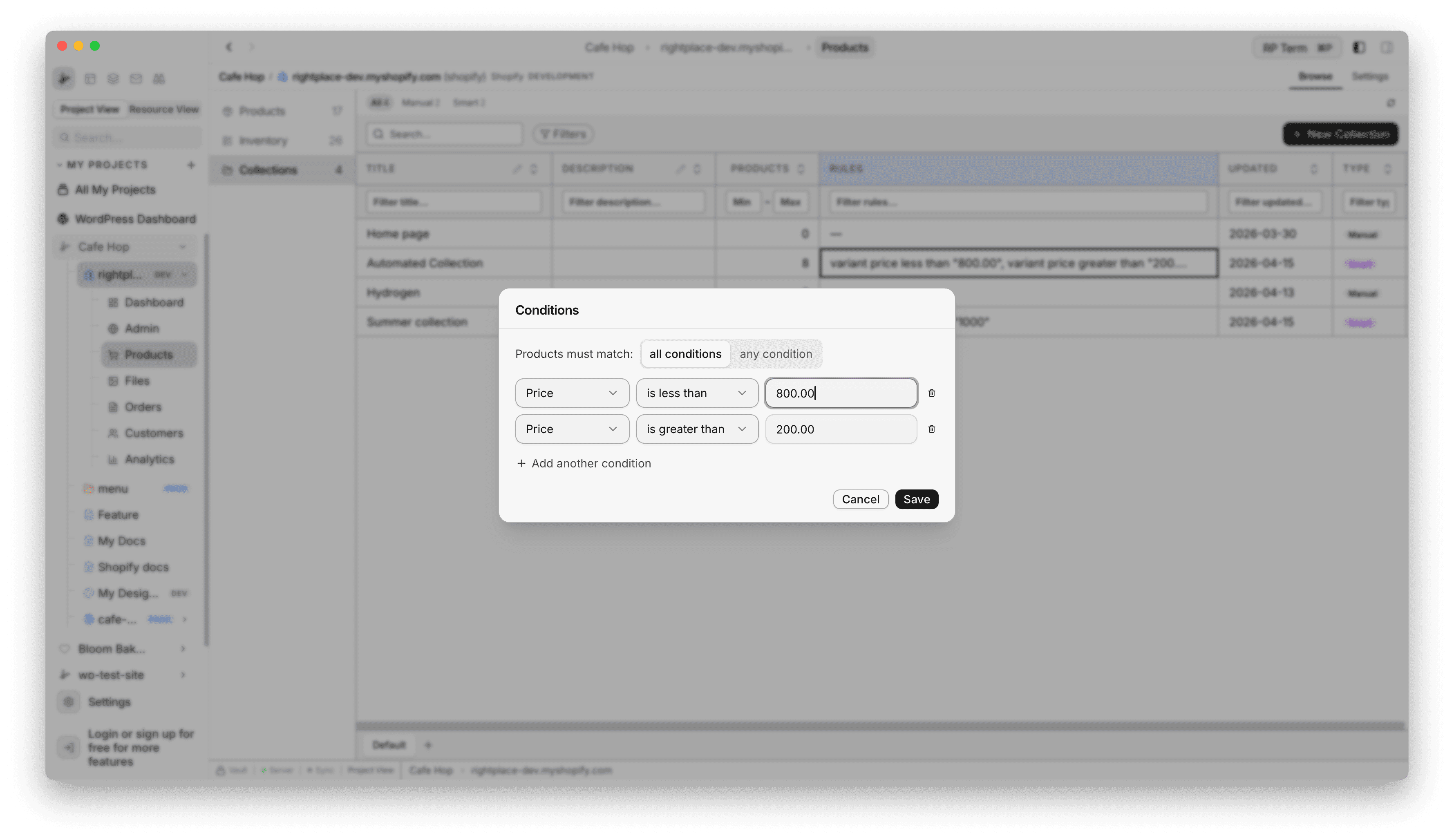
The Conditions modal controls automated membership.
Match mode
- Products must match either all conditions or any condition
Each rule row
- Attribute (examples below)
- Relation (examples below)
- Value
- Trash icon removes the row
- Add another condition adds a row
- Save writes rules to Shopify and refreshes
- Cancel closes without saving
Where to open it
- From the Rules cell in the table, or
- From the collection detail widget (next section)
Attributes (dropdown)
- Product tag, Product title, Product type, Product vendor
- Price, Compare at price, Weight, Inventory stock, Variant title
Relations (dropdown)
- is equal to, is not equal to, is greater than, is less than
- starts with, ends with, contains, does not contain
Collection detail widget
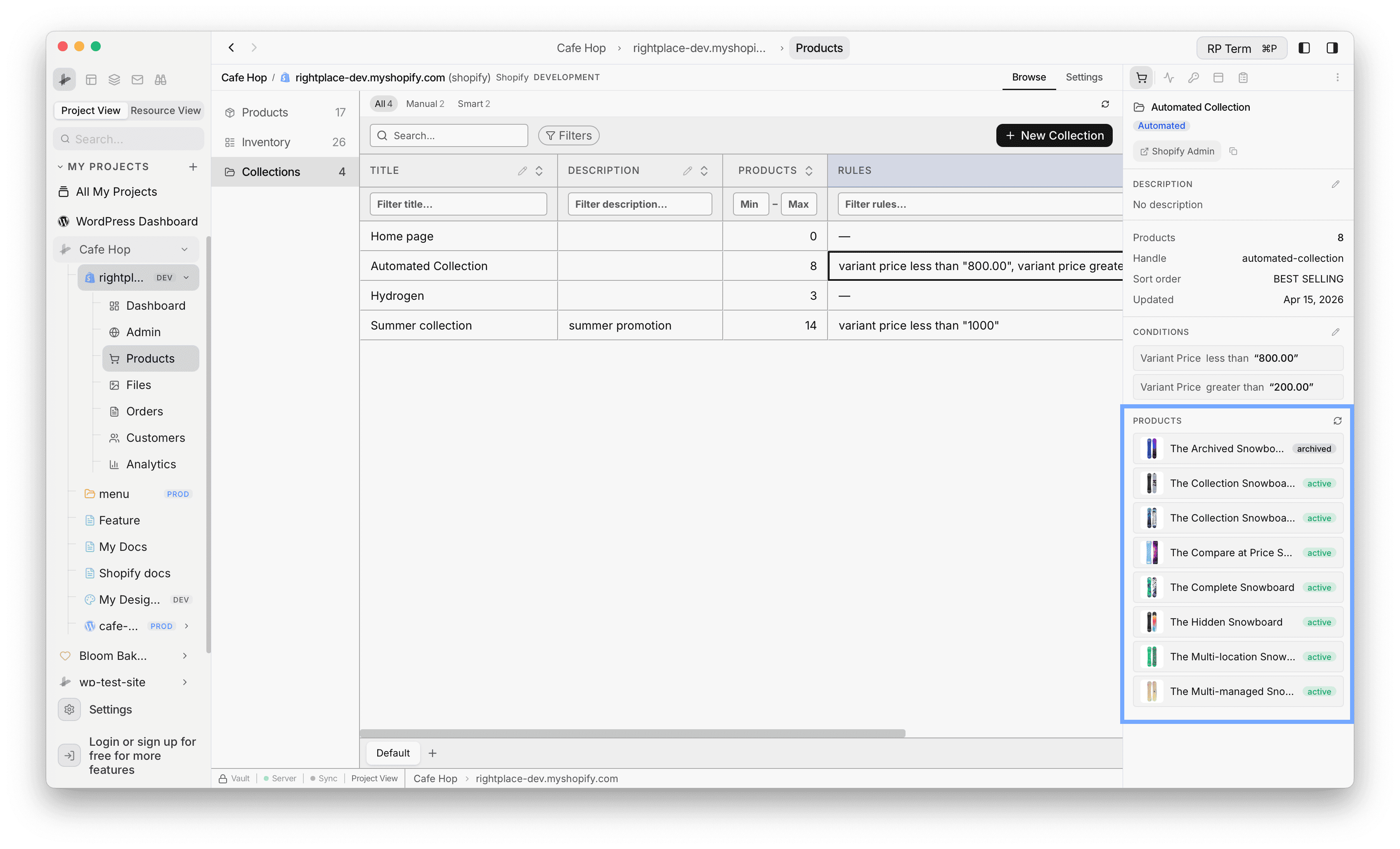
When a collection row is active in the grid, the Shopify widget on the right uses collection mode.
Header and links
- Click the title to edit inline
- Shopify Admin opens the collection in admin (URL is copyable)
Description
- Use the pencil control to edit
Summary
- Product count, Handle, Sort order, Updated
Conditions
- Lists each rule for automated collections
- Pencil or clicking a rule row opens the Conditions modal
- Manual collections show “Manual collection” here
Products list
- Built from the local products cache (products whose collection list includes this collection)
- Refresh icon next to Products syncs the products table, then reloads the list (useful after rule changes)
Labels
- Widget badge: Automated or Manual for rule-based vs manual
- Main grid still uses Smart / Manual on the type pill