Widgets
Contextual panels that display relevant tools and information based on your active tab
The Widget panel is a contextual sidebar on the right side of the app. It automatically adapts to show relevant tools and information based on what you’re currently working on. When you switch tabs, the widget panel updates to display panels specific to that tab’s content type. For example, opening a Posts table shows a post detail panel, while opening the Image Editor shows editing tools.
Widget Overview
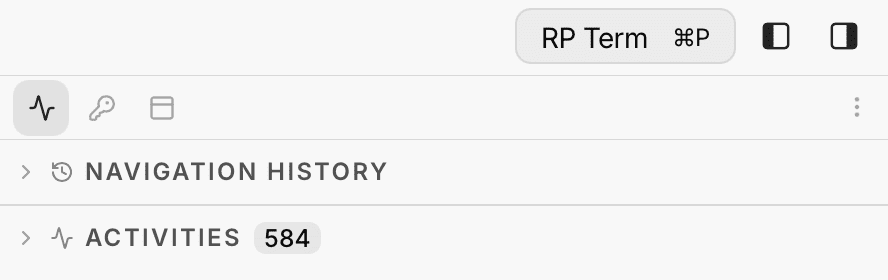
The widget panel sits on the right edge of the app layout. It contains a row of tab icons at the top and the active panel’s content below.
Widget Types
Widgets fall into two categories:
- Static widgets: always available regardless of the active tab. These include Activities, Clipboard & Notes, Encrypted Keys, and Tab Context.
- Contextual Widgets for Resources and Applets: appear only when the active tab matches a specific resource or applet. See each applet’s docs at /applets for its attached widgets.
Showing and Hiding Widgets
Right-click on the widget tab bar to toggle individual widgets on or off. At least one widget must remain visible.

Reordering Sections
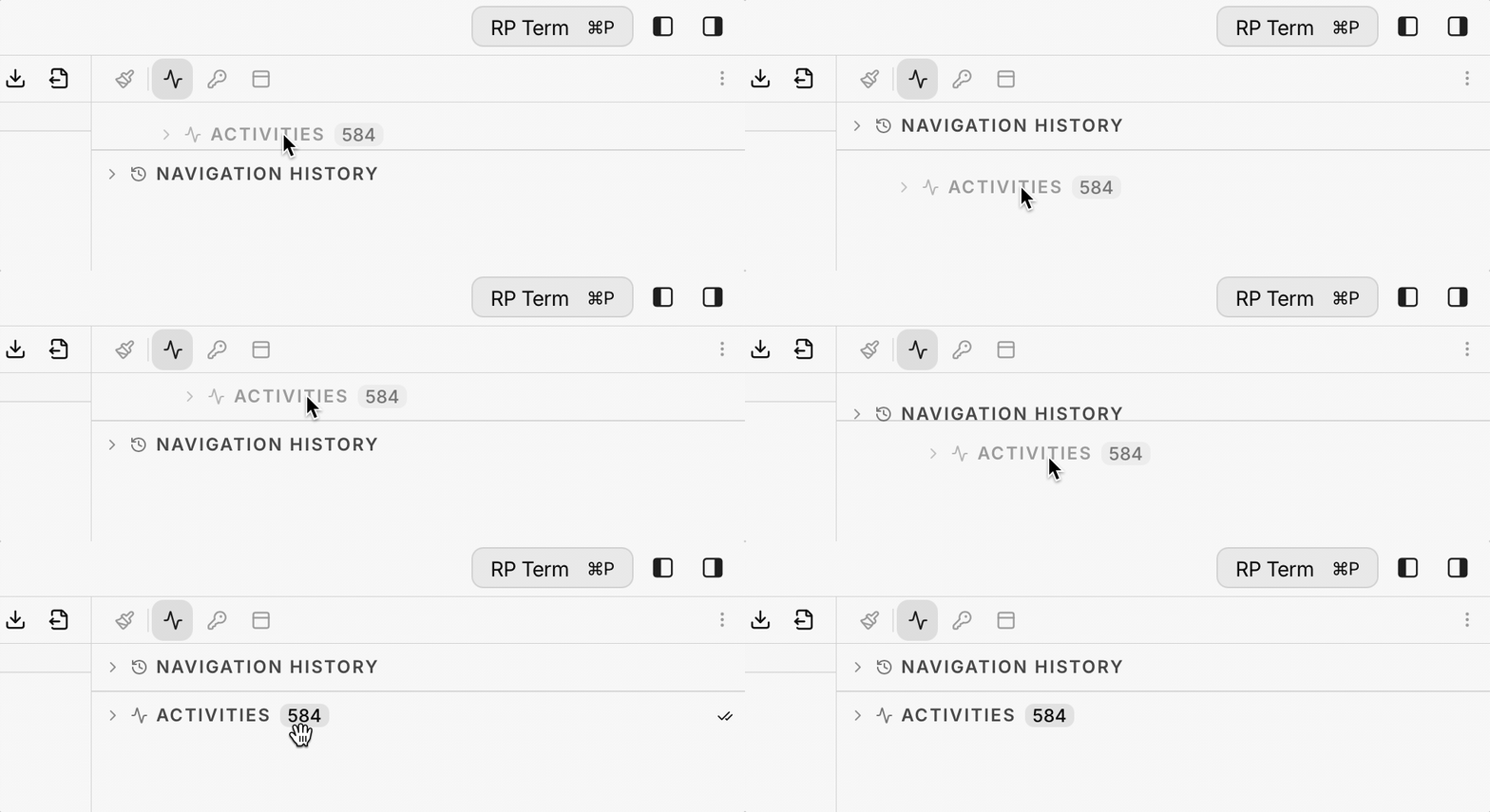
Within each panel, sections can be reordered by dragging their headers. Accordion-style sections can be collapsed or expanded by clicking the section header.
Static Widgets
Static widgets are always visible in the widget tab bar.
Activities
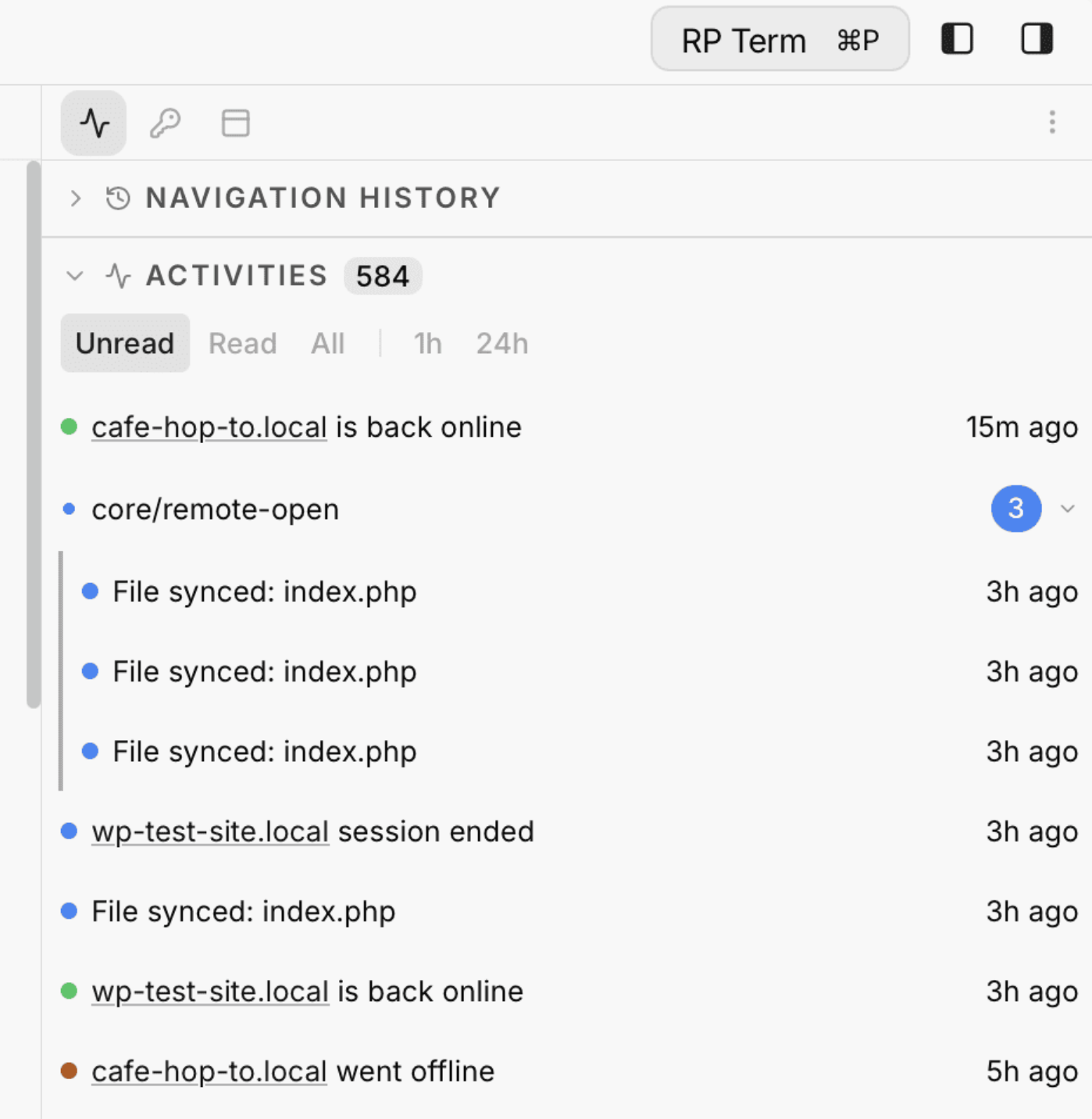
The Activities panel shows a real-time log of everything happening in your app.
Features:
- Activity stream: displays all user-facing operations (create, update, delete, sync, etc.) with status icons for completed, pending, and failed actions
- Time range filter: filter activities by time (1 hour, 24 hours, 7 days, or all)
- Read/unread indicators: new activities appear as unread
- Progress bars: ongoing operations show a live progress bar
- Nested activities: parent-child relationships are expandable to show sub-operations
- Navigation history: shows recently visited pages with visit count and last-visited time, so you can quickly jump back to previous locations
Clipboard & Notes
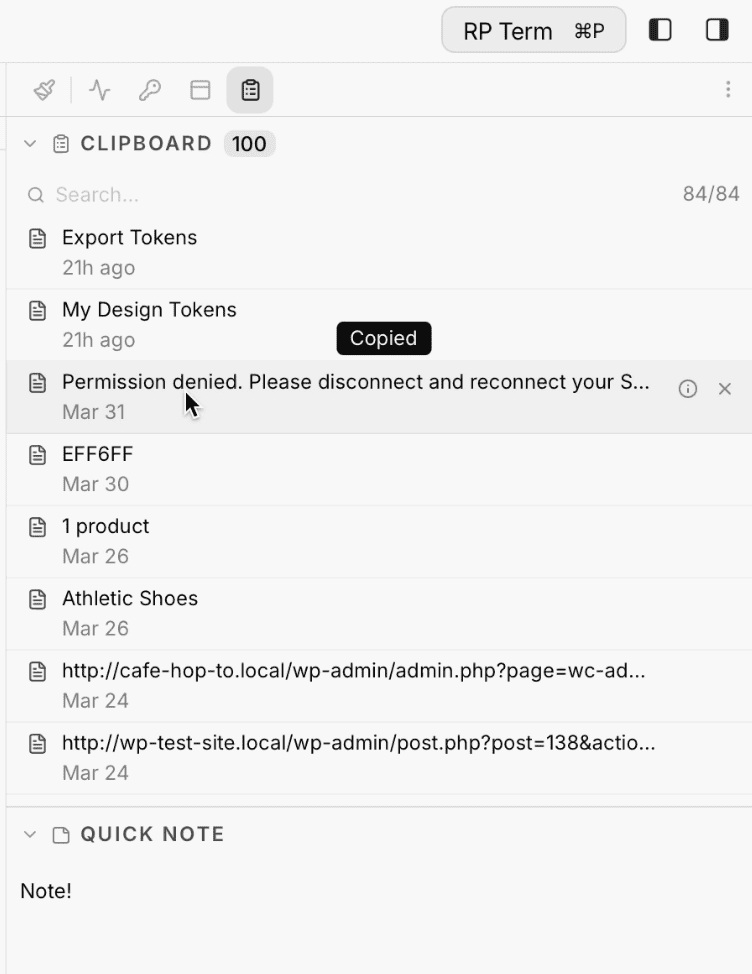
The Clipboard & Notes panel has two collapsible sections for managing copied items and quick memos.
Clipboard History
- Automatically records items you copy while working (text, file paths, images)
- Each entry shows the item type icon, a preview, timestamp, and source (project and resource)
- Fuzzy search: filter clipboard entries by typing in the search box
- Click the copy button to re-copy an item to the system clipboard
- Click the delete button to remove an item from history
Quick Notes
- Create short sticky notes for reminders
- Set an expiration duration: never, 1 hour, 1 day, or 1 week
- Expired notes are cleaned up automatically
- Delete notes manually with the delete button
Encrypted Keys
The Encrypted Keys panel provides secure credential management. Keys are stored with end-to-end encryption.
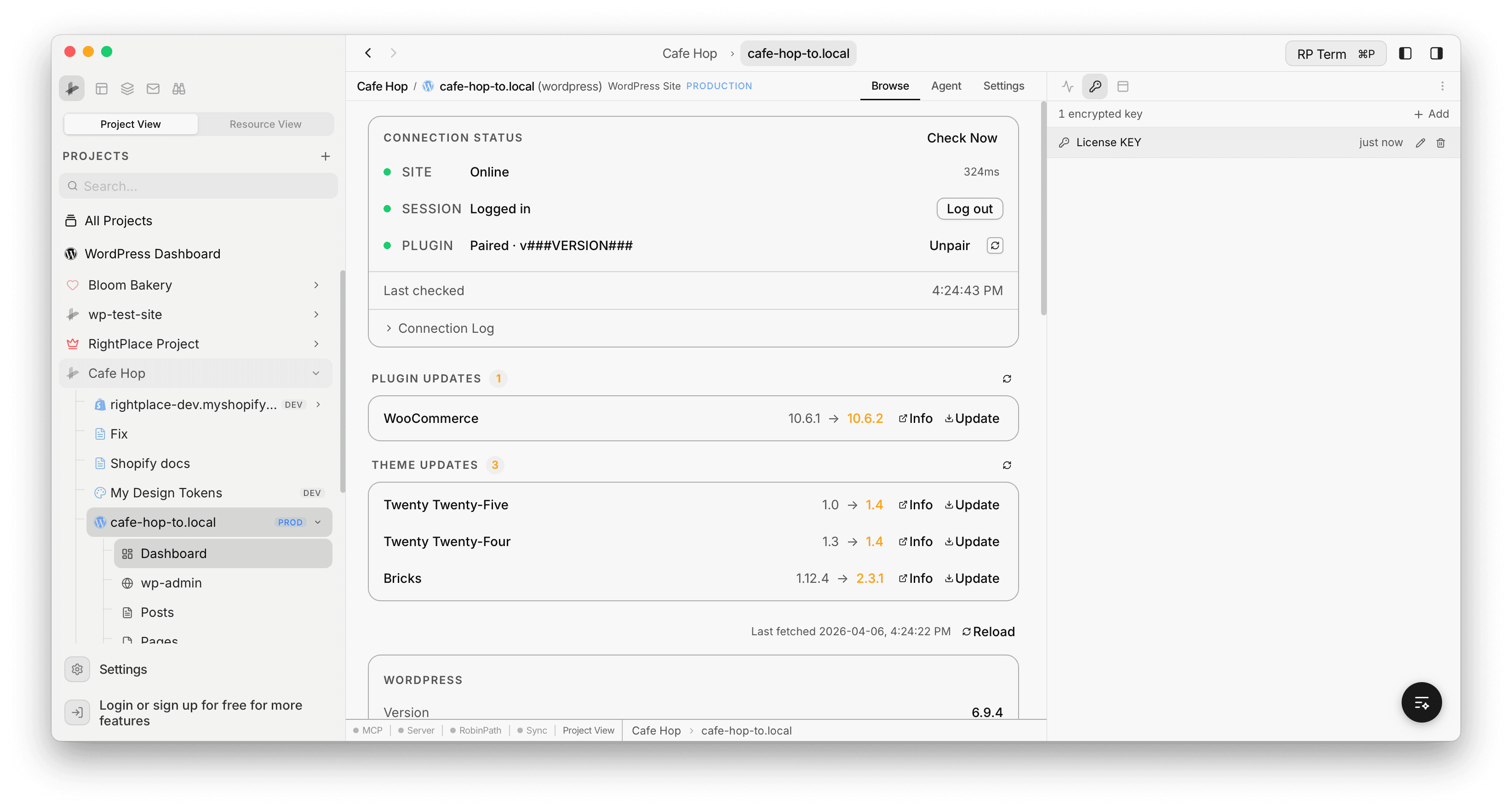
Features:
- Lists all stored credentials with name and last-updated timestamp
- Add: click + Add to open the Add Encrypted Key modal with fields for Name, Type (e.g. API Key, License Key, Token), Description (optional), and Value (masked input with show/hide toggle)
- Edit: modify existing credentials
- Delete: remove a credential with a confirmation dialog
- Displays total key count at the top of the panel
Tab Context
The Tab Context panel shows metadata about the current resource and provides a markdown editor for notes.

Features:
- Displays the active resource’s type, provider, and environment
- Editable markdown notes: write context documentation per resource that persists
- Generate template: auto-generate a starter template for new resources
Next steps
- Image Editor: Full-featured image editing tools
- Global Search: Search across all projects from one place
- Stages: Plan and track work with tasks and a visual canvas