WordPress Site
Full WordPress management from the desktop. Manage content, media, files, plugins, themes, and users.
Features
- Dashboard
- wp-admin
- Posts
- Pages
- Media
- Files
- WooCommerce
- Plugins
- Themes
- Users
- Assets
- Logs
The WordPress resource gives you full control over your connected WordPress sites without leaving the app. Browse the admin dashboard, manage content, handle files, and keep everything in sync.
Features
- Dashboard: Browse your WP admin dashboard in an embedded browser
- wp-admin: Full WordPress admin panel access
- Posts: Create, edit, filter, and bulk-manage posts
- Pages: Manage WordPress pages
- Media: Upload, download, and organize media files
- Files: Browse the WordPress filesystem
- WooCommerce: Products, categories, orders, customers, import and export, and the detail widget
- Plugins: Activate, deactivate, update, and delete plugins
- Themes: Switch, update, and manage themes
- Users: Create and manage users and roles
- Assets: Sync, version, and move WordPress settings between sites (post types, ACF, menus, WooCommerce, SEO, and more)
- Logs: View and search log files
Getting started
- Connect a WordPress site to your project
- Open the WordPress resource from the sidebar
- Pick a feature from the sidebar (for example Dashboard, Posts, or WooCommerce when the store plugin is active)
Browser, login, and sessions
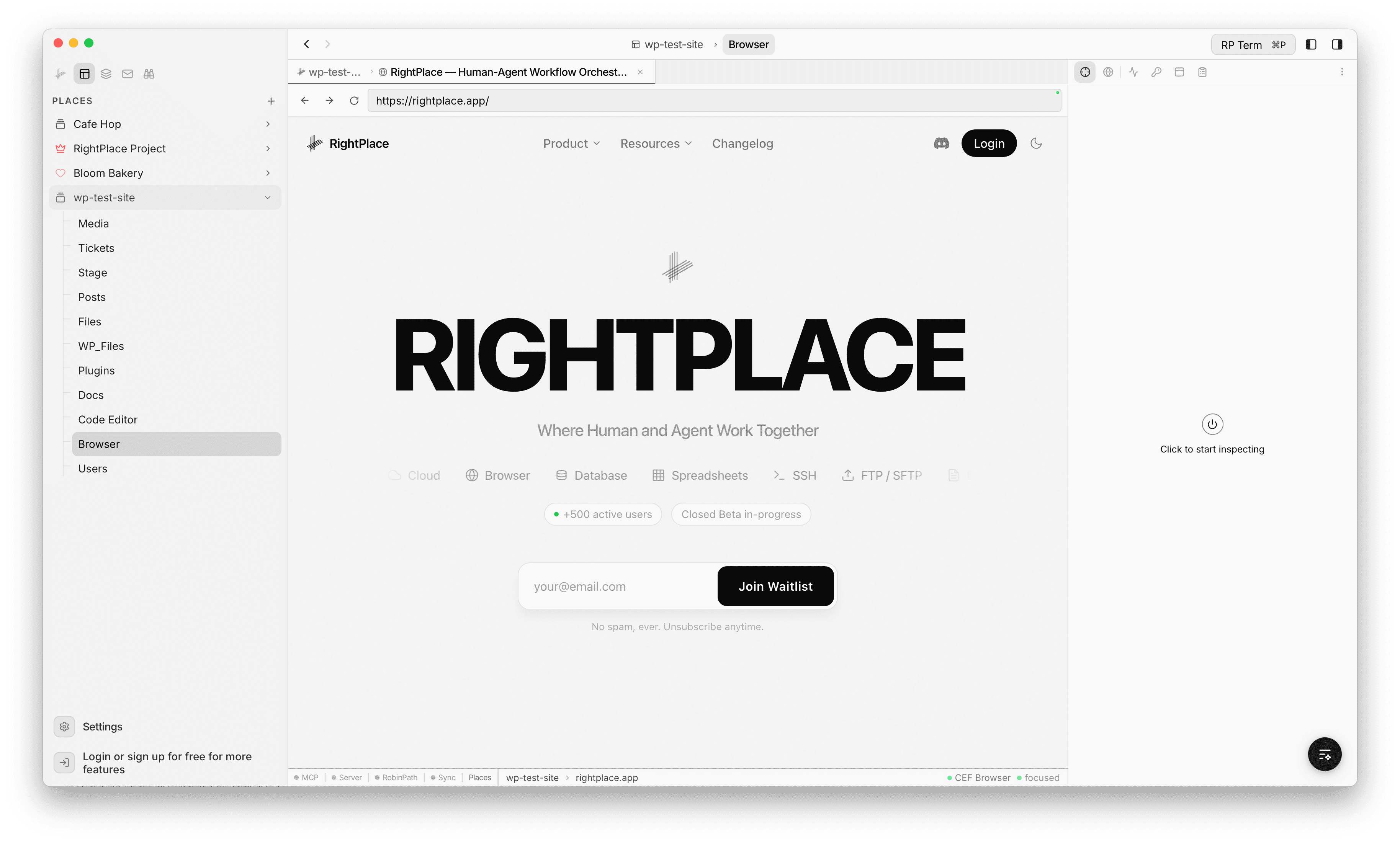
WordPress work runs in the in-app browser: the Place Browser tab, the connection flow in Connecting a WordPress site, and embedded views such as wp-admin.
When the browser detects a WordPress login form, it can:
- Autofill bar: appears when a login form is detected, showing matching credentials from your vault
- Credential capture: after you submit a login form, the browser offers to save the password
- Session persistence: cookies persist across app restarts, so you stay logged in between sessions
- wp-admin paths: navigate directly to
/wp-adminand other admin URLs on connected sites
General browser controls (address bar, history, downloads, inspector) are described in Browser.
Widgets
Browser Widget
When a Place Browser tab is focused on a connected WordPress site, the Browser widget appears in the right sidebar showing connection health.
- Connection status indicators with colored dots:
- Site: online status with response time and WordPress version (green = online, red = offline)
- Session: login state, logged in or logged out (green = logged in, amber = logged out)
- Plugin: RightPlace plugin installation and pairing status (green = paired, gray = not installed)
- Hostname display
- Last checked timestamp
- Debug section for troubleshooting connection issues
The same connection layers appear on the Dashboard inside the WordPress resource.
WooCommerce widget
When you work in WooCommerce tables, the right-hand detail panel follows the selected row. See WooCommerce for product, order, and customer modes and screenshots.
Agent tools
Every action this applet exposes as a typed, permissioned tool that agents can discover and run over MCP, the same actions your team uses in the UI.