Spreadsheets
Create and edit spreadsheets with formulas, formatting, and multi-sheet support.
Features
- Multi-sheet spreadsheet editor
- Cell formatting and formulas
- Import and export
The Spreadsheets applet lets you work with tabular data directly inside RightPlace. You can create native spreadsheets with full formatting or work with CSV files.
Supported Formats
- Spreadsheet: database-backed with full features including cell styles and undo/redo
- CSV File: lighter format backed by CSV files on disk. You can import existing CSV files or create blank ones.
Adding a Spreadsheet
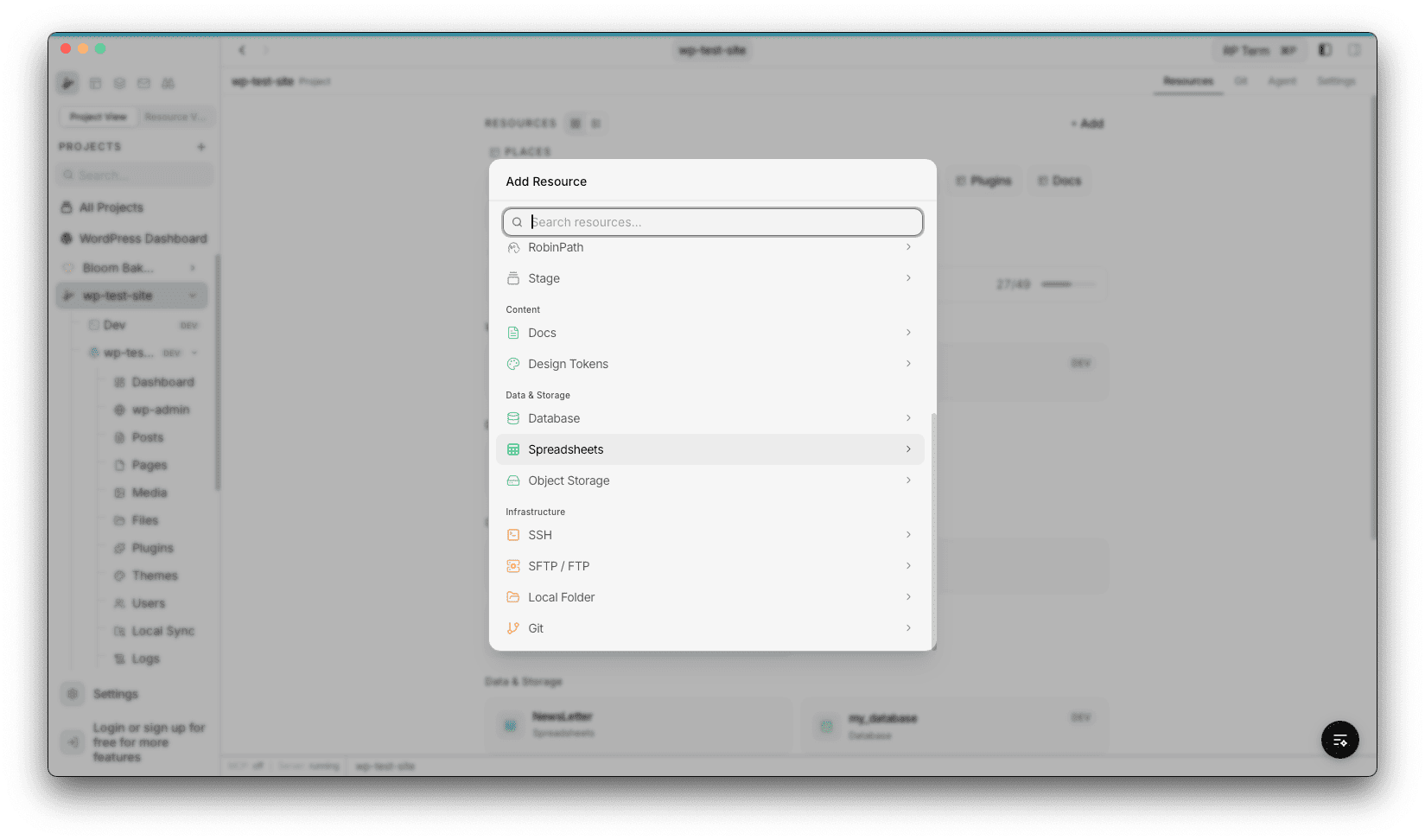
To add a spreadsheet to your project, open the Add Applet dialog and select Spreadsheets under the Data & Storage category.
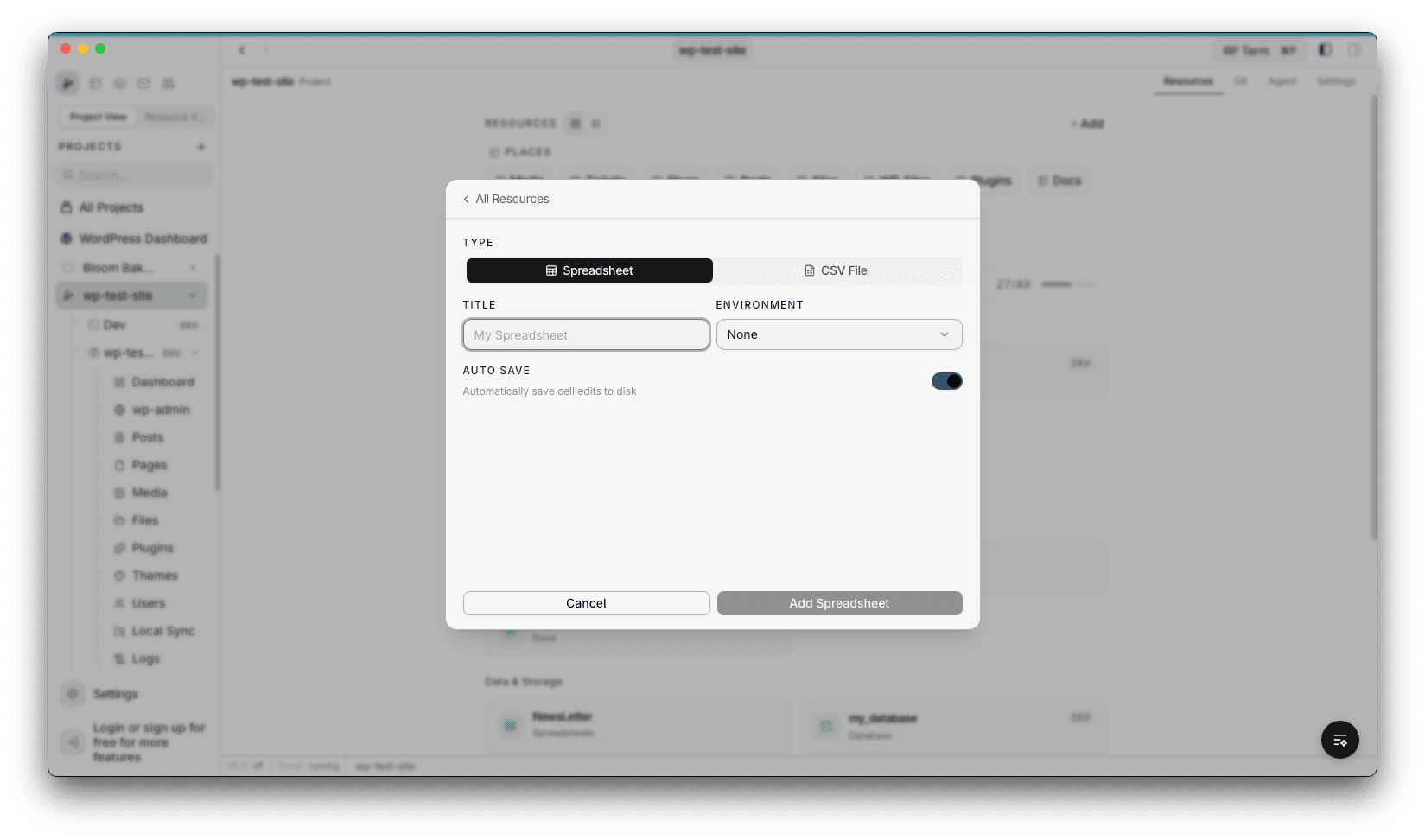
The creation form lets you configure:
- Type: choose between Spreadsheet (full features) or CSV File
- Title: display name for the applet
- Environment: optional tag (Development, Staging, Production)
- Auto Save: when enabled (default), every cell edit saves immediately to disk. When disabled, edits are buffered and you save manually with Cmd+S.
For CSV format, you can either create a blank sheet or import existing CSV files from disk. Each imported file becomes a separate sheet.
Grid Overview
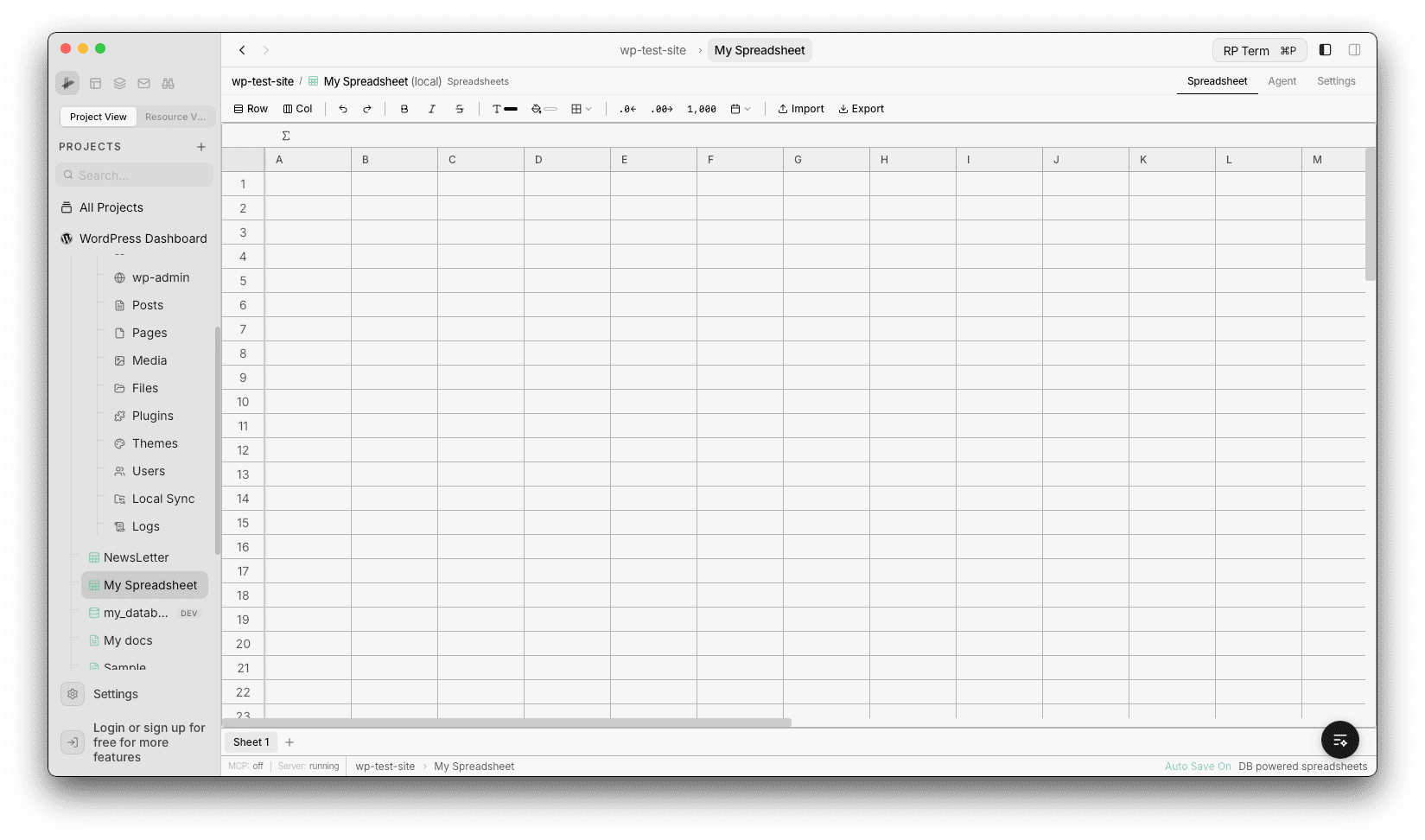
The spreadsheet opens with a grid using Excel-style column naming (A, B, C, … Z, AA, AB, etc.) with numbered rows. The toolbar at the top provides row/column management, formatting controls, and import/export buttons. Sheet tabs and the status bar are at the bottom.
Cell Editing
Click any cell to start editing. The formula bar below the toolbar shows the current cell reference and value.
- Edit cells by clicking and typing
- Paste data from other apps or spreadsheets with formatting preserved
- Clear cells with Delete/Backspace
- Resize columns by dragging the column header borders
Context Menu
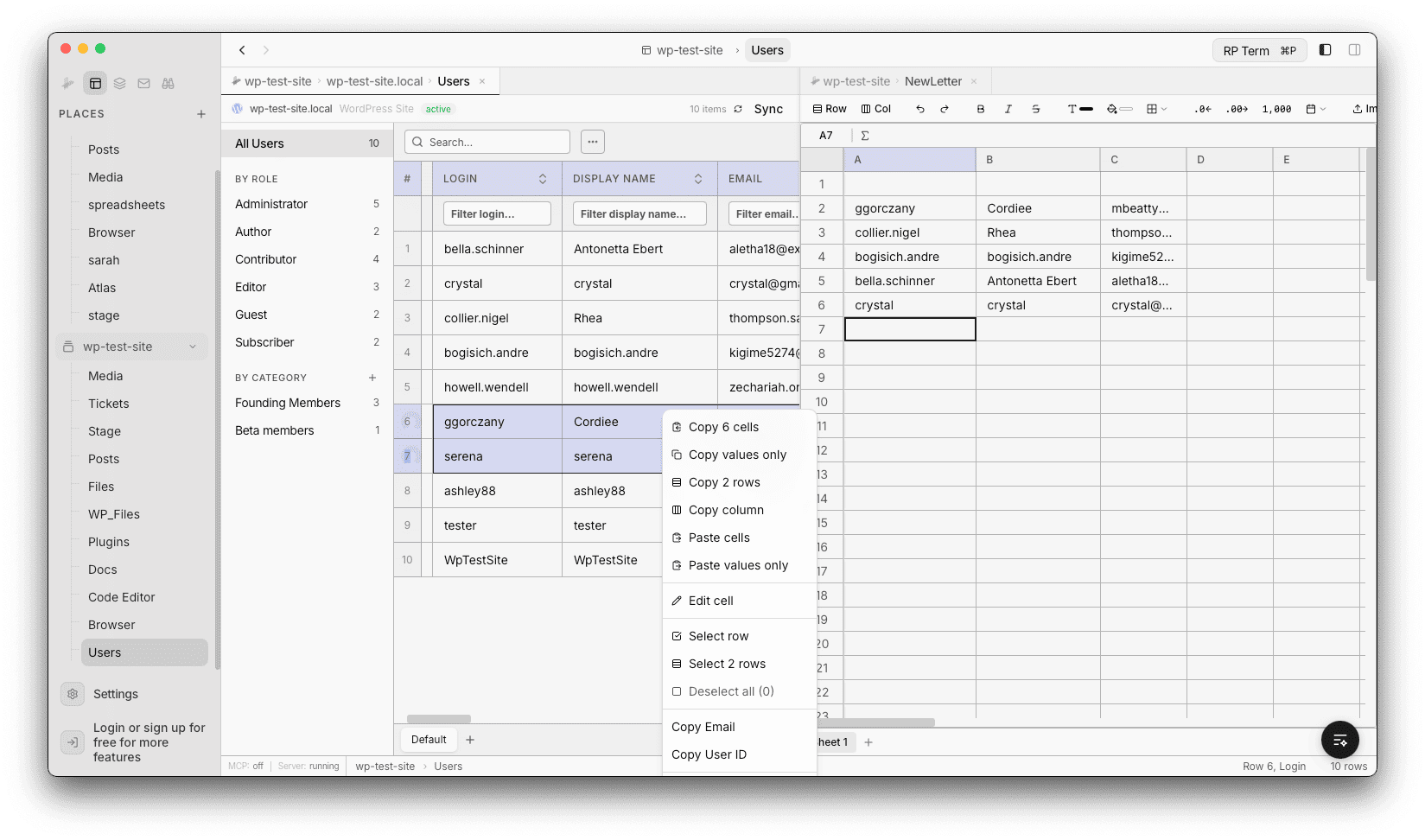
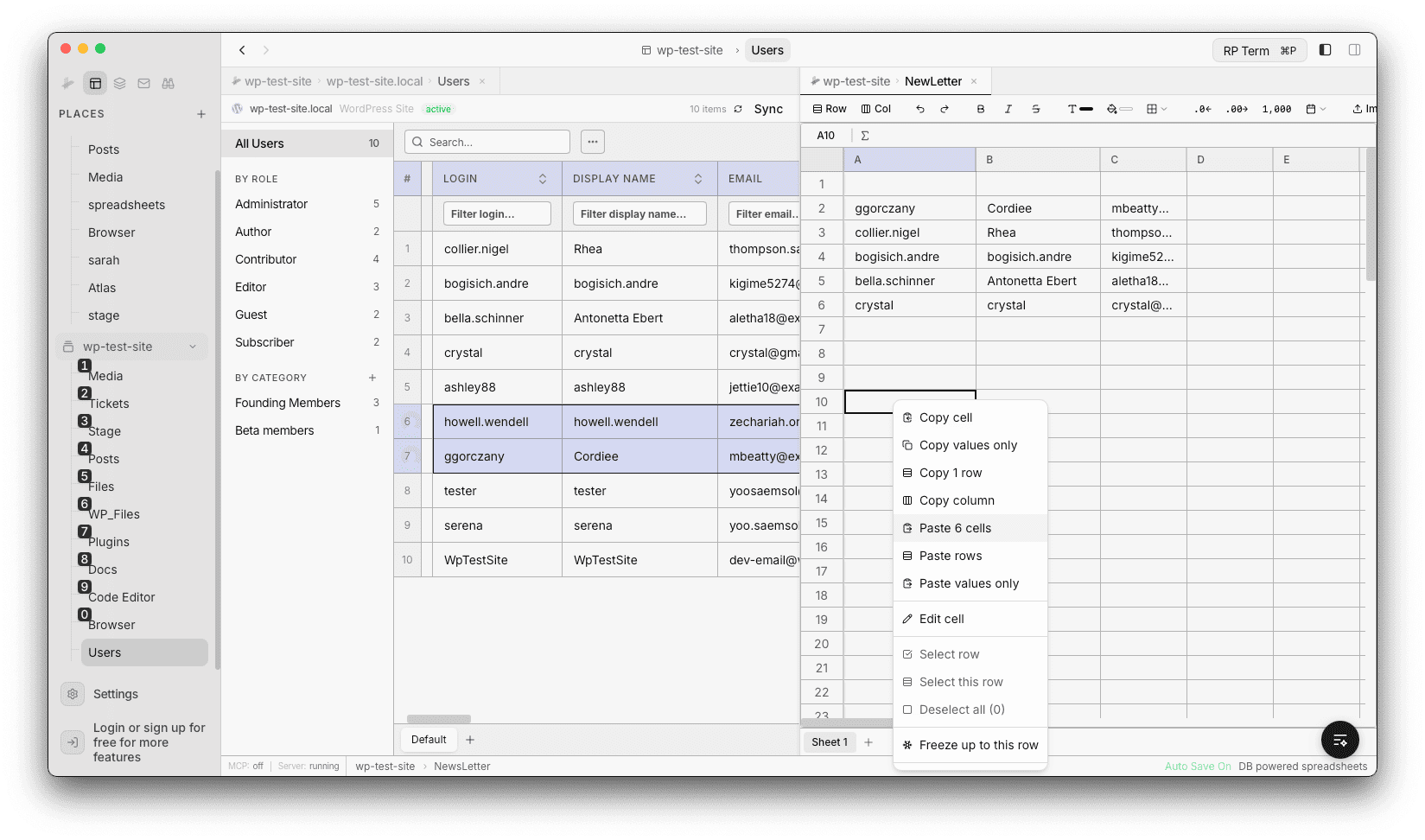
Right-click any cell to open the context menu with options for working with cells, rows, and columns.
Available actions:
- Copy cells: copy selected cells to clipboard
- Copy values only: copy without formatting
- Copy rows: copy entire rows
- Copy column: copy an entire column
- Paste cells: paste with styles
- Paste rows: paste as full rows
- Paste values only: paste without formatting
- Edit cell: enter edit mode for the current cell
- Select row / Select this row: select one or more rows
- Deselect all: clear the current selection
- Freeze up to this row: freeze rows above the selected row so they stay visible while scrolling
Formatting
The toolbar provides formatting controls for native spreadsheets:
Text Styles
- Bold (Cmd+B), Italic (Cmd+I), Strikethrough
- Text color: 60-color palette picker
- Background color: 60-color palette picker
Borders
- Presets: all borders, outer only, inner only, or clear all
- Individual sides: top, bottom, left, right
- Border styles: solid, dashed, dotted
- Border widths: thin, medium, thick
- Border color: full palette picker
Number Formatting
- Increase or decrease decimal places
- Toggle thousands separator
Date Formatting
- 8 preset formats including
YYYY-MM-DD,MM/DD/YYYY,DD/MM/YYYY,MMM D, YYYY, and datetime variants - Auto-detection of date values for display
Multiple Sheets
Each spreadsheet applet supports multiple sheets:
- Sheet tabs appear at the bottom of the grid
- Click a tab to switch sheets
- Double-click a tab to rename it
- Hover over a tab to reveal the delete button (at least one sheet must remain)
- Click the + button to add a new sheet
- For CSV format, the dropdown offers “Add Blank” or “Import File” options
Adding Rows and Columns
Use the toolbar buttons to add rows or columns:
- Row: appends a single row at the bottom
- Col: appends a single column to the right
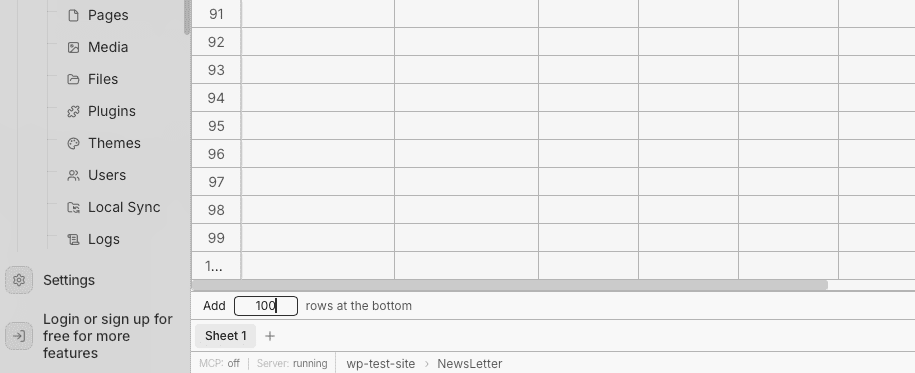
- Bulk Add Rows: when scrolled to the bottom, an Add Rows bar appears where you can type a number and add up to 10,000 rows at once
Undo and Redo
Native spreadsheets support full undo/redo:
- Undo: Cmd+Z
- Redo: Cmd+Shift+Z
This covers cell edits, formatting changes, and more.
Import and Export
- Import: load data from a CSV file into the current sheet
- Export: save the current sheet as a CSV file to disk
Auto Save
You can toggle auto save from the Settings tab on the spreadsheet applet. The same page also shows the applet name, environment, and a danger zone for deleting the applet.
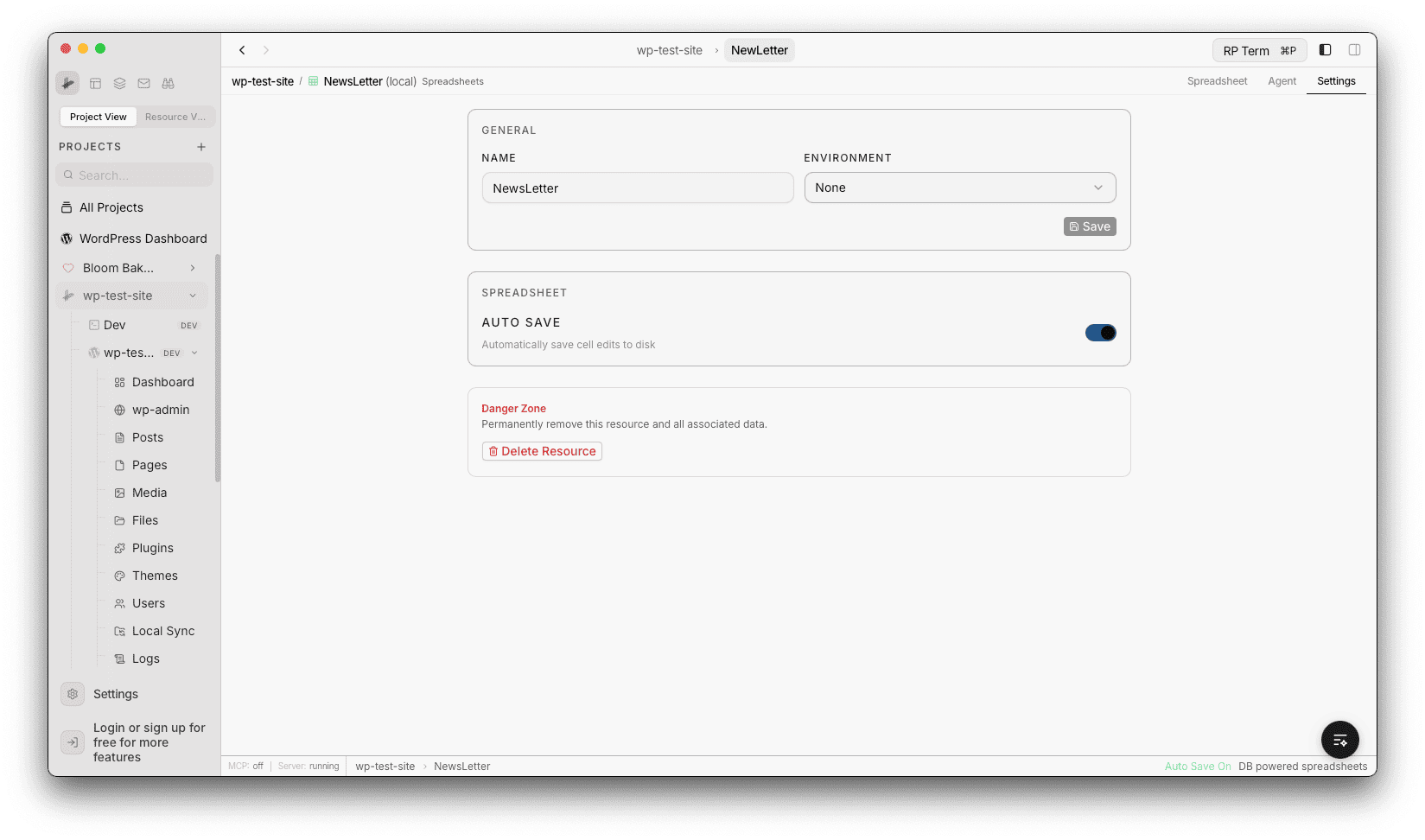
When auto save is enabled (the default), every edit is written to disk immediately. The status bar at the bottom shows the current save state.
When auto save is disabled, changes are buffered locally. A Save button appears in the toolbar, and you can revert unsaved changes with the Revert button. Use Cmd+S to save manually.
Status Bar
The bottom of the spreadsheet shows:
- Applet name
- Auto save status (on or off)
- Applet type (CSV or DB powered spreadsheets)
- Grid dimensions (columns x rows)
- Save status
Agent tools
Every action this applet exposes as a typed, permissioned tool that agents can discover and run over MCP, the same actions your team uses in the UI.