Docs
Markdown document editor with file tree navigation and live preview.
Features
- Markdown file browser with tree sidebar
- Document editor with live preview
- Hierarchical folder organization
- Drag-and-drop and paste image support
- Auto-save with dirty state tracking
- Find and replace
- Table editing with context menu
- Multi-tab side-by-side editing
- Full-text search across documents
The Docs applet is a built-in markdown documentation editor. You can create, organize, and edit .md files directly inside your project without needing an external tool.
Write it down, right where you work
Notes end up scattered across apps. Meeting notes in one tool, project docs in another, reference material in a third. By the time you need something, you cannot find it.
The Docs applet keeps your writing inside the project, right next to everything else you are working on.
- One tab away. Your notes sit next to the tasks, files, and tools they relate to. No app switching.
- Real editor. Headings, lists, tables, images, and task checkboxes. Not a plain text box.
- Drop images in. Drag or paste screenshots. They save automatically and display inline.
- Organized by folders. Build a file tree that matches how you think: guides in one folder, notes in another, references in a third.
- Search everything. Full-text search across every document, with results linking straight to the match.
- Agent-ready. AI agents in your project can read and write docs programmatically, keeping documentation up to date as work evolves.
Adding a Docs Applet
To add a docs applet, open the Add Applet dialog and select Docs under the Content category.
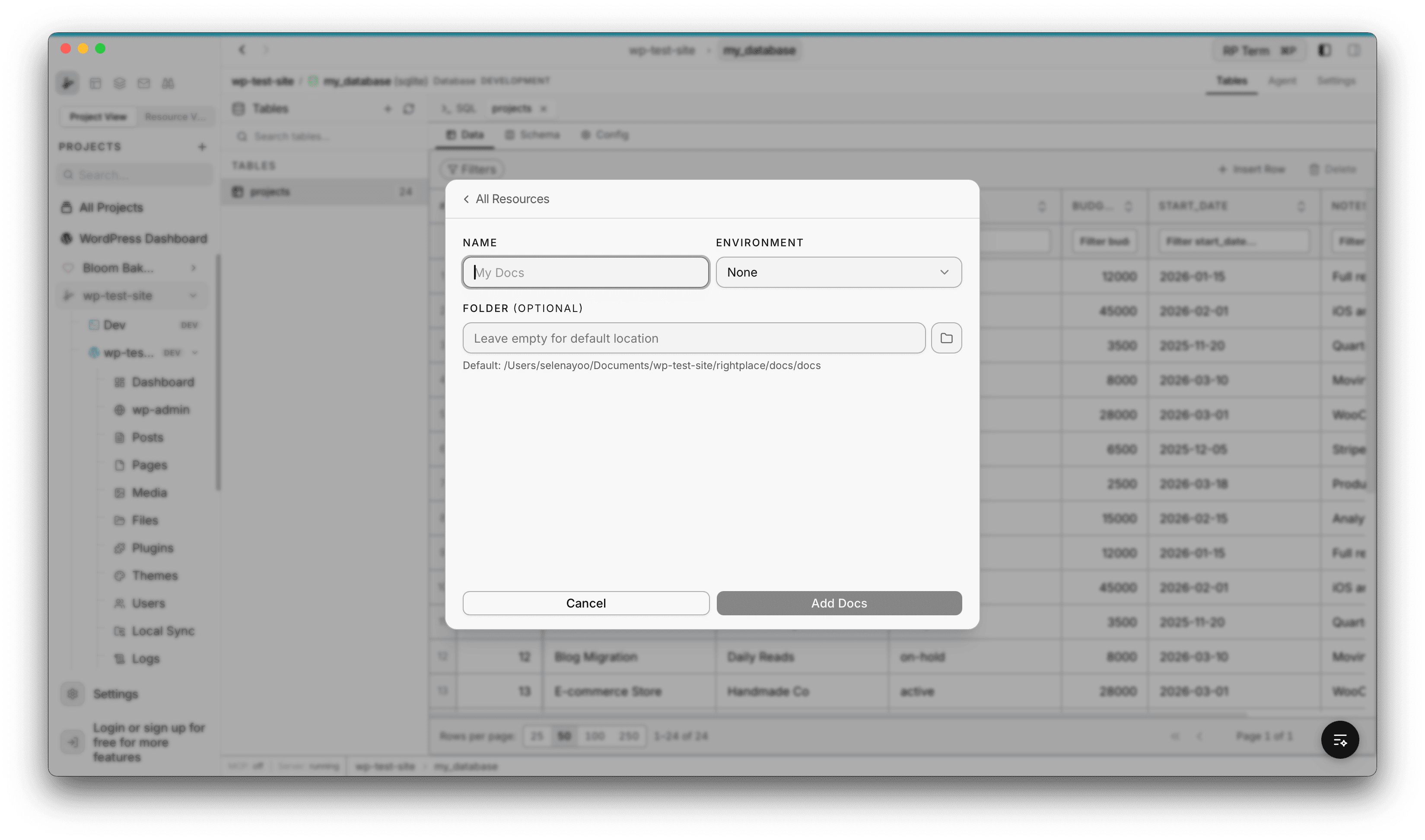
The creation form has three fields:
- Name: display name for the docs applet
- Environment: optional environment tag (Development, Staging, Production)
- Folder Path: where the files are stored on disk. Defaults to
rightplace/docs/{name}/inside your project folder.
When you create the applet, it initializes with a HOME.md file and a media/ folder for images.
Editor
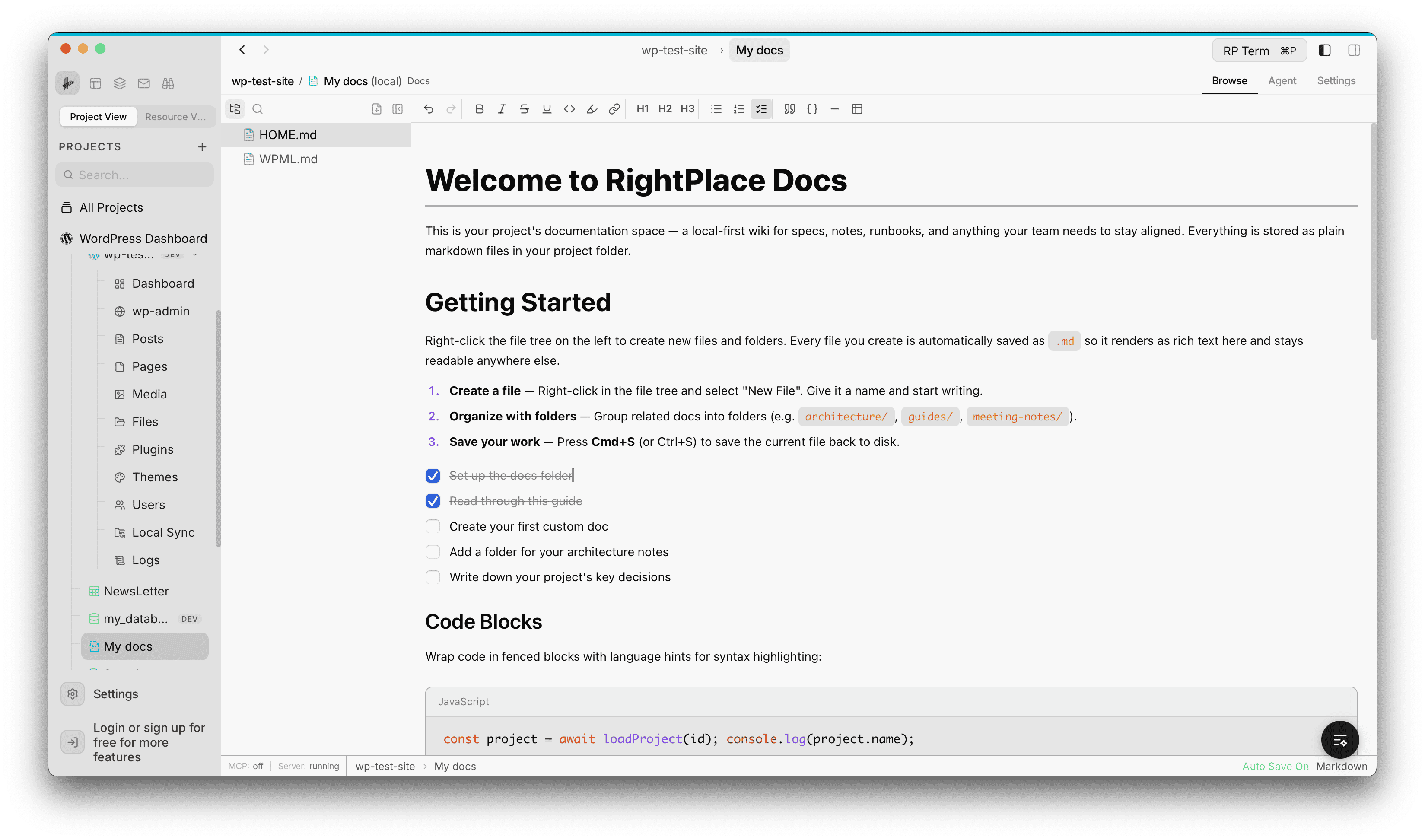
The editor uses TipTap (ProseMirror-based) and supports the following formatting options from the toolbar:
- Undo / Redo
- Inline formatting: Bold, Italic, Strikethrough, Underline, Inline Code, Highlight
- Links: insert and remove hyperlinks
- Headings: H1, H2, H3
- Lists: Bullet, Numbered, Task (checkboxes)
- Blocks: Blockquote, Code Block (with syntax highlighting), Horizontal Rule
- Tables: insert a table, then right-click to add or delete rows and columns
- Images: insert via toolbar button, drag-and-drop, or paste from clipboard
- Find / Replace: search within the current document with case sensitivity toggle
Changes auto-save after a short delay (1 second). A dirty state indicator shows when there are unsaved changes.
File Navigator
The left sidebar shows the file tree for your docs folder. You can:
- Create new files and folders inline (files get
.mdextension automatically) - Rename or delete files and folders
- Copy and paste files
- Drag files out to Finder or other apps
- Expand and collapse folders (state is remembered across sessions)
- Resize the navigator panel by dragging the divider
Right-click any file or folder to access a context menu with all file operations.
Images
You can add images to your documents in three ways:
- Drag and drop an image file from your desktop or Finder into the editor
- Paste an image from your clipboard
- Toolbar button to open a file picker
Images are automatically saved to the media/ folder inside your docs directory with a timestamped filename. The editor resolves image paths so they display correctly in the app.
Multi-Tab Editing
You can open multiple documents in separate tabs for side-by-side work. Each tab maintains its own scroll position, cursor selection, and file state. A file content cache keeps switching between tabs fast.
Search
Docs integrates with the app’s Global Search. All .md files in your docs folder are indexed, and search results link directly to the matching file and location. You can also use the editor’s built-in Find/Replace (Cmd+F) for searching within the current document.
File Structure
Docs files are stored on disk in your project folder:
your-project/
  rightplace/
    docs/
      my-docs/
        HOME.md
        media/
          img-1234567890.png
        getting-started.md
        guides/
          setup.md
        .rightplacedoc
The .rightplacedoc marker file identifies the folder as a docs applet. The media/ folder holds all images.
Widget
Appears when a Docs tab is active.
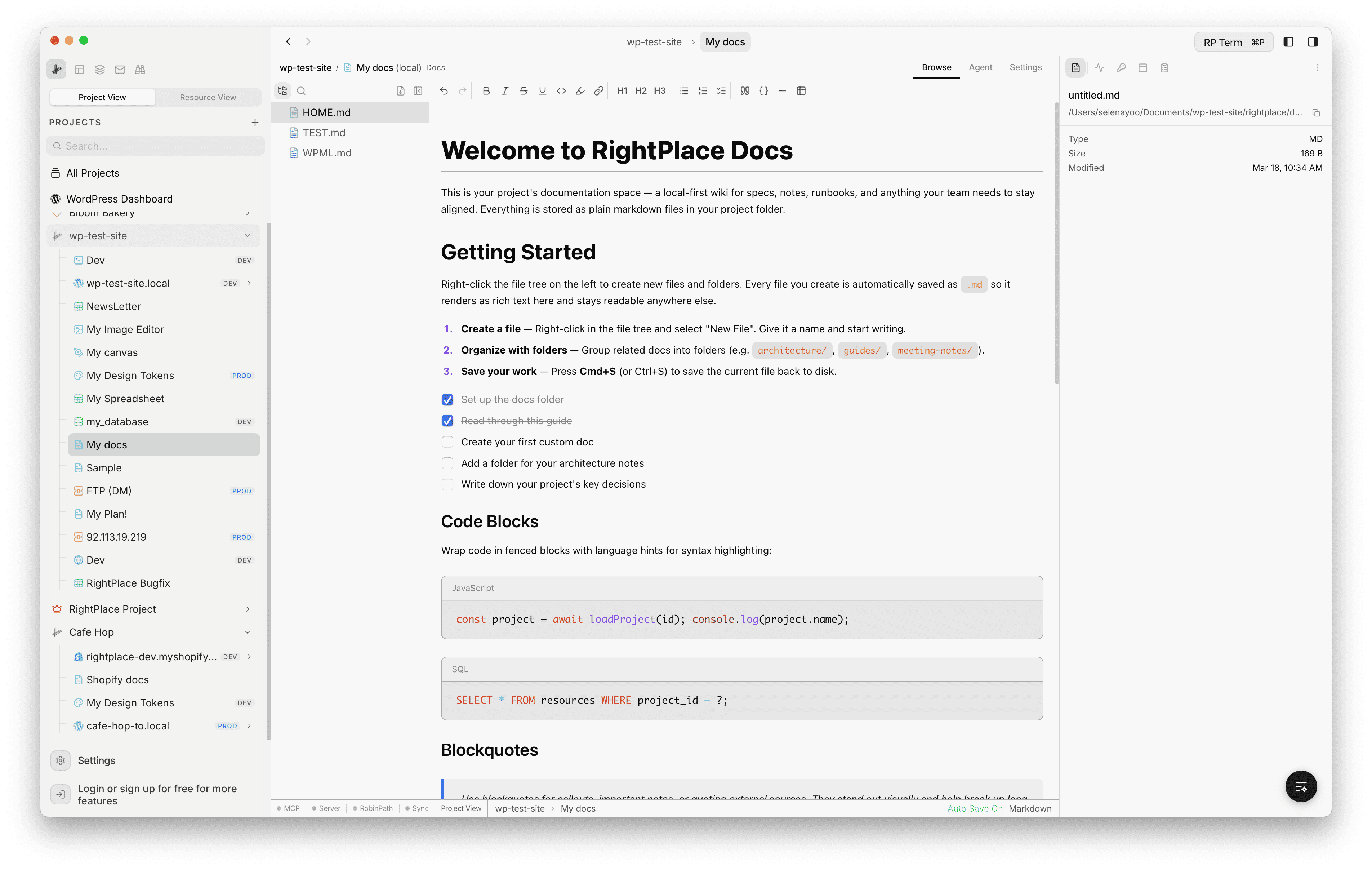
Detail fields:
- Filename and parent directory
- Copy path button
- File size, extension, and modified date
Agent tools
Every action this applet exposes as a typed, permissioned tool that agents can discover and run over MCP, the same actions your team uses in the UI.