WordPress Global Dashboard
Cross-project WordPress overview. Monitor all paired sites at a glance - health, activity, updates.
Features
- Aggregate view across every paired WordPress site
- Health and connection status per site
- Bulk plugin and theme management with updates
- Detailed system info for WordPress, PHP, and server
- Site pairing with one-click setup
- Open WP Admin, homepage, or system browser from each site row
The WordPress Global Dashboard is a single surface for monitoring and managing every WordPress site you have paired across all projects. Instead of opening each site individually, you can triage updates, check connection health, manage plugins and themes, and view system information from one place.
This is a utility applet, not a saved applet. It aggregates data from all WordPress Site applets in your projects.
Opening the Dashboard
- Projects sidebar: click WordPress Dashboard (under MY PROJECTS)
- New tab home: in the Tools row, click WP Dashboard (the tab title is still WordPress Global Dashboard)
The dashboard remembers your last active tab (Sites, Plugins, Themes, Updates, or Info) between sessions.
Sites Tab
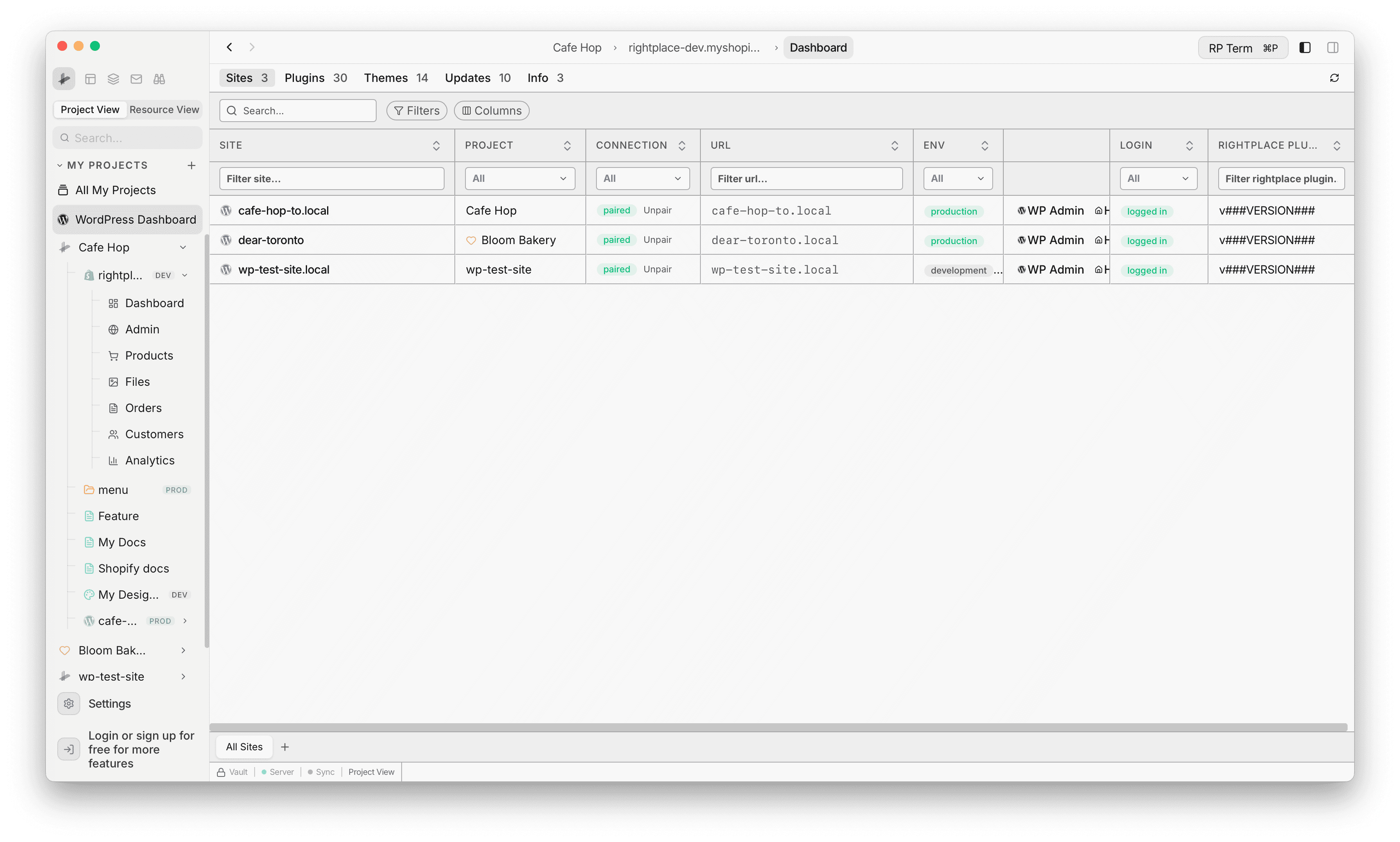
The Sites tab lists one row per WordPress Site resource across all projects. Typical columns include:
- Site (name and favicon, click to open that site’s WordPress Site resource)
- Project (click to open the project)
- RightPlace Plugin (installed version, plus an update control when the CDN has a newer build and the site supports self-update)
- Connection (status pill plus inline Pair, Unpair, or Set up when relevant)
- Login (
logged inornot logged in) - URL (host without the
https://prefix in the cell) - Env (
production,staging, ordevelopment)
Connection status
After each site is checked, Connection shows one of:
- paired
- offline
- not paired
- plugin missing
While status is still loading you may see an em dash until the first result arrives.
Row actions (actions column)
- WP Admin: opens the in-app wp-admin route for that site
- Homepage: opens an in-app browser tab seeded with the site’s front URL
- Browser: opens the site URL in your system default browser
Pair / Unpair / Set up live in the Connection column, not in the trailing actions column. Set up opens that site’s Settings tab when the plugin is missing.
Pairing a Site
- Click Pair on a
not pairedsite row (Connection column) - The app starts pairing, opens the pairing URL, and shows WpLoginDrawer on the side
- The UI polls pairing status about once per second
- When the slot is approved or complete, the app runs
cmd_pairing_completeand the row updates to paired
Click Unpair on a paired site to clear stored pairing fields on the resource (same idea as unpairing elsewhere).
RightPlace Plugin Updates
The app loads the latest plugin version from the CDN (update.json) and compares it to each site’s reported version. When an update is available and the installed version is at least 1.0.0-RC5 (older builds cannot self-update), an amber control appears next to the version. Click it to run the update, then connection info refreshes. Dev placeholder versions such as ###VERSION### are treated as non-updatable.
Plugins Tab
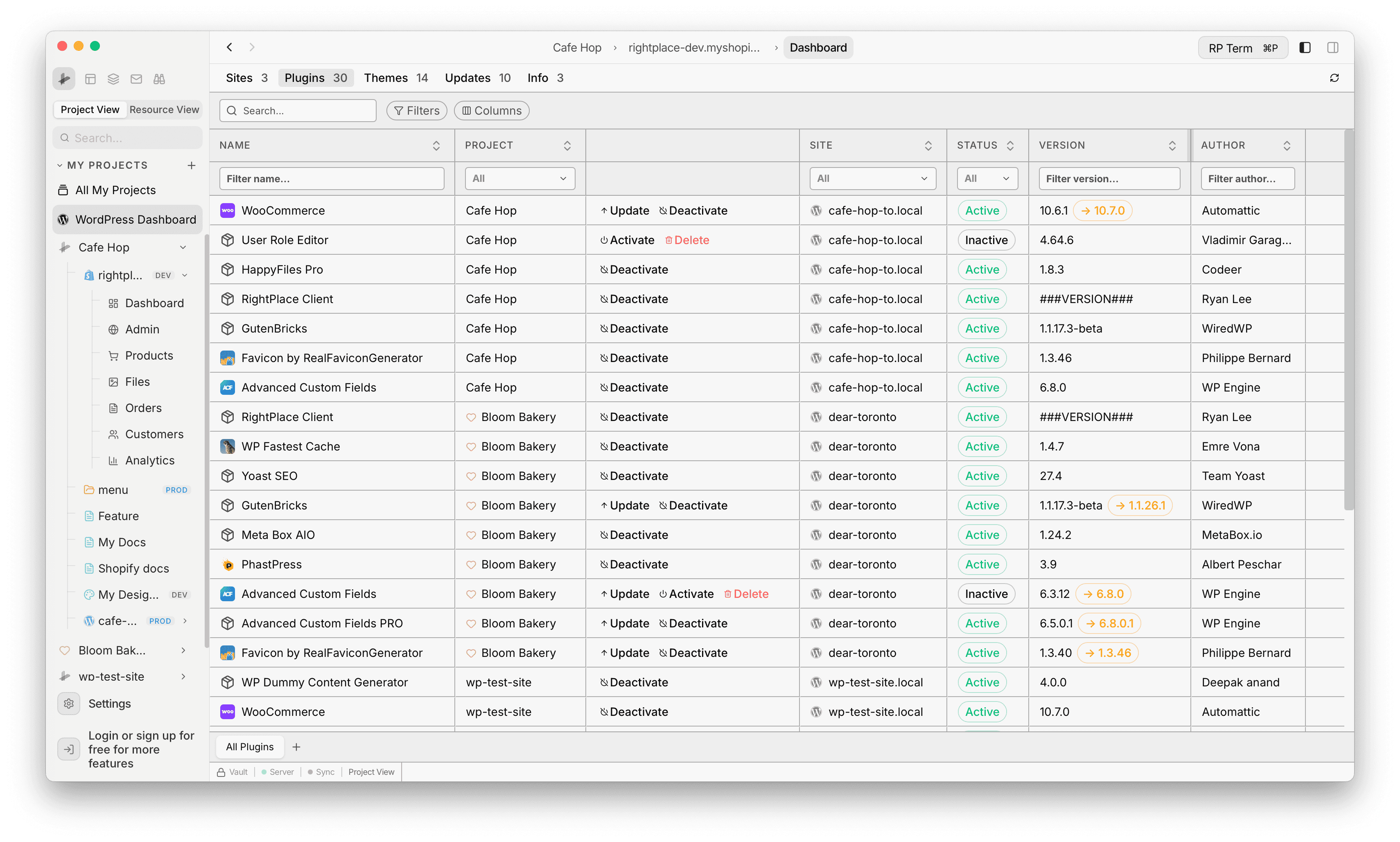
The Plugins tab lists every plugin row from cached wp_plugins content for all WordPress Site resources (paired or not). Columns include Site, Name (with icon), Status, Version (with an → newVersion badge when an update exists), Project, Author, and Actions.
Plugin actions
- Open (Globe): opens WP Admin for that row’s site (same as Sites tab WP Admin)
- Update: shown when an update is available
- Activate / Deactivate
- Delete: only for inactive plugins, after confirmation
Themes Tab
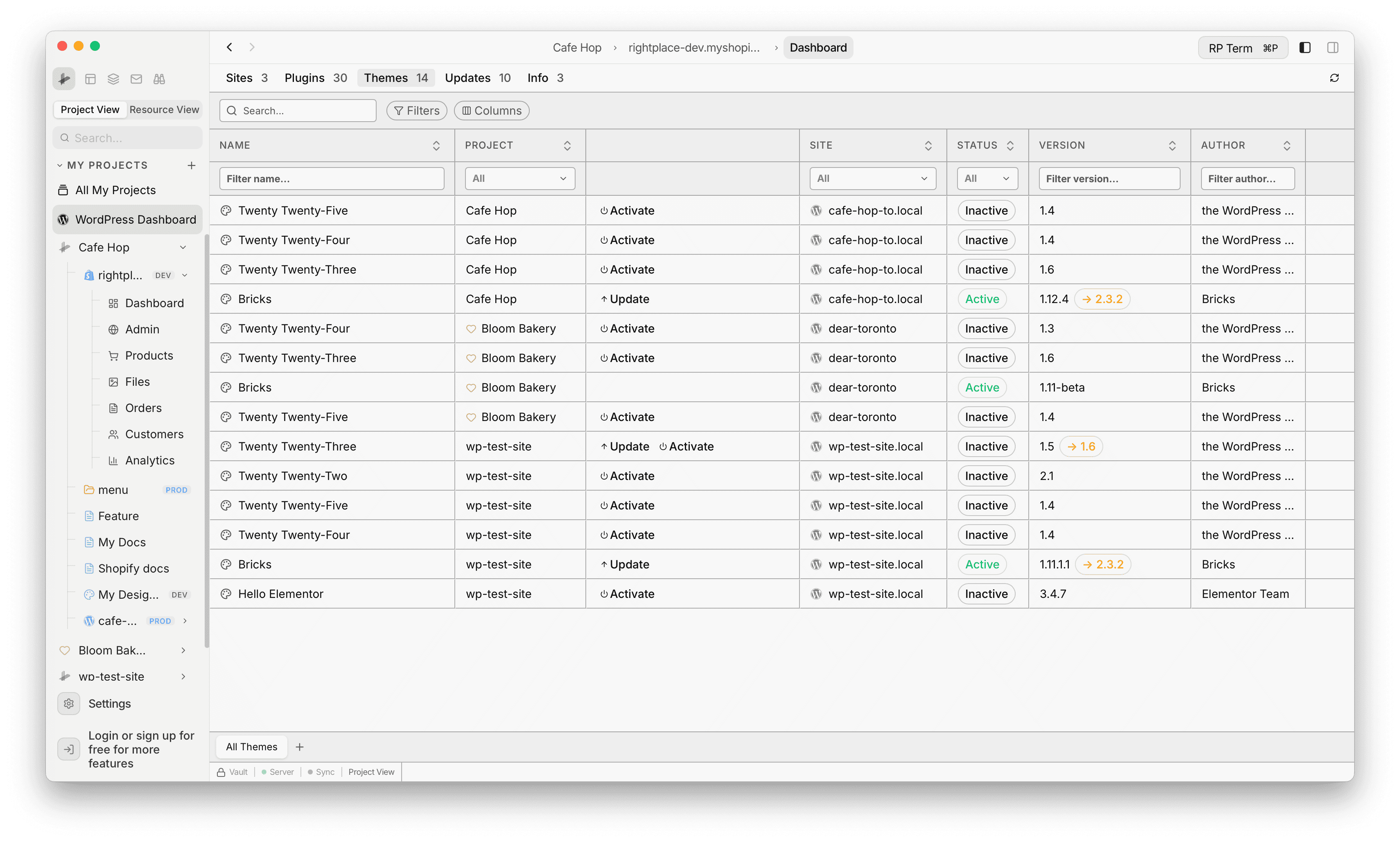
Same layout as Plugins: Site, Name (palette icon for themes), Status, Version, Project, Author, Actions.
Theme actions
- Open (Globe): opens WP Admin for that site
- Update: when an update is available
- Activate: only when the theme is inactive (there is no delete for themes here)
Updates Tab
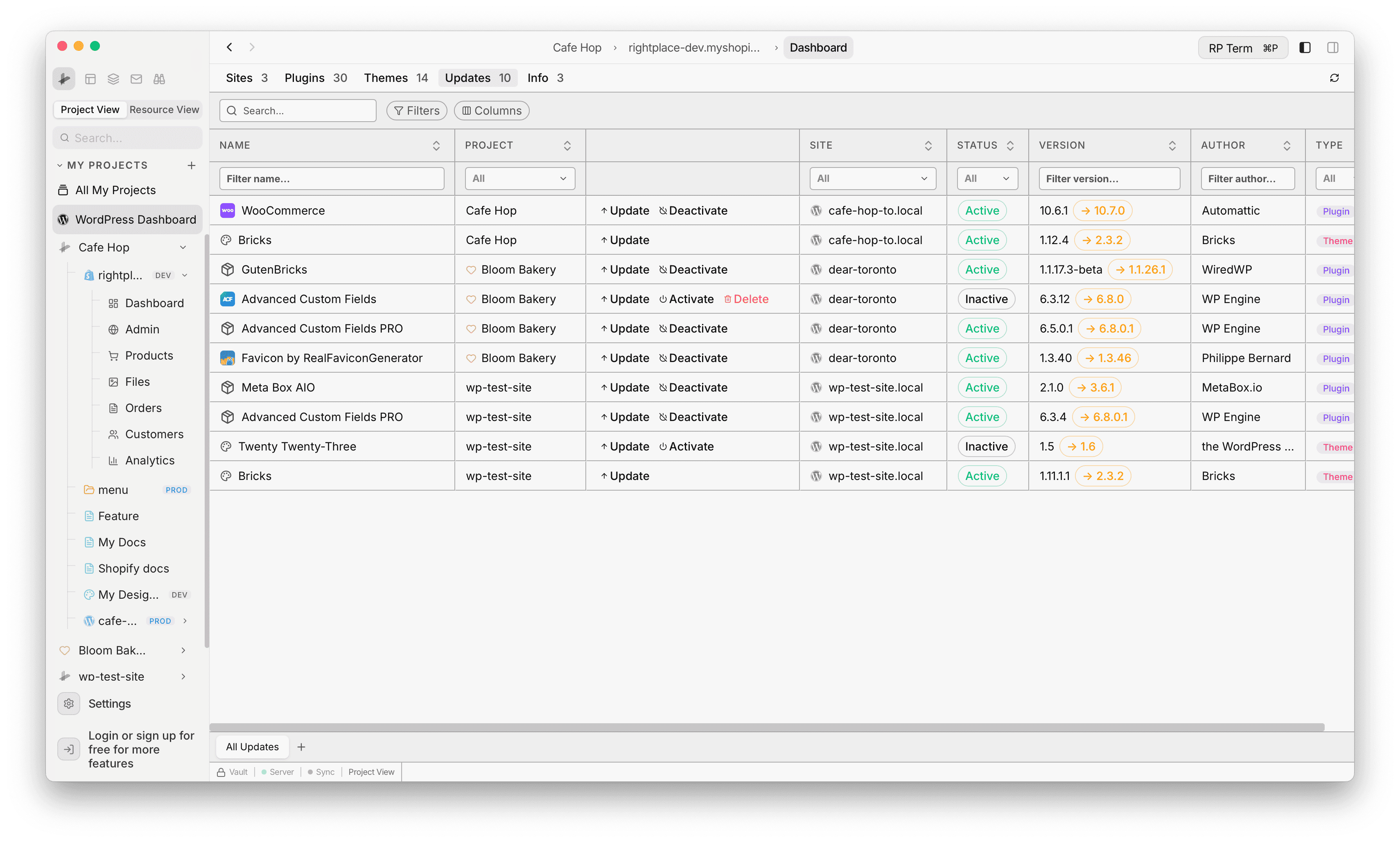
The Updates tab is the same plugin and theme rows filtered to items where an update is available. Default columns include Type (Plugin or Theme), Site, Name, Version, Project, and Actions (same actions as on the Plugins or Themes tab).
Info Tab
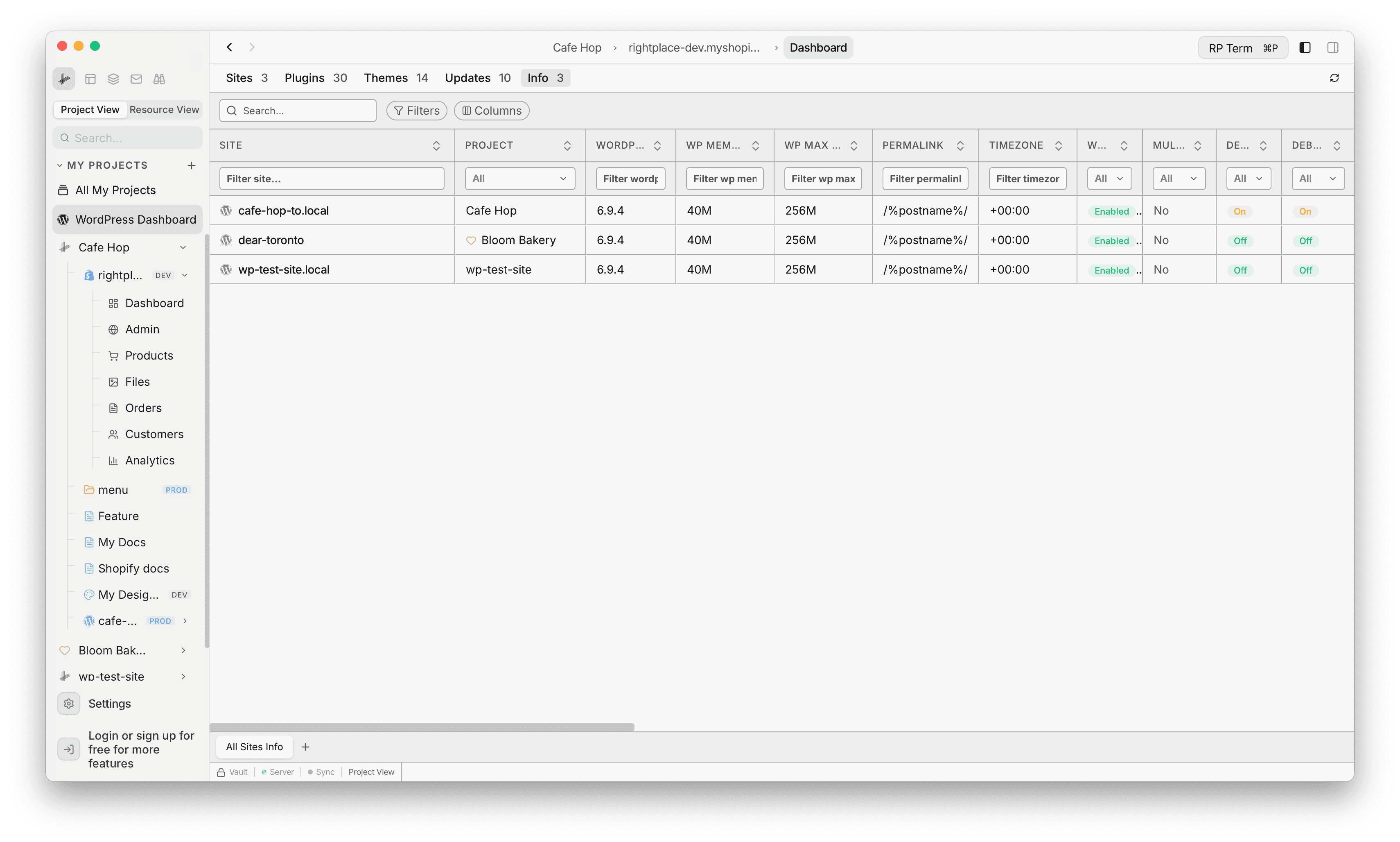
The Info tab shows one row per site with system info from cmd_wp_system_info_get (cached per site). SmartTable columns include (names as in the UI):
WordPress
- WordPress (core version)
- WP Memory / WP Max Memory
- Permalink (shows
Plainwhen empty) - Timezone
- WP Cron (
Enabled/Disabled) - Multisite (
Yes/No) - Debug / Debug Log (
On/Off) - Language
- Site URL
PHP
- PHP / PHP SAPI
- PHP Memory, Max Execution, Upload Max, Post Max Size, Max Input Vars
- PHP Extensions (shown as
N loaded)
Server
- Server, Server OS, Hostname
- HTTPS (
Yes/No)
Database
- Database (engine such as MySQL or MariaDB plus version)
- DB Prefix, DB Charset
Object cache
- Object Cache (
Enabled/Disabled) - Cache Drop-in (
Installed/Not installed)
Boolean-style fields use colored pills. Many Info columns start hidden in the default view but can be shown via Columns / saved views.
Next steps
- WordPress Site: Manage individual WordPress sites with full admin access
- Browser: Browse any site with the built-in Chromium browser