Website
Browse and manage websites in a built-in browser with session persistence and native rendering.
Features
- Bookmark collection with folders and optional colors
- Per-bookmark state persistence (URL, scroll, zoom)
- Embedded Chromium browser with navigation and DevTools
- Favicon display and fuzzy search across bookmarks
- Browse-to-add mode for discovering new URLs
- Drag-and-drop reordering with inline and modal editing
The Website applet lets you save a collection of URLs as a persistent applet in your project. Each URL becomes a bookmark with its own session state, and you can organize them into folders and give each bookmark an optional color in the sidebar. The built-in Chromium (CEF) browser handles all rendering.
For ephemeral browsing without saving URLs, use the Browser utility applet from Places instead.
Adding a Website
To add a Website to your project, open the Add Applet dialog and select Website under the Web & CMS category.
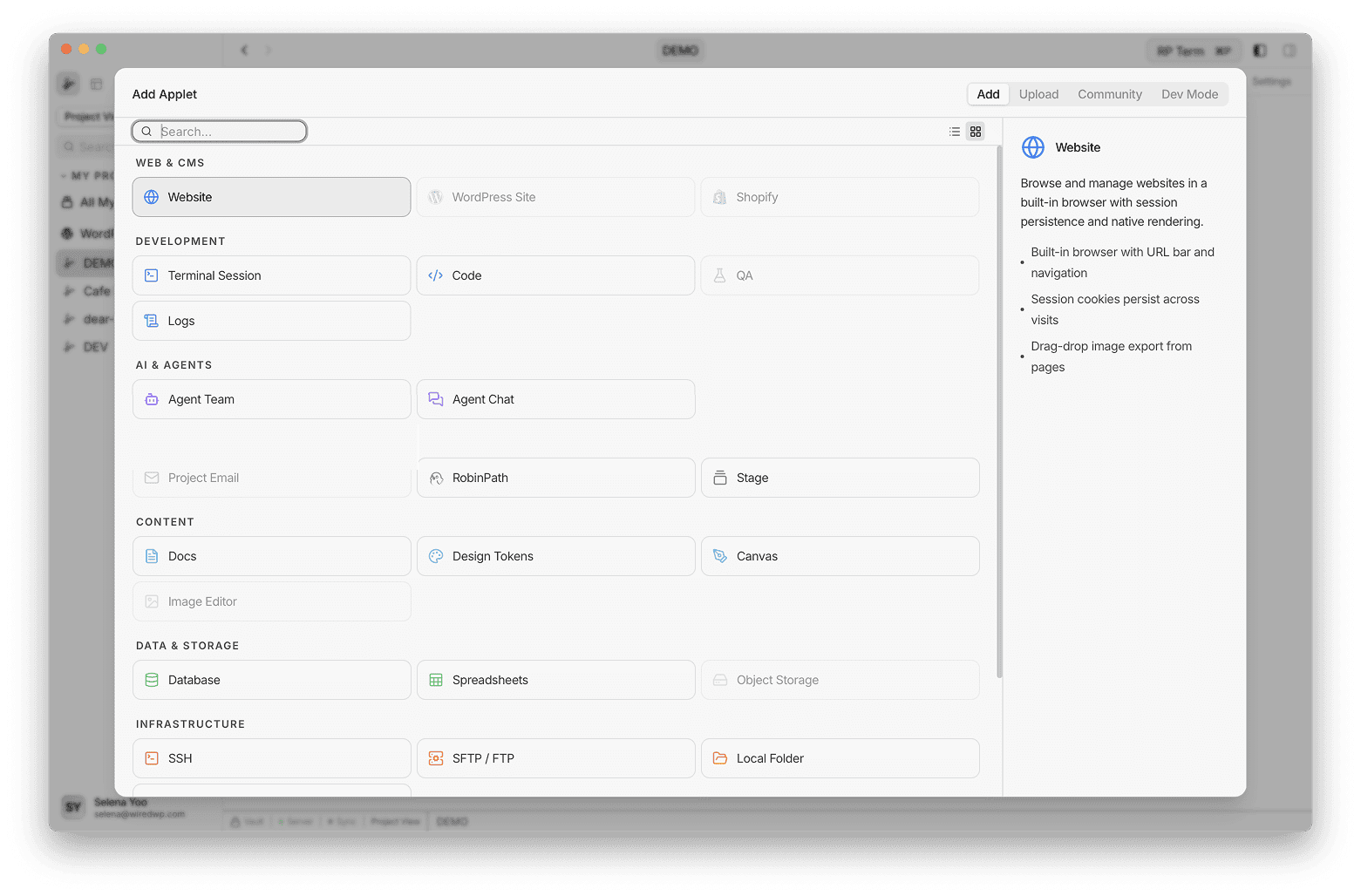
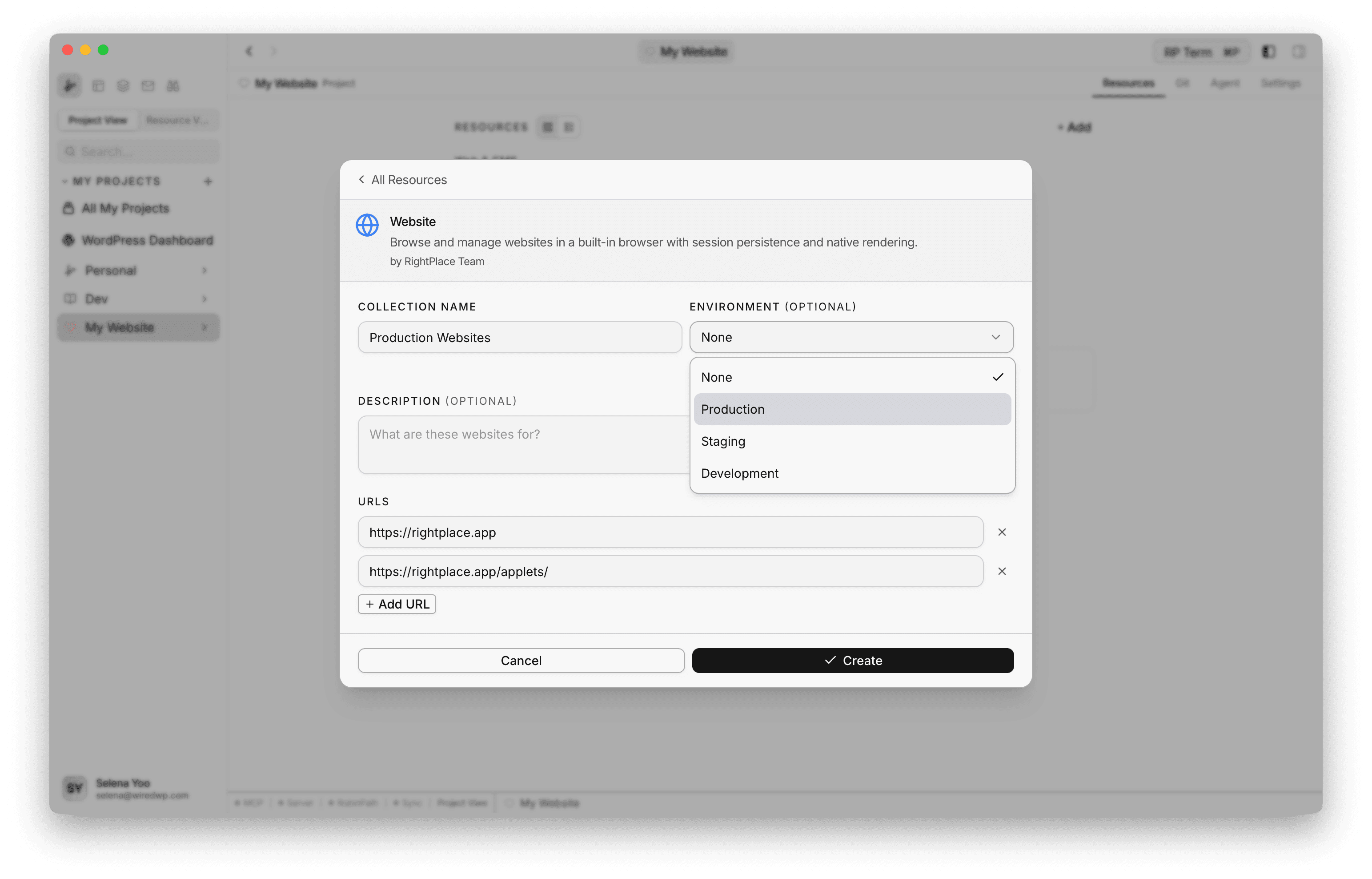
The creation form lets you configure:
- Collection Name: a label for the website collection (e.g. “Production Websites”)
- Environment (optional): an environment tag (Development, Staging, Production, etc.)
- Description (optional): a note about what these websites are for
- URLs: one or more URLs to browse. Click + Add URL to add additional sites to the collection.
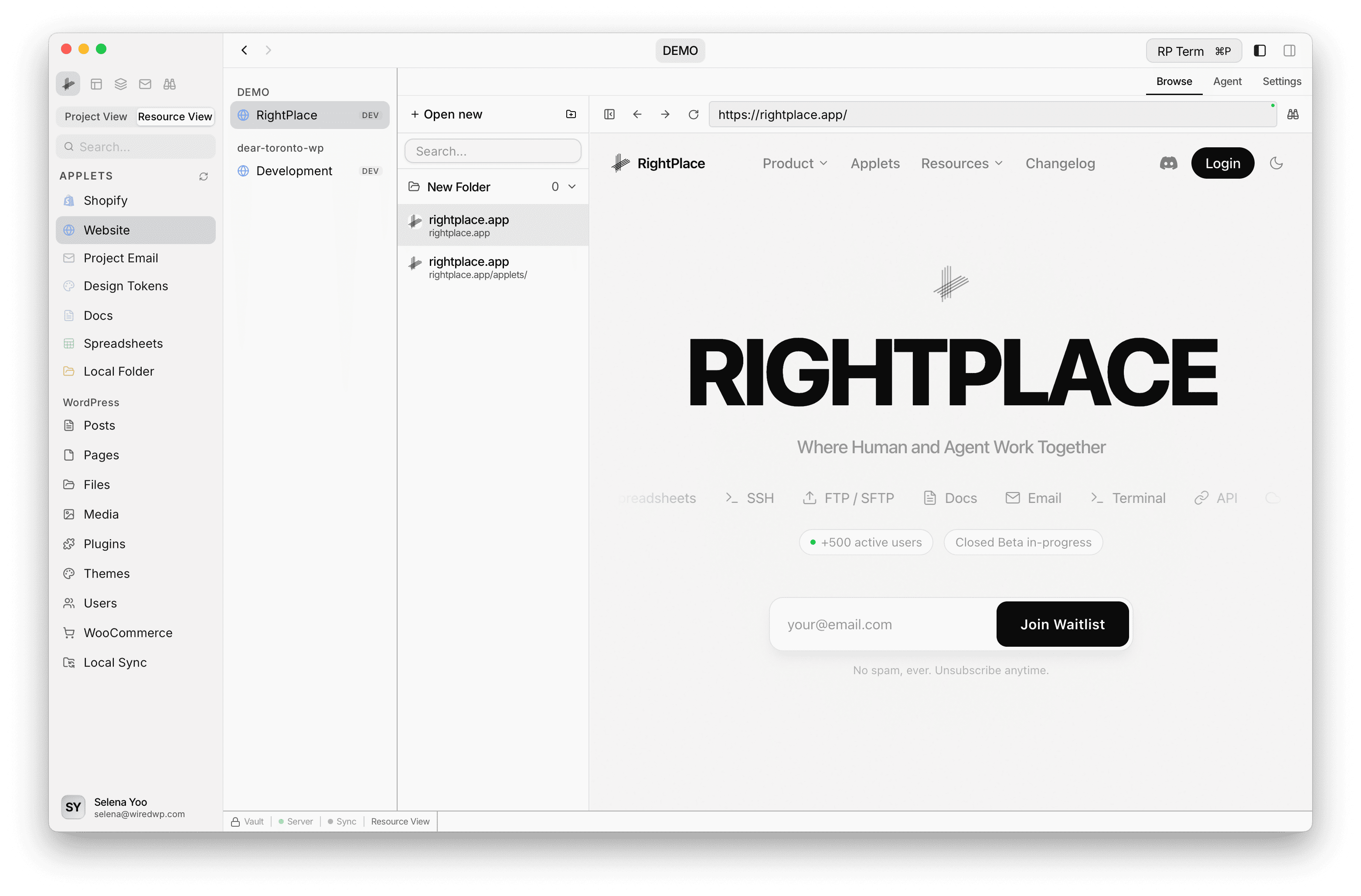
Once created, the Website applet appears in your project sidebar. Click it to open the bookmark sidebar and embedded browser.
Bookmark Sidebar
The left panel lists all saved URLs as bookmarks. Each bookmark shows:
- Favicon: fetched automatically from the URL
- Title: auto-detected from the page title, or set manually
- Current URL: the last visited URL for that bookmark (shown below the title)
- Color stripe: a colored left border if a color is assigned
Click a bookmark to navigate the embedded browser to that URL. The sidebar tracks which URL you last visited for each bookmark, so you pick up where you left off.
Folders
Organize bookmarks into folders:
- Click the folder icon in the sidebar toolbar to create a new folder
- Drag bookmarks onto a folder to move them inside
- Click the folder row to expand or collapse it
- Right-click a folder to rename or delete it (deleting a folder moves its children back to the root level)
Search
Type in the search field at the top of the sidebar to filter bookmarks by title or URL. The filter uses fuzzy matching.
Reordering
Drag and drop bookmarks to reorder them in the sidebar. Drag a bookmark onto a folder to move it inside. Changes are saved automatically.
Browsing
Project Mode
When opened from the project sidebar, the Website applet shows the bookmark sidebar on the left and an embedded browser on the right. Selecting a bookmark navigates the browser. Open tabs appear as a tab bar above the browser so you can switch between multiple bookmarks without losing your place.
In Resource View, an additional sidebar appears on the left listing all Website applets grouped by project. This lets you quickly switch between different website collections without leaving the browser.
Places Mode
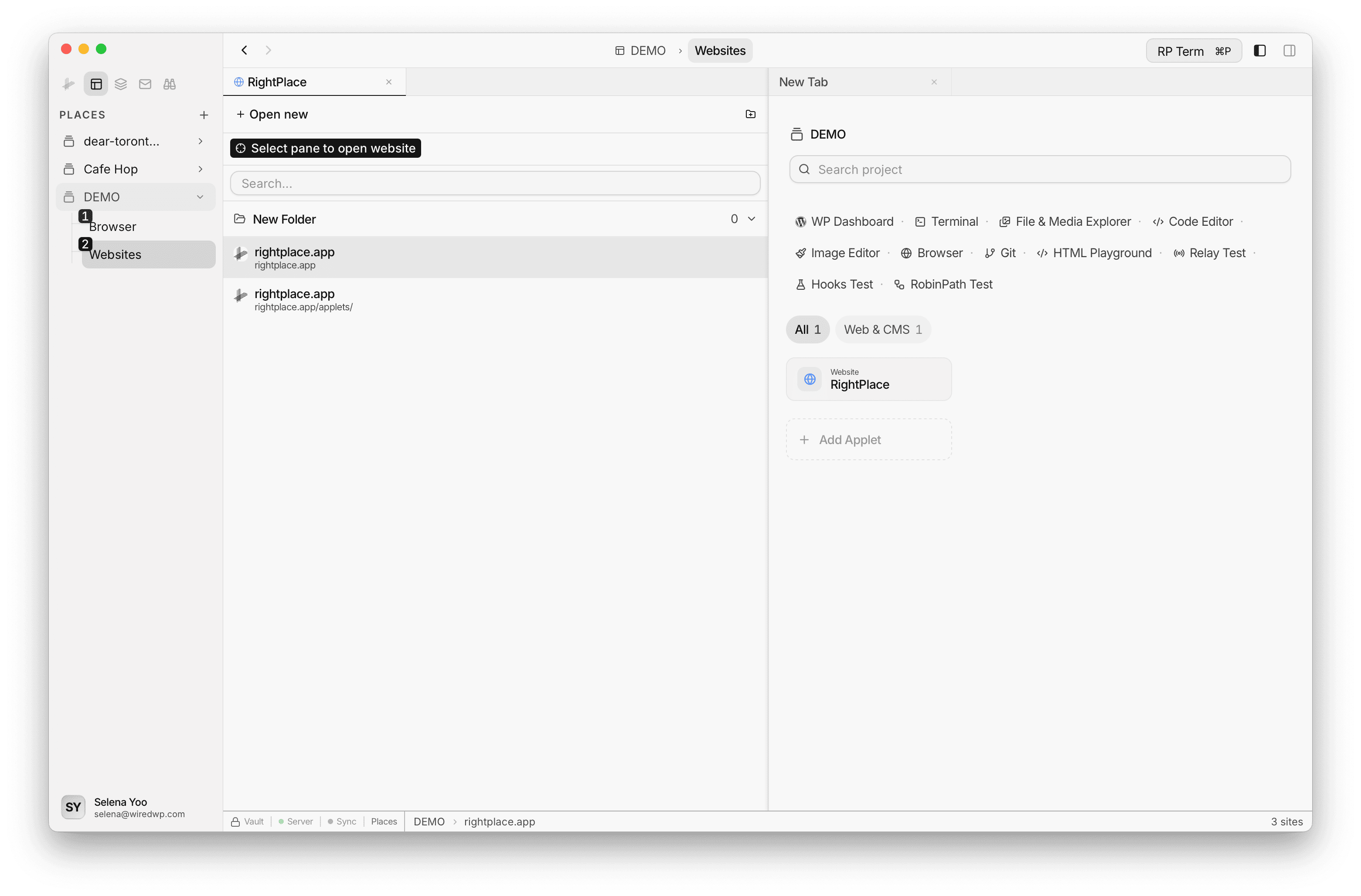
When opened from a Place, clicking a bookmark opens a new browser pane tab instead of navigating an embedded browser. This lets you view multiple websites side by side in separate panes.
You can select a target pane using the pane selector in the sidebar toolbar. New browser tabs will open in the selected pane.
Adding URLs
There are two ways to add new URLs:
- From the sidebar: click the + button. In project mode this enters browse-to-add mode where you navigate to a page and save it. In Places mode it opens a new browser tab.
- From Settings: the Settings tab has a URL management section where you can type URLs directly and set titles.
When browse-to-add is active, the sidebar shows a save bar with the current page title. Click Save to add the current URL as a new bookmark, or Cancel to discard.
Editing Bookmarks
Right-click a bookmark to open the context menu:
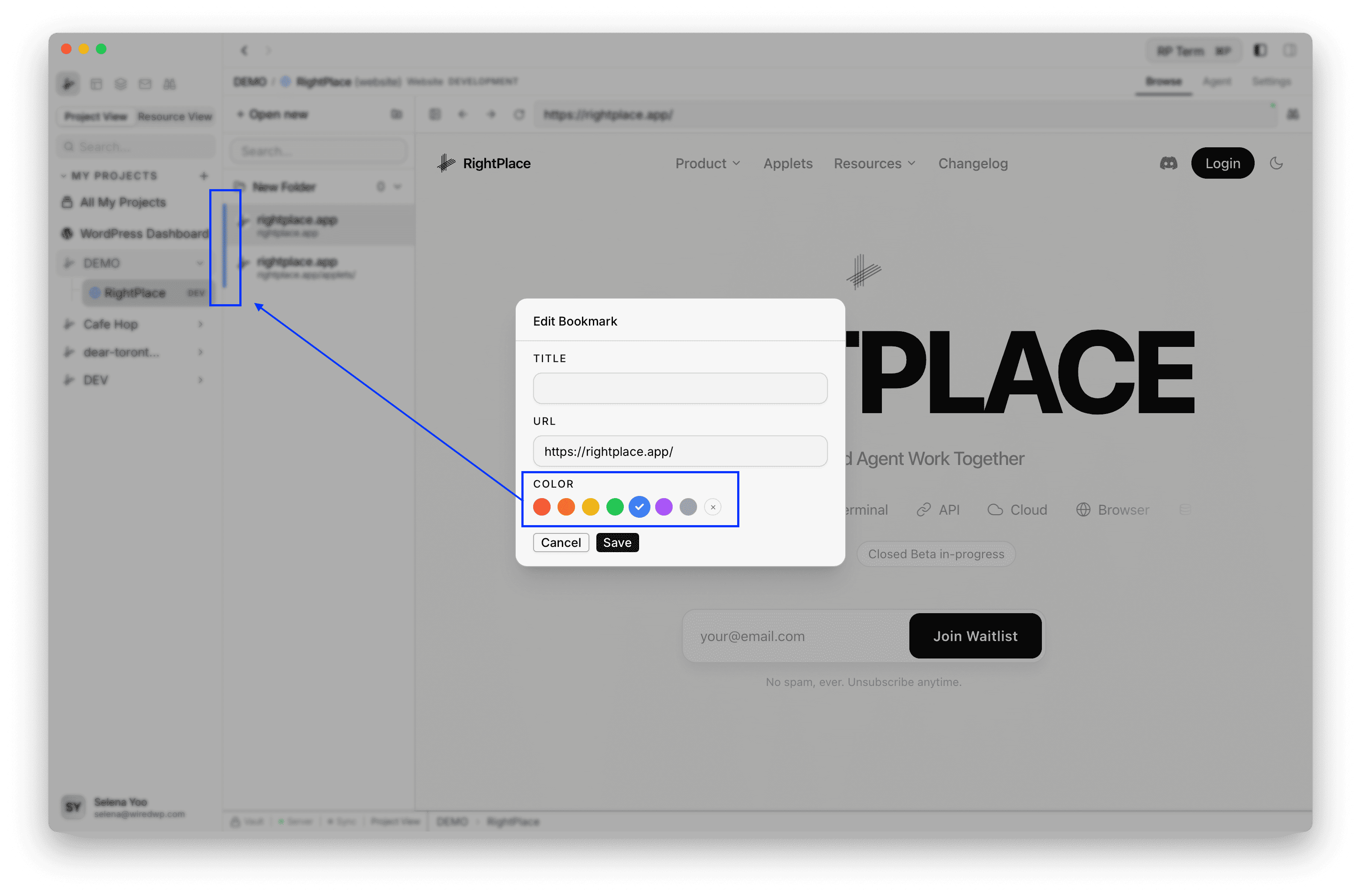
- Edit: opens a modal where you can change the title, URL, and color
- Open in Browser: opens the URL in your system default browser
- Delete: removes the bookmark from the collection
You can also double-click a bookmark’s title to rename it inline.
Bookmark colors
Assign a color to any bookmark from the edit modal. Seven colors are available: red, orange, yellow, green, blue, purple, and gray. The color appears as a left border stripe in the sidebar.
State Persistence
Each bookmark tracks its own browsing state:
- Last URL: when you navigate away from the original URL, the bookmark remembers where you left off. A reset button appears to return to the original URL.
- Scroll position: vertical scroll position is saved per bookmark.
- Zoom level: zoom level is saved per bookmark.
The sidebar layout (panel width, collapsed state, selected bookmark, open tabs) is also persisted across sessions via view state.
Settings
The Settings tab provides:
- Description: an optional note about what this website collection is for
- URL list: add, edit, or remove URLs with inline title fields. Each entry shows the URL and an optional title. Click Save to persist changes.
- General settings: applet name, environment, and danger zone for deletion
Widget
The Website applet uses the same Browser and Browser Inspector widget panels as the Browser applet when a Website tab is active. For panel behavior, WordPress connection indicators, inspection tools, keyboard shortcuts, and developer tools, see Browser widgets in the Browser documentation.
Agent tools
Every action this applet exposes as a typed, permissioned tool that agents can discover and run over MCP, the same actions your team uses in the UI.