Git
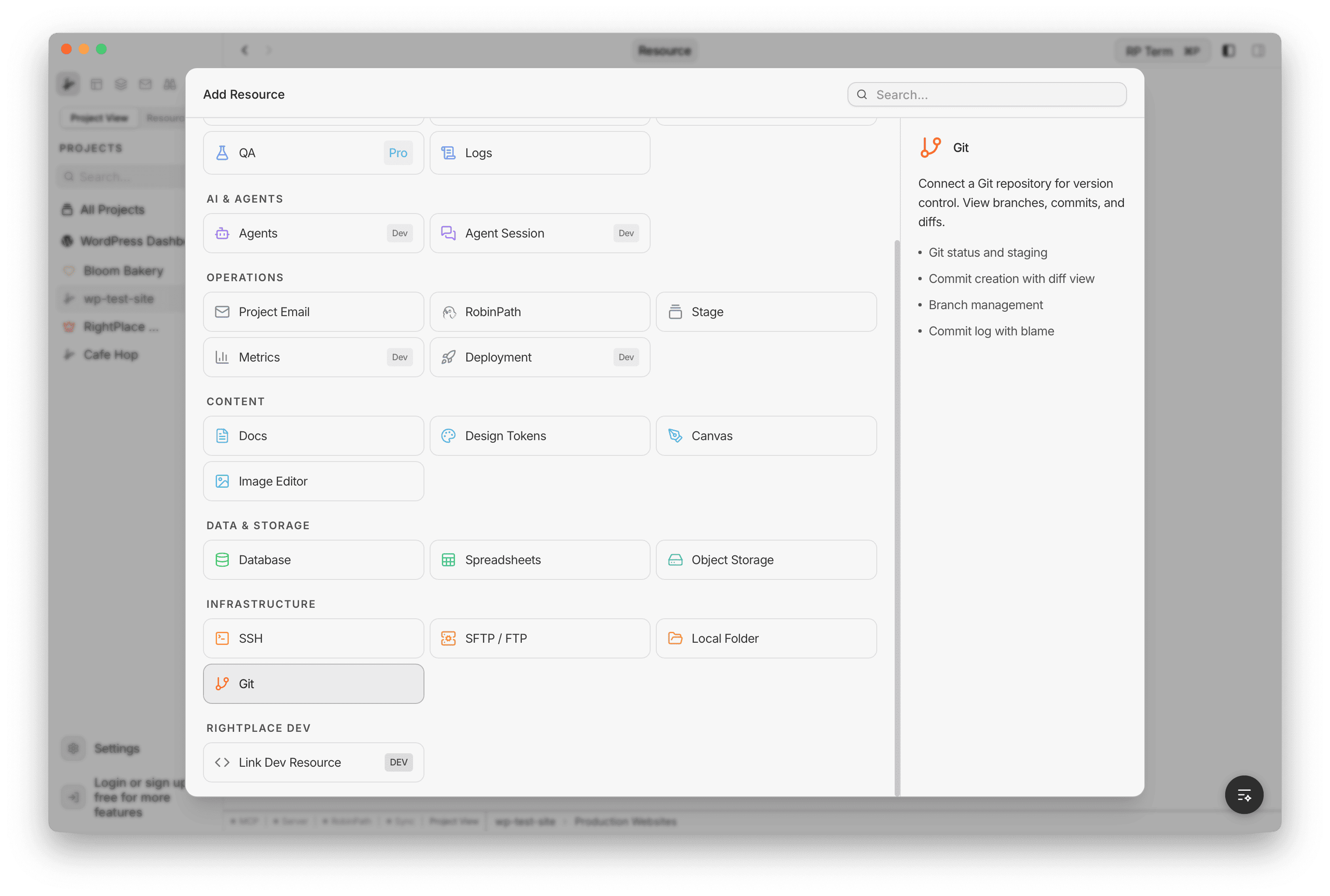
Connect a Git repository for version control. View branches, commits, and diffs.
Features
- Git status and staging
- Commit creation with diff view
- Branch management
- Commit log with blame
On this page
- Adding a Git Repository
- Layout
- Toolbar
- Sync Logic
- Changes Tab
- File Status Indicators
- Staging Files
- Committing
- History Tab
- Commit List
- Searching
- All Branches Toggle
- Git Graph
- Tags Tab
- Diff Viewer
- GitHub Integration
- Connecting to GitHub
- Remote Configuration
- Push and Pull
- Git Settings
- GitHub Connection
- Repository Cards
- Project Data Export
- Keyboard Shortcuts
- Widget
- Agent tools
- Next steps
The Git applet provides a full visual Git client inside RightPlace. You can track changes, stage and commit files, browse commit history with a branch graph, manage branches and tags, and push/pull to GitHub. RightPlace also exports your project configuration (connections, resources, settings) as JSON files so your entire project setup is version-controlled alongside your code.
Adding a Git Repository
To add Git to your project, open the Add Resource dialog and select Git under the Infrastructure category.
The creation form lets you configure:
- Repository Folder: the local folder to track. Use the browse button to select a path.
- Name: auto-populated from the folder name, editable.
- Environment (optional): an environment tag (Development, Staging, Production, etc.)
If the selected folder already contains a .git directory, a green badge shows Git repository detected. If not, a yellow warning shows No git repository found with an Initialize Git button to run git init.
Layout
The Git view is a three-column layout:
- Left sidebar: tabbed interface with Changes, History, and Tags tabs
- Center toolbar: branch selector, sync status, and action buttons
- Right panel: diff viewer for the selected file or commit
Toolbar
The toolbar at the top shows the current repository state:
- Branch selector: dropdown listing all local branches with a checkmark on the current branch. Type a name and press Enter to create a new branch.
- Ahead/Behind indicators: arrow badges showing how many commits you are ahead of or behind the remote
- Remote URL: clickable link to the remote repository
- File change counts: badges showing the number of added, modified, and deleted files
- Sync button: dynamically shows Push, Pull, Sync, or Fetch depending on the ahead/behind state
- Refresh button: re-fetches the repository status
Sync Logic
The sync button adapts to your repository state:
- Behind only: shows Pull (fetches and merges remote changes)
- Ahead only: shows Push (pushes local commits to remote)
- Both ahead and behind: shows Sync (pulls first, then pushes)
- Up to date: shows Fetch (updates remote refs without merging)
Changes Tab
The Changes tab shows all modified, added, and deleted files in the working tree.
File Status Indicators
Each file displays a colored badge:
- A (green): added or untracked file
- M (amber): modified or renamed file
- D (red): deleted file
Staging Files
- Click the checkbox next to a file to stage or unstage it
- Use Select All to stage all changed files at once, or Unstage All to clear the staging area
Committing
The commit form sits below the file list:
- Message: a multi-line text area for the commit message
- Commit button: click or press Cmd+Enter to commit all staged files
- The button shows the number of staged files (e.g. “Commit 3 staged”) and displays a green checkmark after a successful commit
Before committing, RightPlace automatically exports your project data (connections, resources, settings) to JSON files in the rightplace/ directory so your project configuration is always included in the commit.
History Tab
The History tab shows the commit log with optional branch graph visualization.
Commit List
Each commit row displays:
- Author avatar: a colored circle with the author’s first initial
- Commit message: the first line of the message
- Author name: truncated for space
- Short hash: the first 7 characters of the commit SHA
- Relative timestamp: e.g. “2h ago”, “3d ago”
- Tag badges: inline labels for tagged commits
- Unpushed indicator: an up arrow on commits that have not been pushed to the remote
Commits load in pages of 30. Click Load more at the bottom to fetch additional history.
Searching
The search bar at the top filters commits by message, author name, hash, or tag name. Up to 50 results are returned.
All Branches Toggle
Toggle All branches to show commits from every branch, not just the current one.
Git Graph
Click the graph toggle button in the search bar to enable a visual branch graph alongside the commit list. The graph draws color-coded lane lines for each branch with curved merge lines, supporting up to 10 parallel lanes.
Tags Tab
The Tags tab lists all tags in the repository, sorted by commit date (newest first).
- Search: filter tags by name
- Tag details: each entry shows the tag name, commit hash, and relative timestamp
- Jump to commit: click a tag to scroll the History tab to that commit
Diff Viewer
Selecting a file (from Changes or from a commit’s file list) opens the diff in the right panel.
- Monaco editor: syntax-highlighted diff with language auto-detection for 20+ file types
- View modes: toggle between Inline and Side by Side display
- Open in Editor: for working tree files, a button opens the file in the Code Editor
When viewing a commit from history, the diff compares the file at the selected commit against its parent commit.
GitHub Integration
RightPlace connects to GitHub for push, pull, and fetch operations using OAuth authentication.
Connecting to GitHub
- Go to Settings > Git
- Click Connect to GitHub
- A browser window opens for GitHub authorization (OAuth PKCE flow)
- After authorizing, your GitHub username and avatar appear in the settings page
To disconnect, click Disconnect in the Git settings.
Remote Configuration
Each project card in the Git settings page shows:
- Repository folder path
- Current branch and commit count
- Pending changes count
- Remote URL: an editable input field. Enter a GitHub repository URL and click Save to configure the remote.
Push and Pull
Once a remote is configured and GitHub is connected:
- Push: uploads local commits to the remote repository
- Pull: fetches remote changes and merges them, then imports any updated project configuration
- Fetch: updates remote tracking refs without merging
Git Settings
Access Git settings from Settings > Git. The page shows:
GitHub Connection
- Connection status with GitHub username and avatar
- Connect / Disconnect button
Repository Cards
A card for each project that has a Git resource, showing:
- Project name with a git badge if the repository is initialized
- Folder path
- Branch name, commit count, and pending changes
- Remote URL (editable)
- Action buttons: Initialize Git Repo, Export & Commit, Pull, Push
- Per-project refresh button
Project Data Export
When you commit, RightPlace exports your project configuration to the rightplace/ directory as JSON files:
rightplace/project.json: project settings and metadatarightplace/connections/*.json: connection credentials stored as encrypted references (never plaintext)
On pull, RightPlace imports these files back into its database, keeping your project setup in sync across machines and team members.
Keyboard Shortcuts
| Shortcut | Action |
|---|---|
| Cmd+Enter | Commit staged changes (when in commit message field) |
Widget
Appears when a Git tab is active (excluding Git Settings). The widget panel shows two collapsible sections with repository health at a glance.
Stats:
- Repository status (initialized, remote)
- Current branch name
- Total commit count
- Changed and untracked file counts
- Ahead/behind commit indicators
- Remote URL
- Pending changes count
- Activity heatmap: a 20-week commit activity graph (GitHub-style contribution calendar) with intensity levels and monthly labels
- Refresh button to update stats
Contributors:
- List of contributors sorted by commit count
- Each entry shows avatar, name, commit count with percentage, last commit time, and a progress bar
Agent tools
Every action this applet exposes as a typed, permissioned tool that agents can discover and run over MCP, the same actions your team uses in the UI.