Code
Edit source code with Monaco Editor. Syntax highlighting, file tree, and project-aware editing.
Features
- Monaco-based editor with syntax highlighting
- File tree sidebar for navigation
- Multi-file editing with tabs
On this page
- Edit code without leaving your project
- Where the Code Editor Appears
- Editor Layout
- Supported Languages
- IntelliSense and Autocomplete
- Find and Replace
- Split Panes
- File Tree Operations
- Media Preview
- Diff Viewer
- Unsaved Changes
- Drag and Drop
- Editor Settings
- Typography
- Display
- System Code Editors
- Keyboard Shortcuts
- Widget
- Agent tools
- Next steps
Edit code without leaving your project
Quick fixes should not require launching a full IDE. A config change, a template tweak, a CSS adjustment - these are small edits that should happen right where you are working.
The Code applet puts a real editor inside your project. Syntax highlighting, file navigation, and multi-tab editing for local files and remote servers, all without switching apps.
- Real editor, not a text box. Monaco (the engine behind VS Code) with IntelliSense, bracket matching, and syntax highlighting for 25+ languages.
- File tree built in. Navigate your project structure from the sidebar. Open files with a click.
- Edit anywhere. Work on local files, FTP/SFTP remotes, and project resources from the same editor.
- Split panes. View two files side by side for quick comparisons and reference.
- Stays in context. Your editor sits next to your tasks, docs, terminal, and everything else in the project.
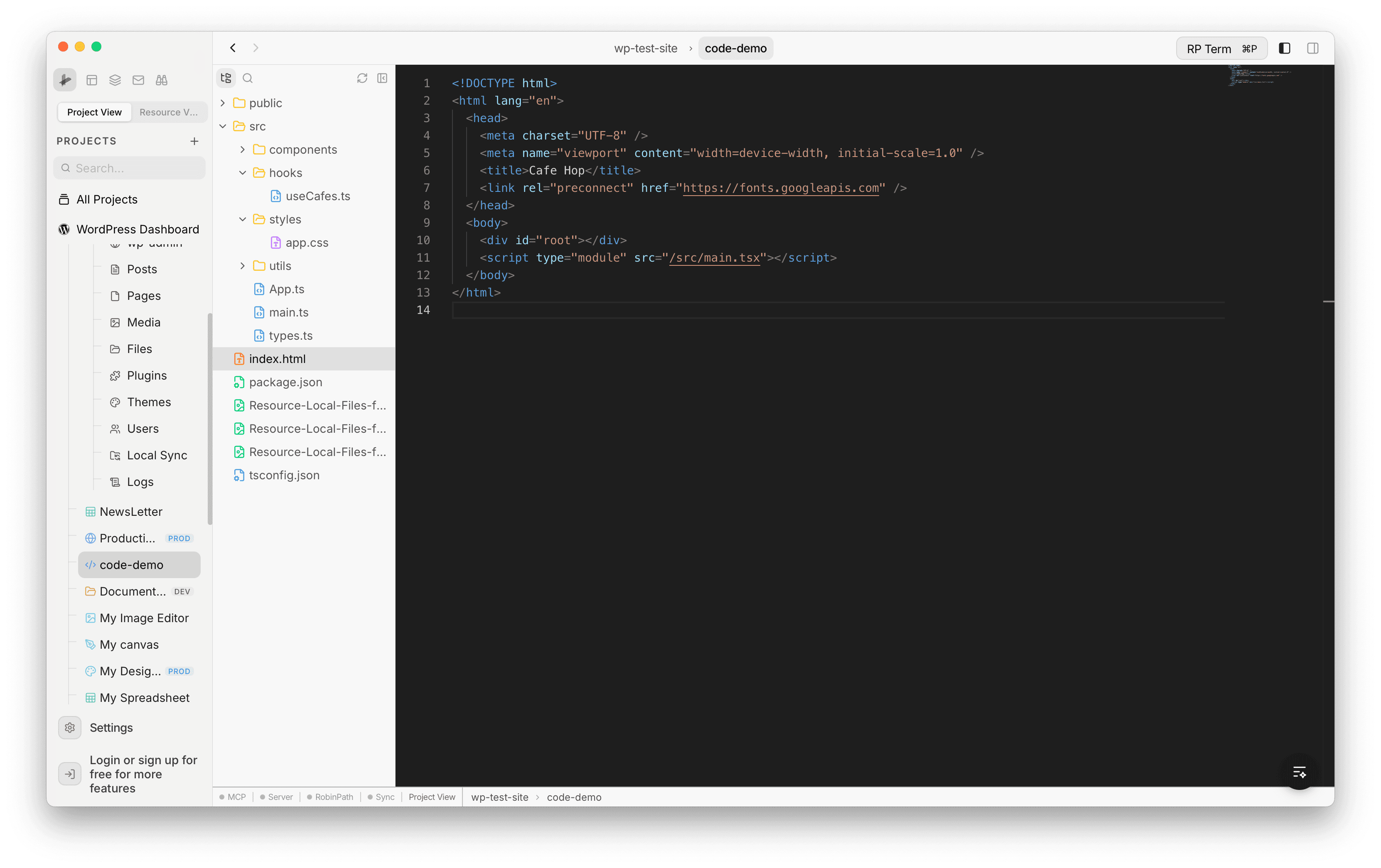
Where the Code Editor Appears
The code editor is used in several contexts throughout the app:
- Local project files: click any text file in the Files resource to open it in the editor
- FTP / SFTP files: open files from remote servers for editing
- Docs resource: a specialized markdown editor with rich text formatting
- WordPress Files: edit theme and plugin files from connected WordPress sites
Editor Layout
The editor consists of three main areas:
- File tree navigator: a collapsible, resizable sidebar on the left showing the folder structure. Supports lazy-loading of subfolders, multi-select, and drag-and-drop.
- Editor area: the main editing surface powered by Monaco Editor, with syntax highlighting, line numbers, minimap, and word wrap.
- Status bar: displays cursor position (line and column), detected language, tab size, EOL sequence (LF/CRLF), and file name.
Supported Languages
The editor auto-detects the language based on file extension and provides syntax highlighting and language services:
| Languages | Extensions |
|---|---|
| JavaScript | .js, .jsx |
| TypeScript | .ts, .tsx |
| HTML | .html |
| CSS | .css |
| SCSS | .scss |
| JSON | .json |
| Markdown | .md |
| YAML | .yaml, .yml |
| XML / SVG | .xml, .svg |
| SQL | .sql |
| Python | .py |
| Rust | .rs |
| Go | .go |
| PHP | .php |
| Ruby | .rb |
| Java | .java |
| C | .c, .h |
| C++ | .cpp, .hpp |
| Swift | .swift |
| Kotlin | .kt |
| Lua | .lua |
| R | .r |
| Shell | .sh, .bash |
| TOML | .toml |
IntelliSense and Autocomplete
The editor provides language-aware completions:
- Trigger characters: completions appear automatically after typing
.and other language-specific triggers - Manual trigger: press Ctrl+Space to open the suggestions menu at any time
- Smart Enter: accepts suggestions intelligently without interfering with normal typing
- Language workers: dedicated web workers for JSON, CSS/SCSS, HTML, and TypeScript/JavaScript provide rich completions, validation, and hover info
Find and Replace
- Find: Cmd+F opens the inline search bar with regex support, case sensitivity, and whole word matching
- Replace: Cmd+H opens find and replace
- Go to Line: Cmd+G jumps to a specific line number
Split Panes
Open multiple files side by side:
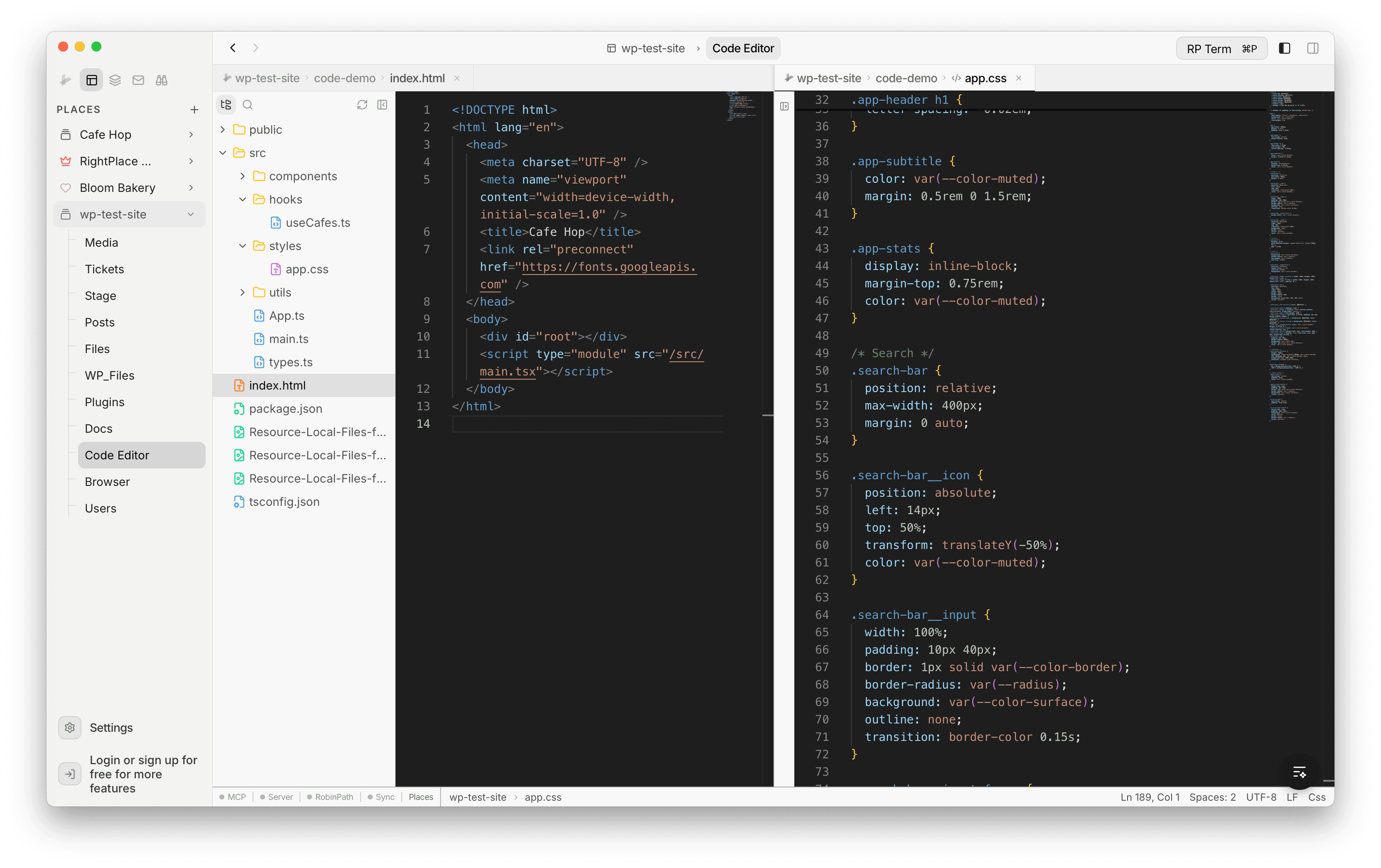
- Split Right (Cmd+D): create a vertical split
- Split Down (Cmd+Shift+D): create a horizontal split
- Close Tab (Cmd+W): close the current tab
- Close Pane (Cmd+K W): close the entire pane
File Tree Operations
Right-click in the file tree for context menu actions:
- New File: create a file with inline name input
- New Folder: create a folder with inline name input
- Rename: inline rename with the extension pre-excluded from selection
- Delete: remove a file or folder with confirmation dialog
- Copy Path: copy the full file path to clipboard
- Copy Name: copy just the file name
- Reveal in Finder: open the containing folder in the system file manager
- Cut / Copy / Paste: move or duplicate files within the tree
- Refresh: reload the folder contents
Media Preview
When you select a non-text file, the editor area shows a preview instead of code:
- Images: PNG, JPG, JPEG, GIF, WebP, BMP, ICO, SVG, AVIF - displayed with dimensions and file size
- Videos: MP4, WebM, OGG, MOV, M4V - played with native video controls
Diff Viewer
The diff viewer shows changes between two versions of a file:
- Side-by-side mode: original and modified content displayed in parallel columns
- Inline mode: changes shown inline with color highlighting
- Hide unchanged regions: collapse unmodified sections to focus on changes
- Language-aware: syntax highlighting applied to both sides
Unsaved Changes
- A dot indicator appears on the tab when a file has unsaved changes
- Switching between files preserves unsaved edits in a buffer cache
- Scroll position is restored when switching back to a previously opened file
- A confirmation dialog appears when closing a tab with unsaved changes
Drag and Drop
- Drag files out: drag files from the file tree to Finder or other applications
- Drop files in: drag files from Finder into the file tree to copy them into the project. Dropping into a folder places the files there.
Editor Settings
Open the Code Editor settings to customize the editing experience:
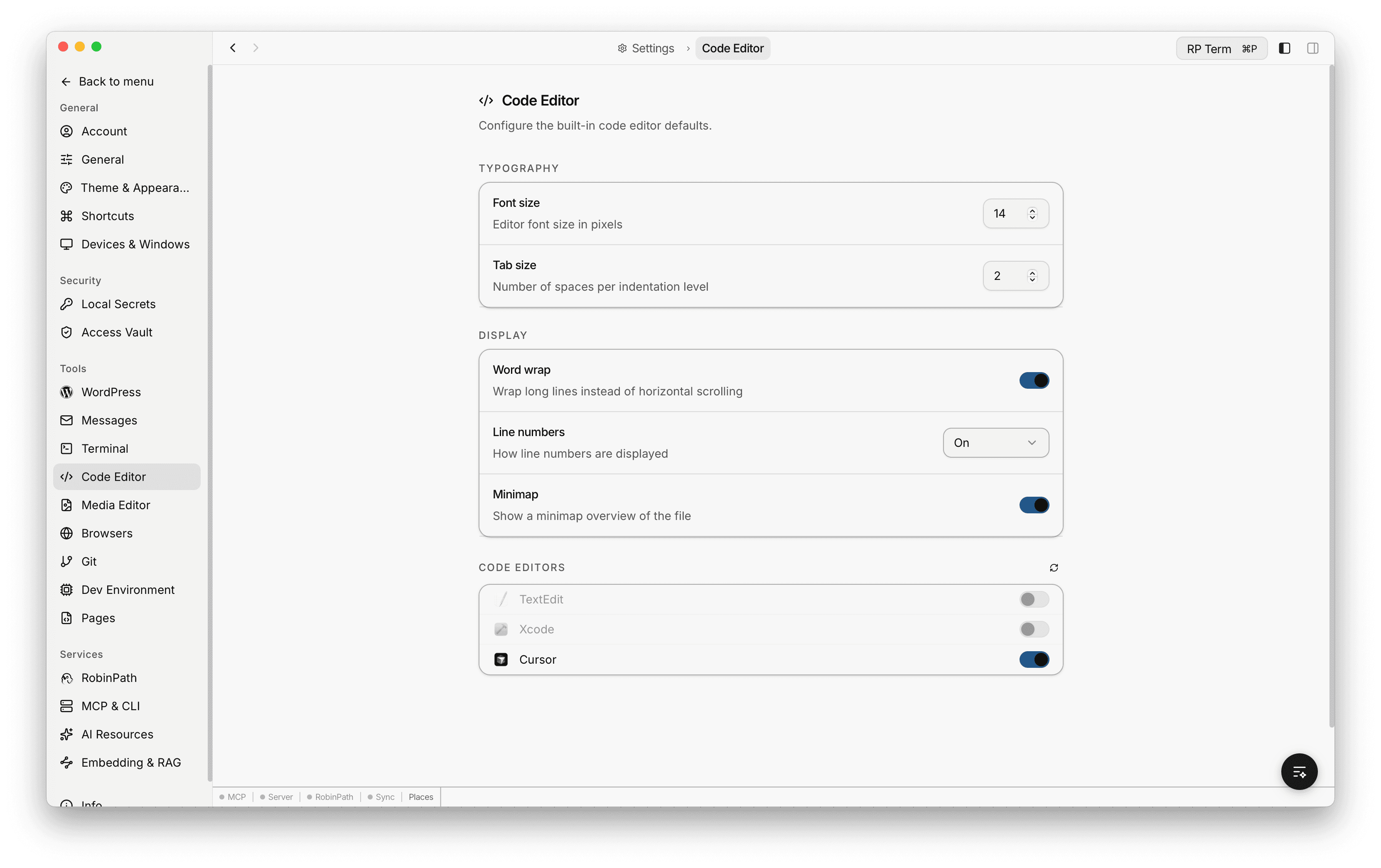
Typography
- Font Size: 10-32px (default: 14px)
- Tab Size: 1-8 spaces (default: 2)
Display
- Word Wrap: on or off (default: on)
- Line Numbers: on, off, or relative (default: on)
- Minimap: show or hide the code minimap (default: on)
System Code Editors
The settings page can discover code editors installed on your system (e.g. VS Code, Sublime Text). Enable or disable individual editors to allow opening files in external editors via right-click context menu.
Keyboard Shortcuts
| Shortcut | Action |
|---|---|
| Cmd+S | Save |
| Cmd+F | Find |
| Cmd+H | Find and Replace |
| Cmd+G | Go to Line |
| Cmd+D | Split Right |
| Cmd+Shift+D | Split Down |
| Cmd+W | Close Tab |
| Cmd+K W | Close Pane |
| Ctrl+Space | Trigger autocomplete |
| Shift+Cmd+P | Command Palette |
Widget
Appears when a Code Editor tab is active. Reserved for future editor-specific tools and information.
Agent tools
Every action this applet exposes as a typed, permissioned tool that agents can discover and run over MCP, the same actions your team uses in the UI.