SFTP / FTP
Connect to remote file servers via SFTP/FTP. Browse, upload, and manage files.
Features
- Remote file browser with tree view
- Drag-drop upload and download
- SFTP and FTP support
The SFTP / FTP applet lets you connect to remote servers and manage files directly inside RightPlace. You can browse directories, edit files, upload and download content, and search file contents without leaving the app.
Supported Protocols
- SFTP (SSH File Transfer Protocol): connects over SSH on port 22. Supports password and SSH key authentication. Includes content search via grep over SSH.
- FTP (File Transfer Protocol): connects on port 21. Supports password authentication. All transfers use binary mode.
Adding an SFTP / FTP Server
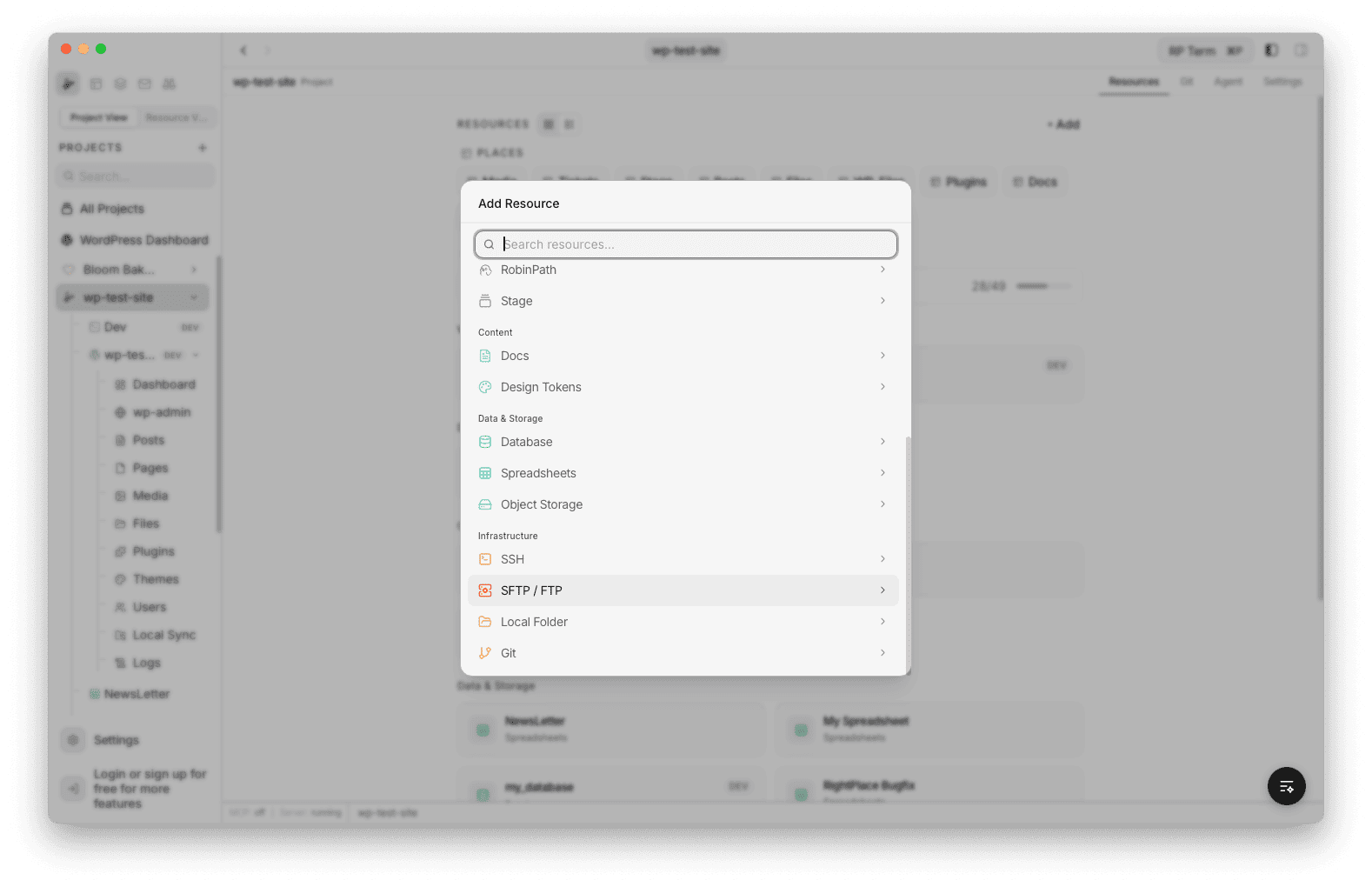
To add a server to your project, open the Add Applet dialog and select SFTP / FTP under the Infrastructure category.
SFTP
Select the SFTP tab at the top to connect over SSH.
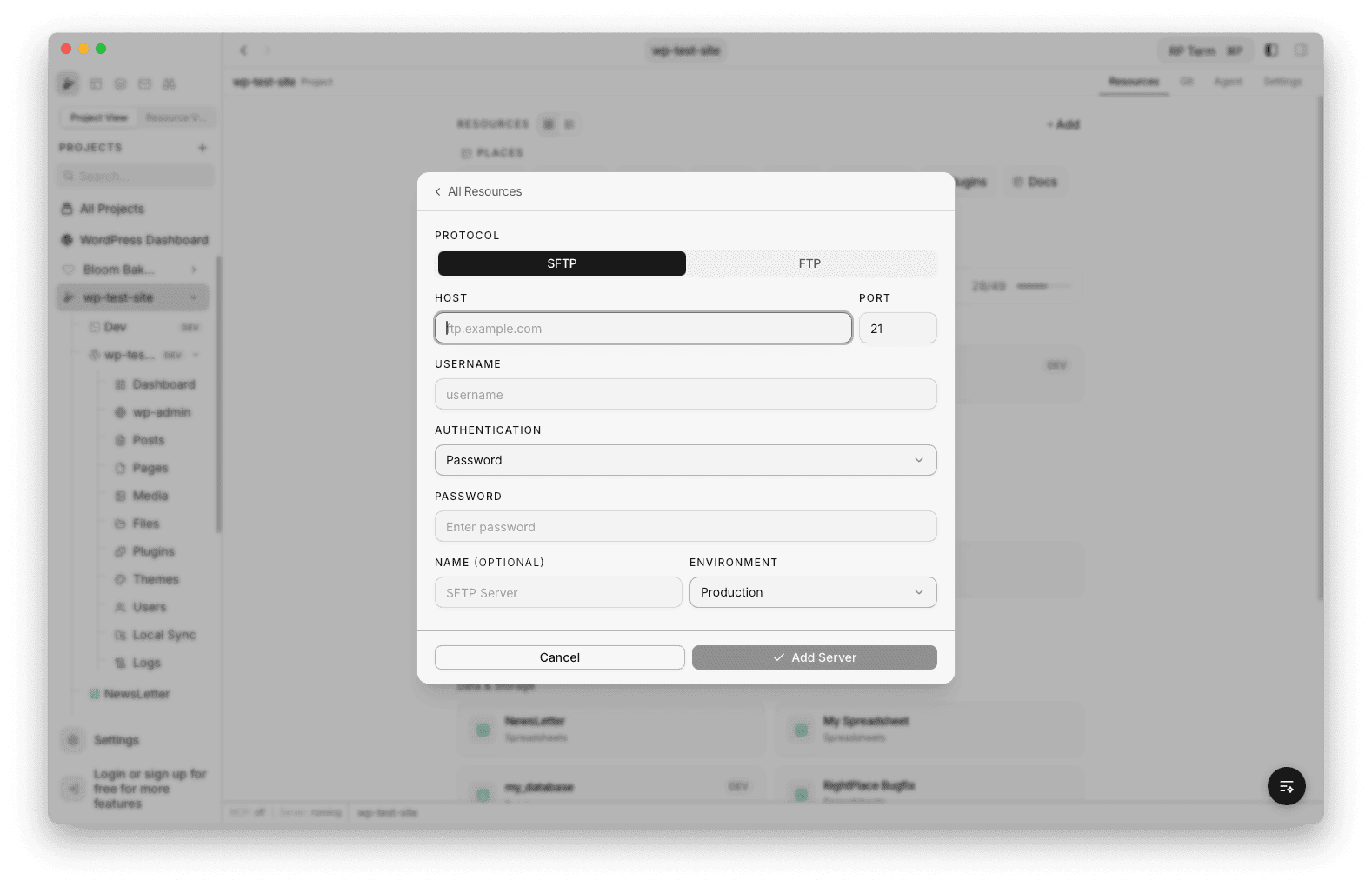
The form fields for SFTP:
- Protocol: SFTP is selected by default
- Host: the server hostname or IP address (e.g.
ftp.example.com) - Port: defaults to 22 for SFTP
- Username: your server username
- Authentication: choose between Password or SSH Private Key
- Password: the server password (when using password auth)
- SSH Private Key (when using key auth): paste the full PEM-encoded private key content (e.g.
-----BEGIN OPENSSH PRIVATE KEY-----) - Name (optional): display name. Defaults to the hostname if left blank.
- Environment: tag for Production, Staging, or Development
FTP
Select the FTP tab to connect over plain FTP. The Authentication dropdown is hidden since FTP only supports password auth.
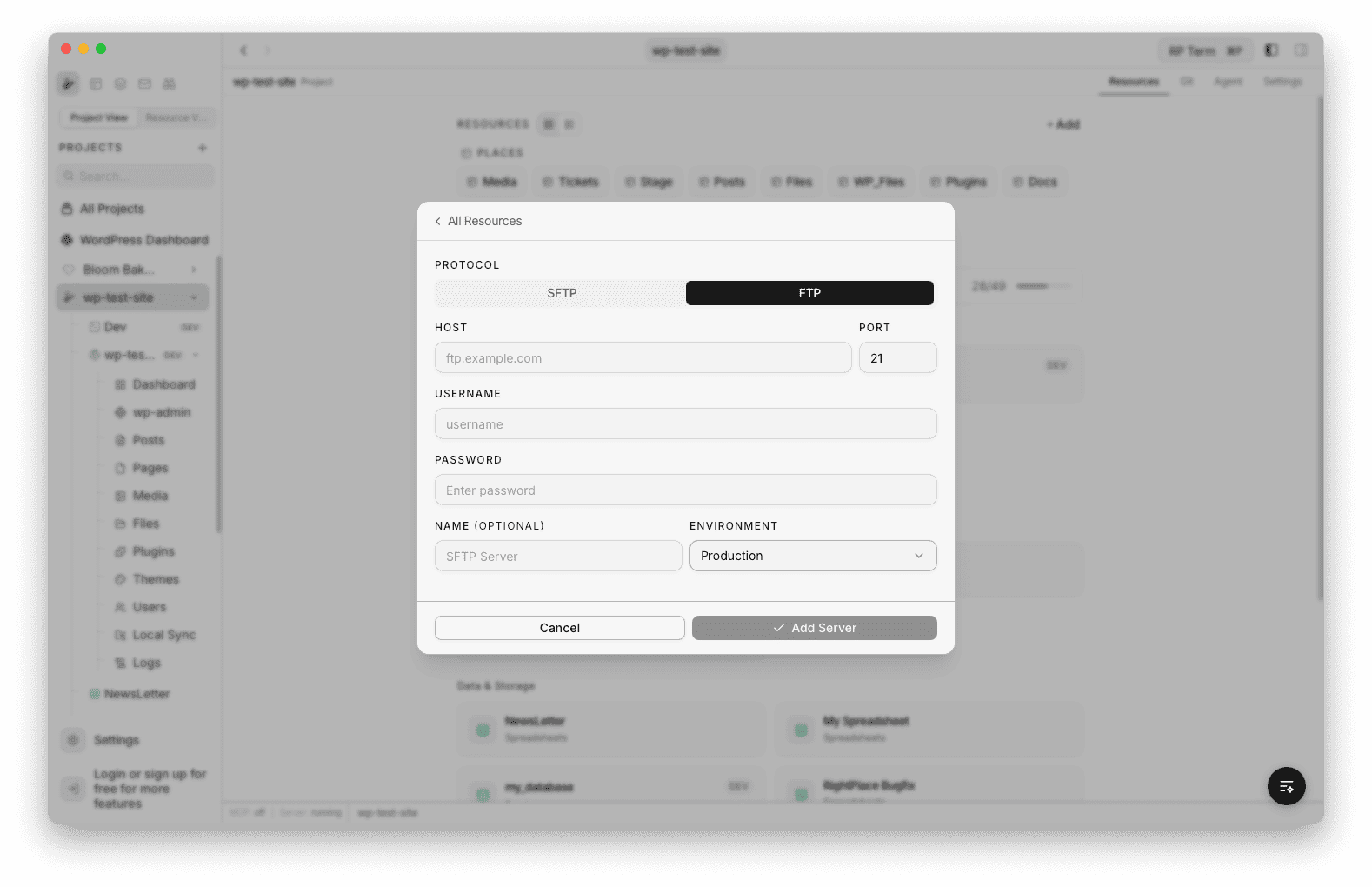
The form fields for FTP:
- Protocol: FTP selected
- Host: the server hostname or IP address
- Port: defaults to 21 for FTP
- Username: your server username
- Password: the server password
- Name (optional): display name
- Environment: tag for Production, Staging, or Development
Click Add Server to save. Credentials are stored in an encrypted vault. They are never logged or stored in plain text.
File Browser
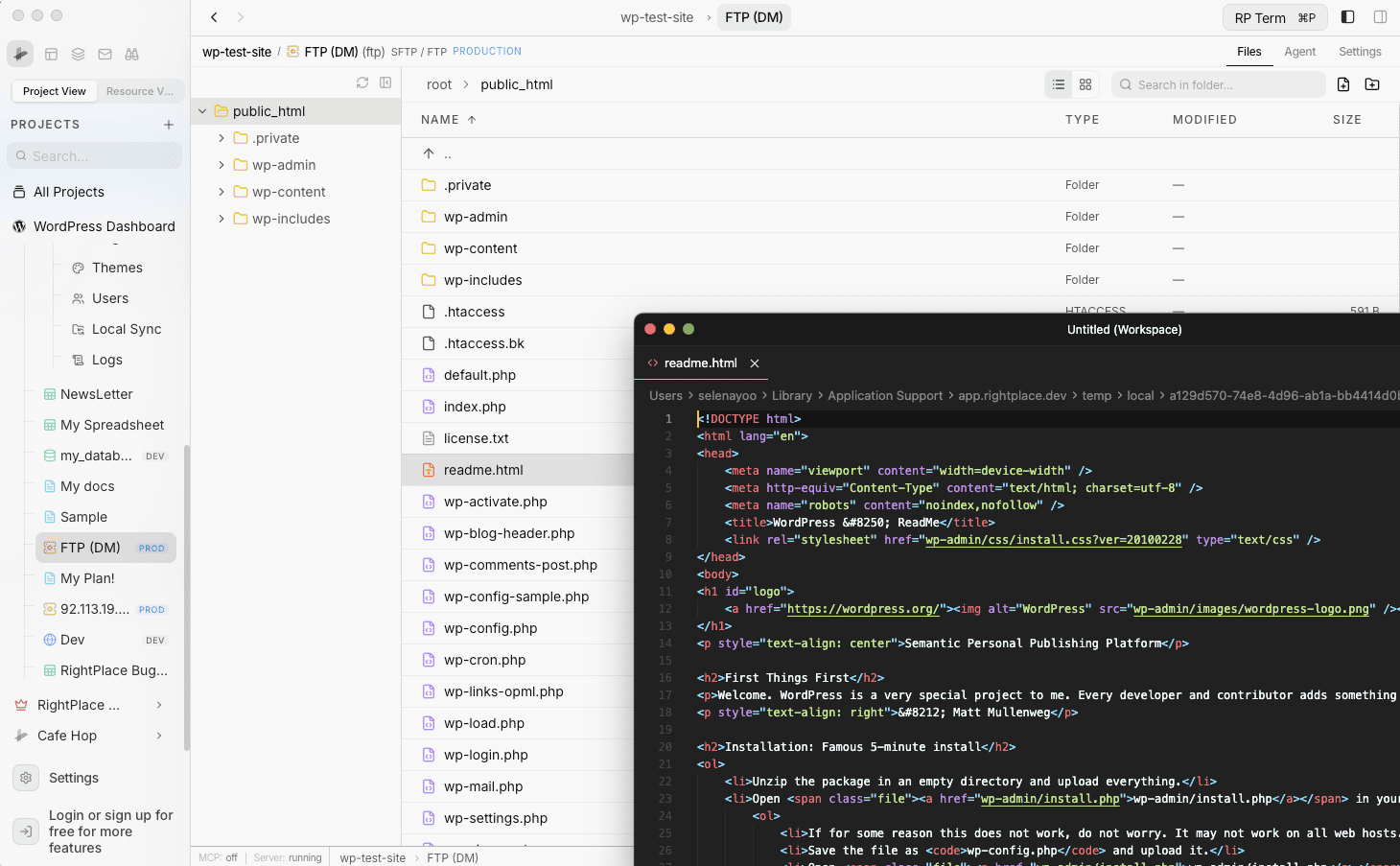
Once connected, the file browser opens with the server’s root directory. The left panel shows the directory tree, and the right panel shows the contents of the selected folder in a table with Name, Type, Modified, and Size columns.
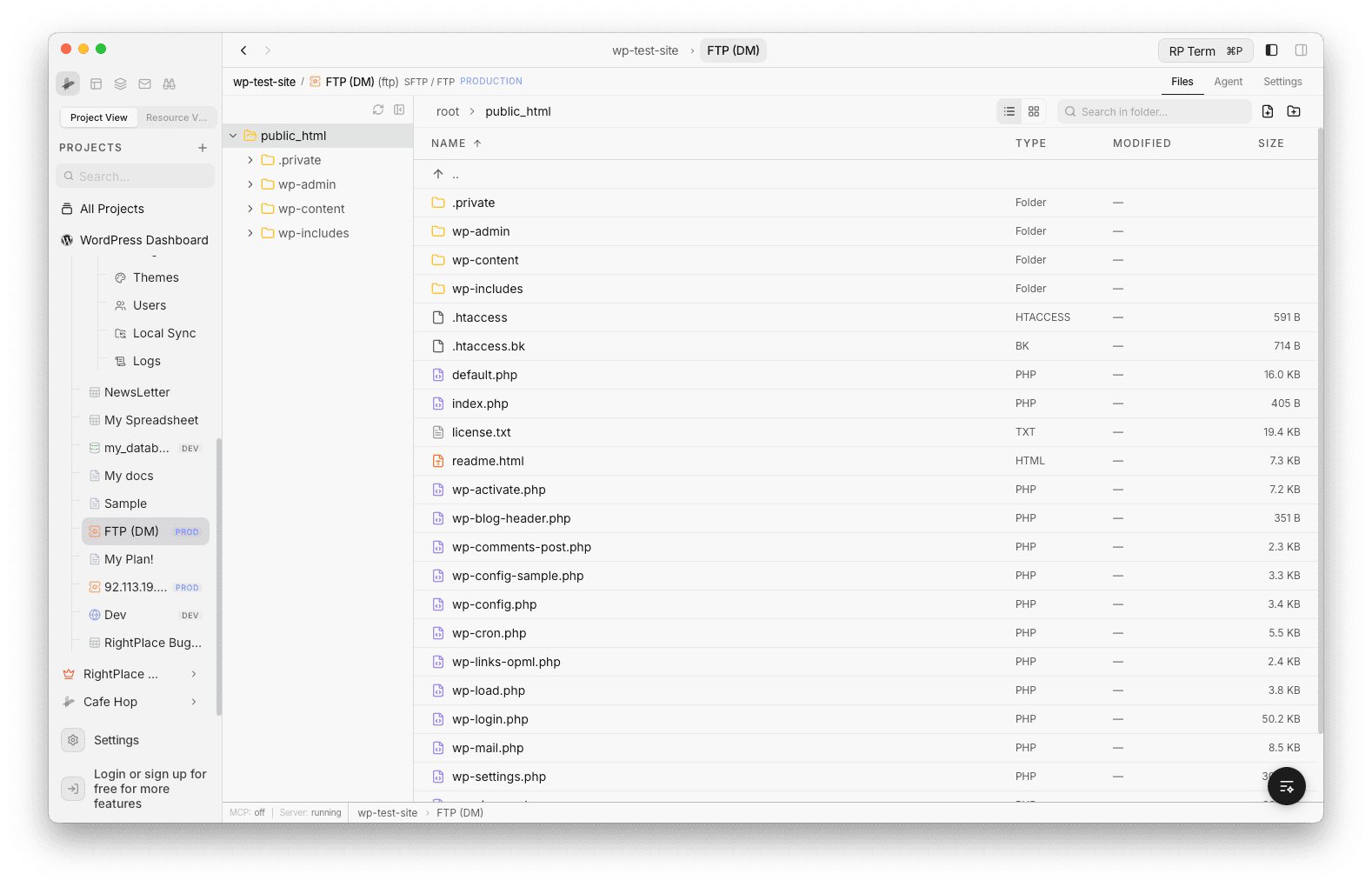
The file browser supports:
- Navigate the full directory tree starting from
/ - Click folders in the tree to expand and collapse them
- The file table shows file type, last modified date, and size for each entry
- Breadcrumb navigation at the top shows the current path (e.g.
root > public_html) - Toggle between table view and grid view using the icons in the toolbar
- Use the search field in the top right to filter files in the current folder
File Operations
You can perform all standard file operations directly on the remote server:
- Create file: create a new empty file in any directory
- Create folder: create a new directory
- Rename: rename or move files and directories
- Copy: duplicate a file to a new location (downloads and re-uploads internally)
- Delete file: remove a single file
- Delete folder: recursively remove a directory and all its contents
Opening Files
Double-click any file in the browser to open it with your default code editor. If you have an external editor configured (e.g. Cursor, VS Code), the file is downloaded to a temporary location and opened there. Changes saved in the external editor are written back to the server automatically.
File saves trigger an activity notification in the app so you can track edits across your project.
Default Code Editor
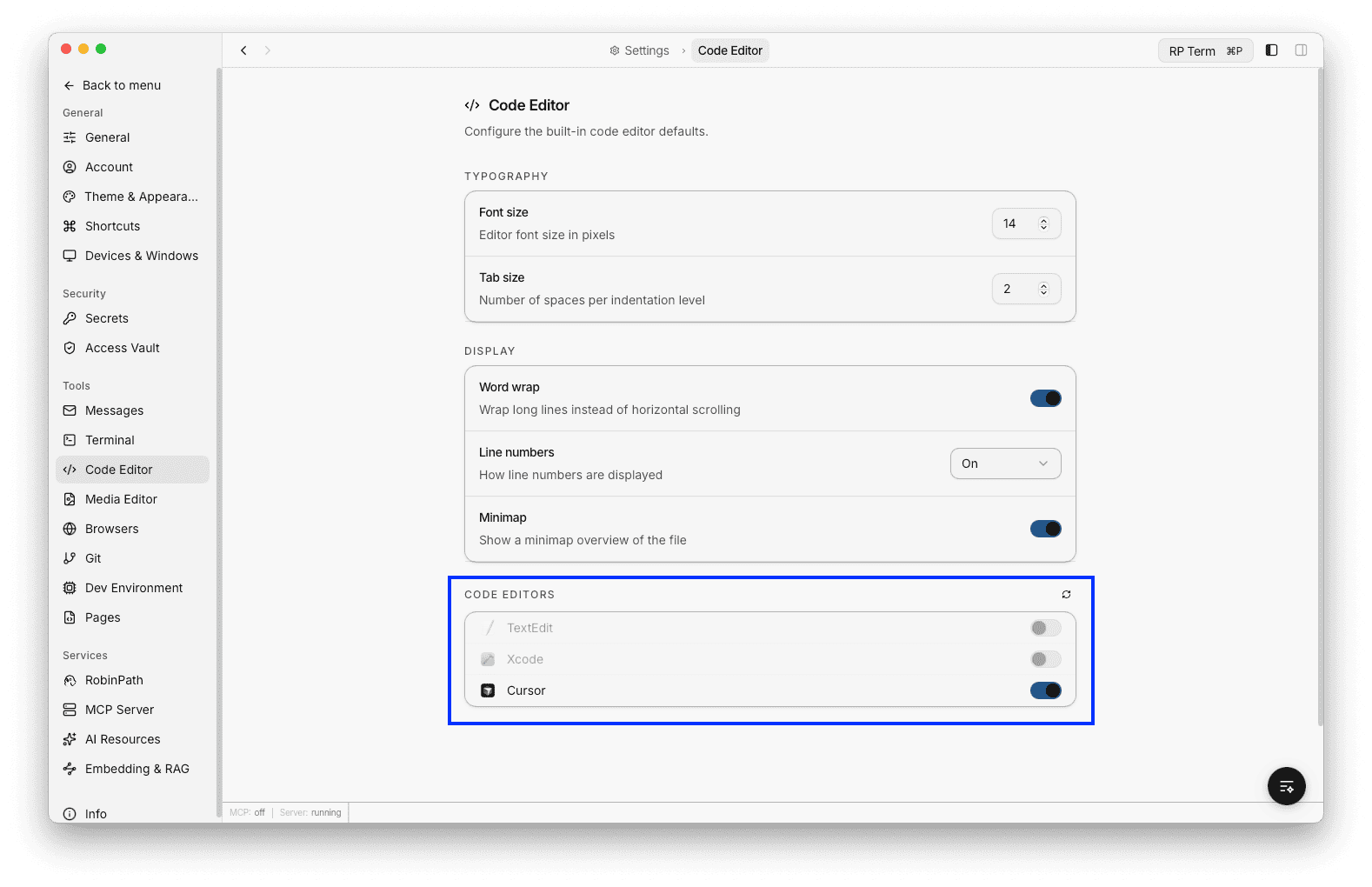
You can set a default external code editor under Settings > Code Editor. The Code Editors section at the bottom lists all detected editors on your system (e.g. TextEdit, Xcode, Cursor, VS Code). Toggle one on to make it the default for opening files.
The first time you open this page, it may take a moment to detect the editors installed on your machine.
Uploading Files
You can upload local files and folders to the remote server by dragging them from Finder into the file browser. The upload preserves the directory structure: folders are created as needed on the server, and files are uploaded recursively.
Downloading Files
Drag files or folders out of the file browser to download them to your local machine. Files are staged to a temporary directory and then handed off to your OS for the drop. Folders are downloaded recursively with their full contents.
Content Search (SFTP Only)
SFTP connections include a content search feature that searches file contents on the remote server. This uses grep over SSH, so it works on any Linux/macOS server.
To search:
- Open the search sidebar using the search field in the toolbar
- Type your search query. Results appear automatically after a short delay.
- Use the toggle buttons to enable case-sensitive or whole-word matching
- Results are grouped by file with match counts. Click any match to open the file at that line.
Search returns up to 5,000 results. Each matching line is shown with its line number and the matched text highlighted.
Note: Content search is only available for SFTP connections. Plain FTP does not support search because it cannot execute commands on the server.
Connection Settings
To update connection details after adding a server, open the applet and switch to the Settings tab.
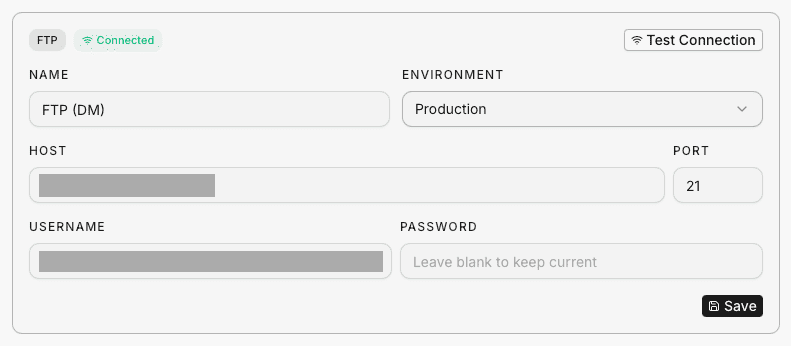
The settings page shows:
- Protocol badge: displays SFTP or FTP
- Test Connection: click to verify the connection. A green “Connected” or red “Failed” badge appears next to the protocol.
- Name: update the display name
- Environment: change the environment tag
- Host and Port: update the server address
- Username and Password: update credentials. Leave the password blank to keep the current one.
- Save: apply changes. The active session disconnects automatically so the next operation uses the new credentials.
Danger Zone
At the bottom of the settings page, the danger zone lets you remove the applet from the project. This disconnects the session and deletes the applet record and stored credentials. A confirmation step prevents accidental deletion.
Auto-Reconnect
If the connection drops during a file operation (timeout, broken pipe, connection reset), the app automatically reconnects and retries the operation once. This handles common cases like idle session timeouts without requiring manual intervention.
Agent tools
Every action this applet exposes as a typed, permissioned tool that agents can discover and run over MCP, the same actions your team uses in the UI.