File & Media Explorer
Unified browser for local files and media across your project - tree view, previews, and drag-drop operations.
Features
- Native filesystem tree with breadcrumbs
- Image and media thumbnail grid
- Drag-drop between folders and into other applets
- Quick Look previews for common file types
On this page
- Adding a Local Folder
- Layout
- View Modes
- Table View
- Grid View
- Navigating
- File Operations
- Creating Files and Folders
- Renaming
- Deleting
- Copy, Cut, and Paste
- Drag and Drop
- Context Menu
- File Preview
- Opening Files
- Open in Code Editor
- Edit in Image Editor
- Reveal in Finder
- Favourites
- Cross-Navigator Transfers
- Git Awareness
- Settings
- Session Persistence
- Widget
- Agent tools
- Next steps
The File & Media Explorer lets you link a local directory to your project and manage its contents without leaving RightPlace. You get a full file browser with folder tree navigation, image and video previews, favourites, and seamless copy/paste across other resource browsers in the app.
Adding a Local Folder
Open the Add Resource dialog and select Local Folder under the Infrastructure category.
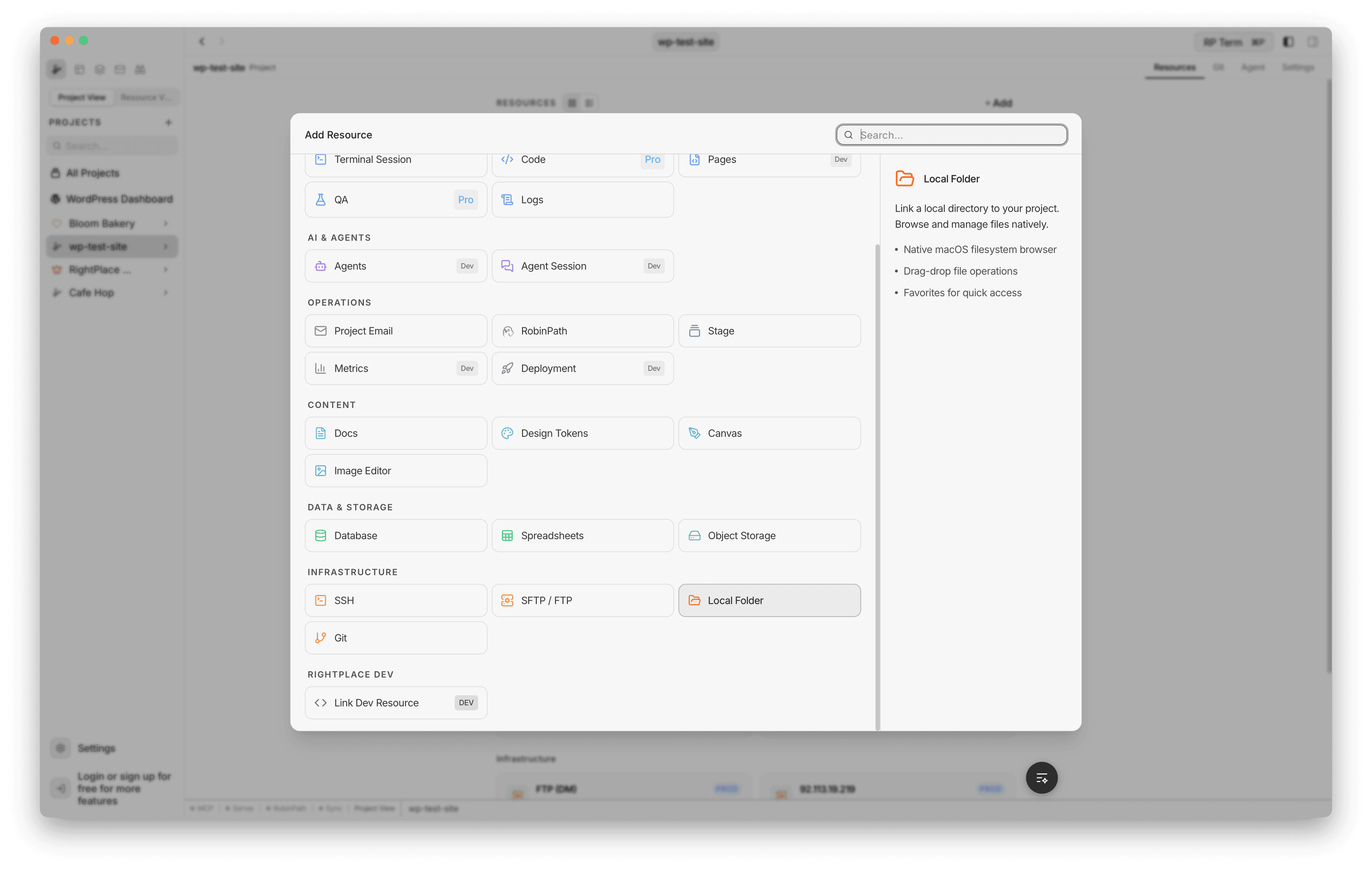
The creation form has:
- Choose Folder: opens the native OS folder picker
- Name: optional display name. Defaults to the folder’s name if left blank.
- Environment: tag for None, Production, Staging, or Development
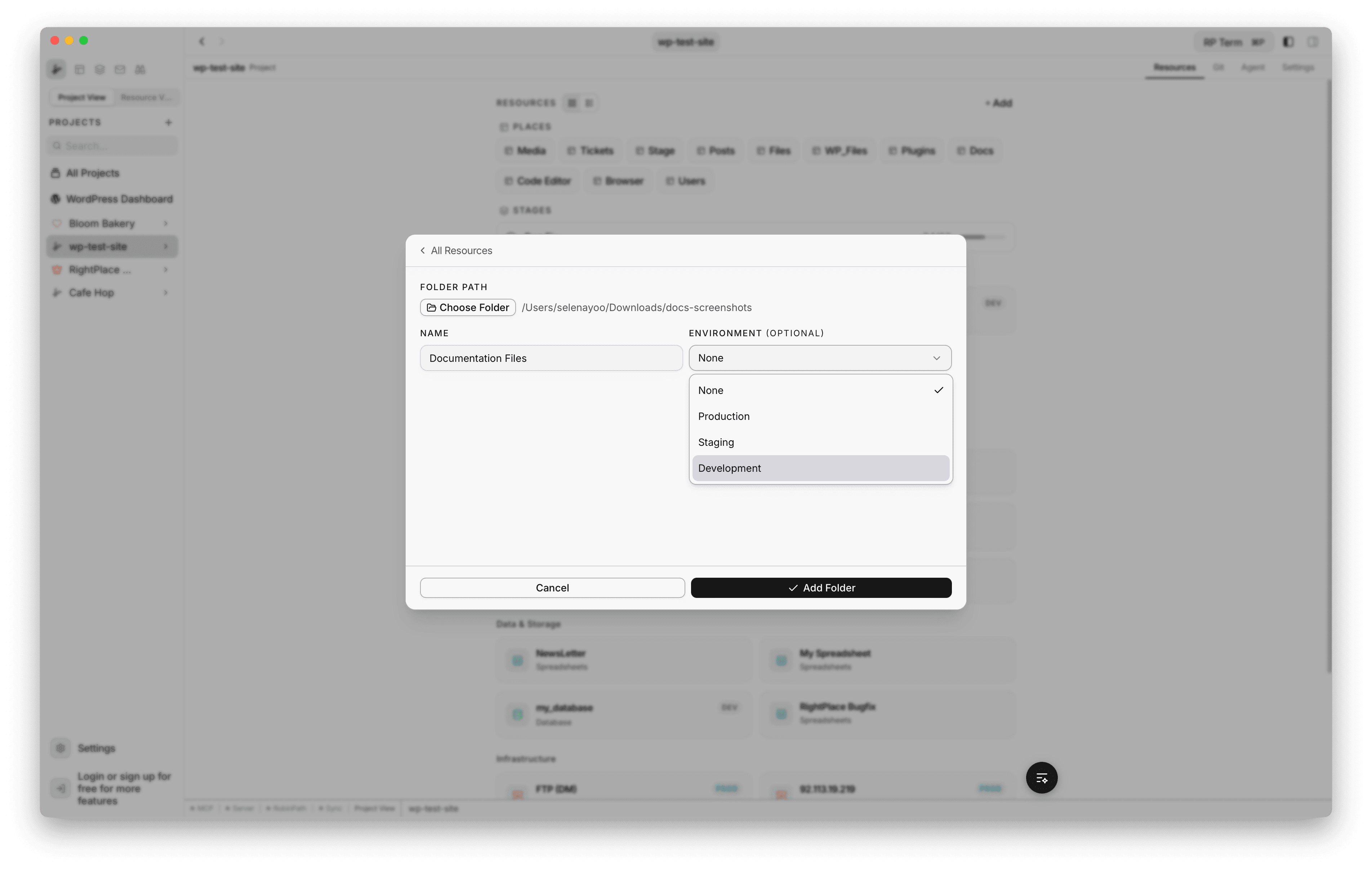
Click Add Folder to add the folder to your project. The file browser opens immediately.
Layout
The file browser is split into two resizable panels:
- Left panel (Navigator): a tree view showing the folder hierarchy. Click a folder to load its contents on the right.
- Right panel (File list): the contents of the currently selected folder in either table or grid view.
The divider between panels can be dragged to resize. The navigator can also be collapsed entirely. Both the panel width and collapse state are remembered across sessions.
The toolbar at the top of the navigator includes buttons for collapsing the panel, searching within the folder, and managing favourites. The file list toolbar includes the view mode toggle, a search field, and sorting controls.
The footer bar at the bottom shows the item count (folders and files) and the current selection count.
View Modes
The file list supports two view modes, toggled from the toolbar icons at the top right:
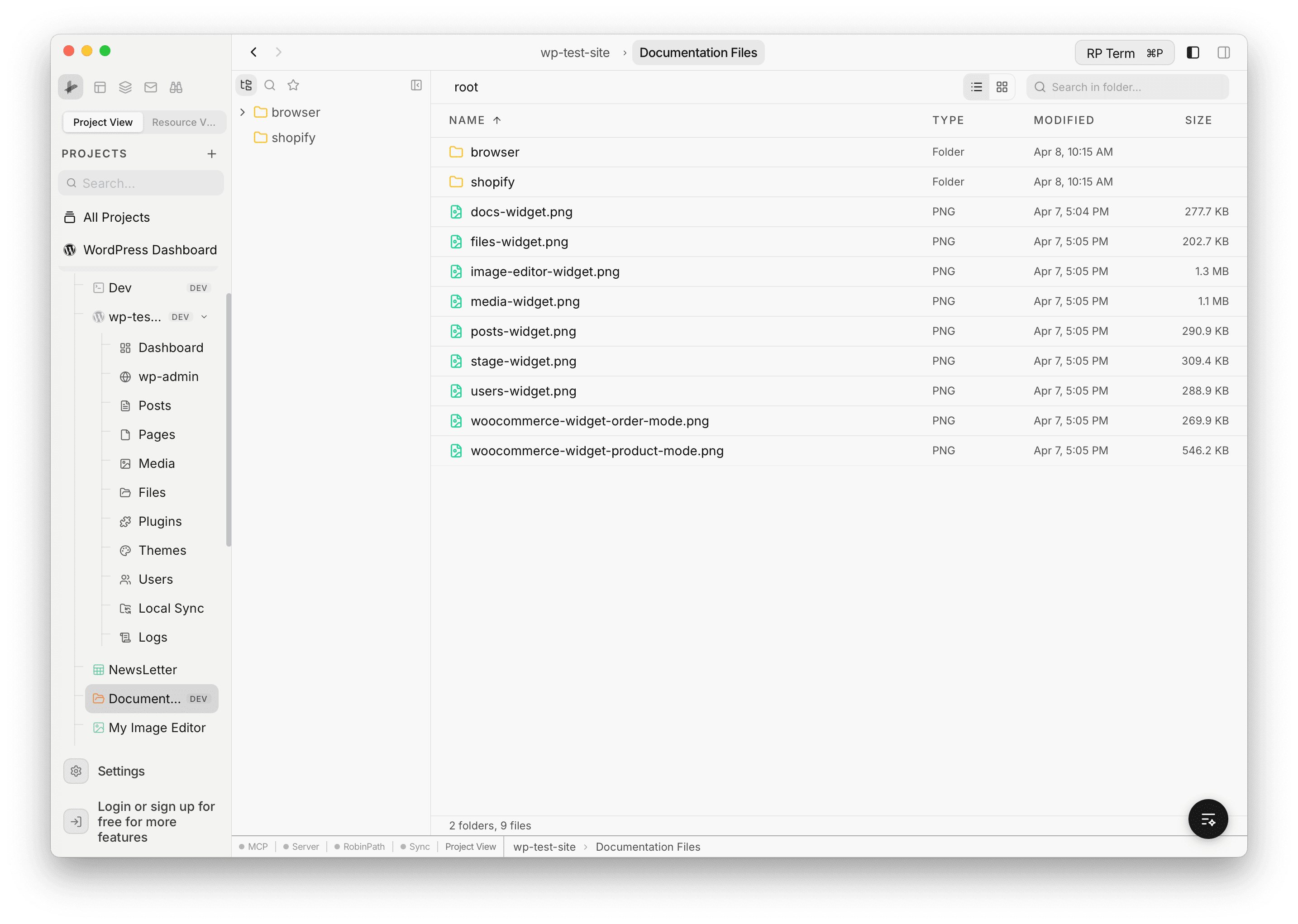
Table View
The default view. Shows files in rows with Name, Type, Modified, and Size columns. Click a column header to sort.
Grid View
Shows files as thumbnail tiles. Image files display preview thumbnails automatically. The tile size is adjustable with a slider at the bottom of the file list.
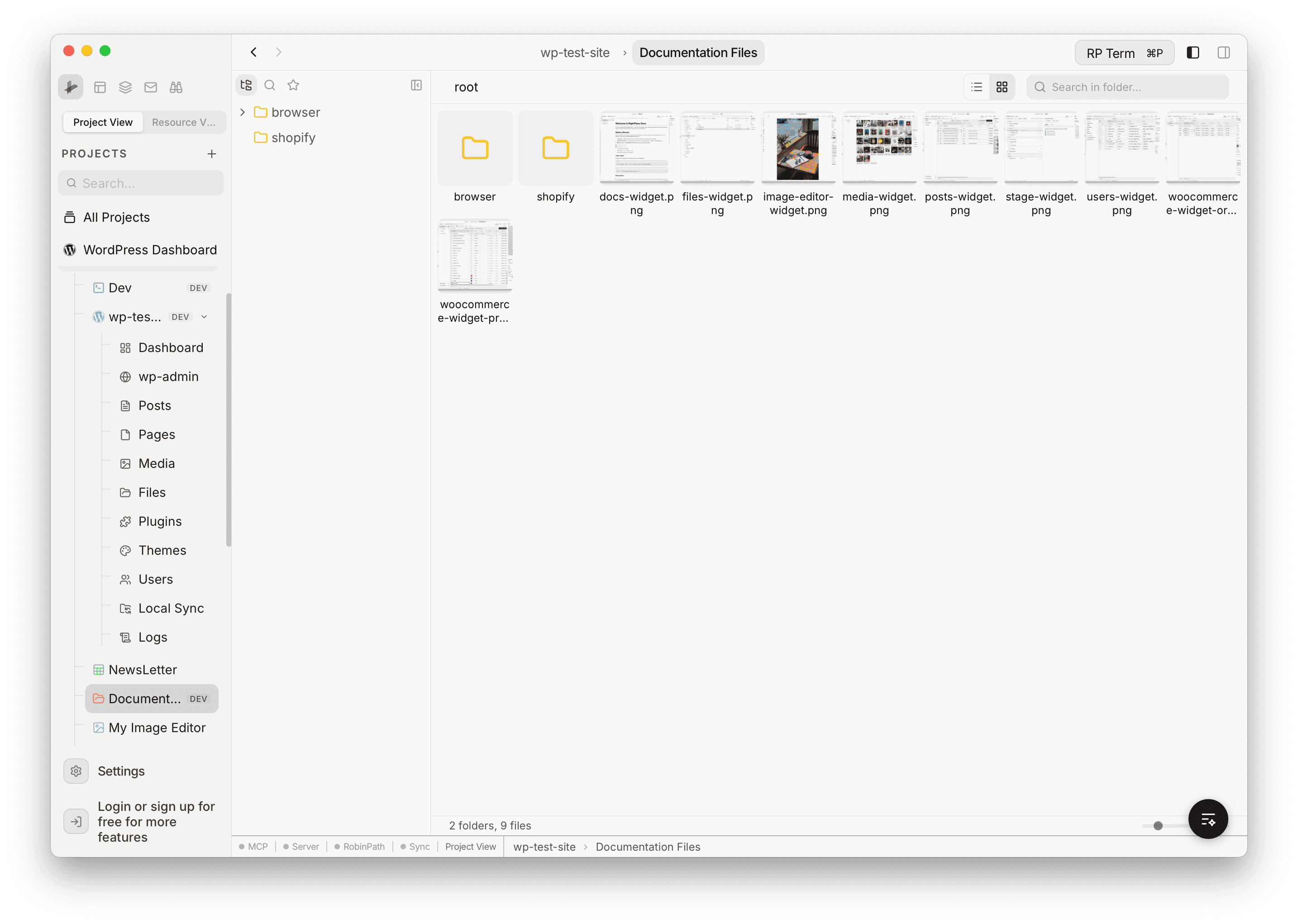
View mode and grid size are persisted per folder resource.
Navigating
- Click a folder in the tree to load its contents in the file list
- Double-click a folder in the file list to navigate into it
- Click the parent row (shown at the top of the file list) to go back up one level
- Click a favourite in the navigator sidebar to jump directly to that file or folder
File Operations
Creating Files and Folders
Right-click empty space or a folder and select New File or New Folder. An inline text input appears - type a name and press Enter to confirm, or Escape to cancel.
Renaming
Right-click a file or folder and select Rename. The name becomes an editable text field. Press Enter to confirm or Escape to cancel.
Deleting
Right-click and select Delete. A confirmation dialog appears before the item is permanently removed. Multi-select is supported - selecting multiple items and deleting removes all of them.
Copy, Cut, and Paste
Standard clipboard operations work across the file browser:
- Copy (Cmd+C): copies selected items to the clipboard
- Cut (Cmd+X): cuts selected items for moving
- Paste (Cmd+V): pastes clipboard items into the current folder
File paths are also written to the OS clipboard, so you can paste into Finder or other native apps.
When you cut and paste, the original files are deleted after a successful transfer.
Drag and Drop
Drag files from Finder directly into the file browser to copy them into the current folder.
Context Menu
Right-click any item or empty space to open the context menu.
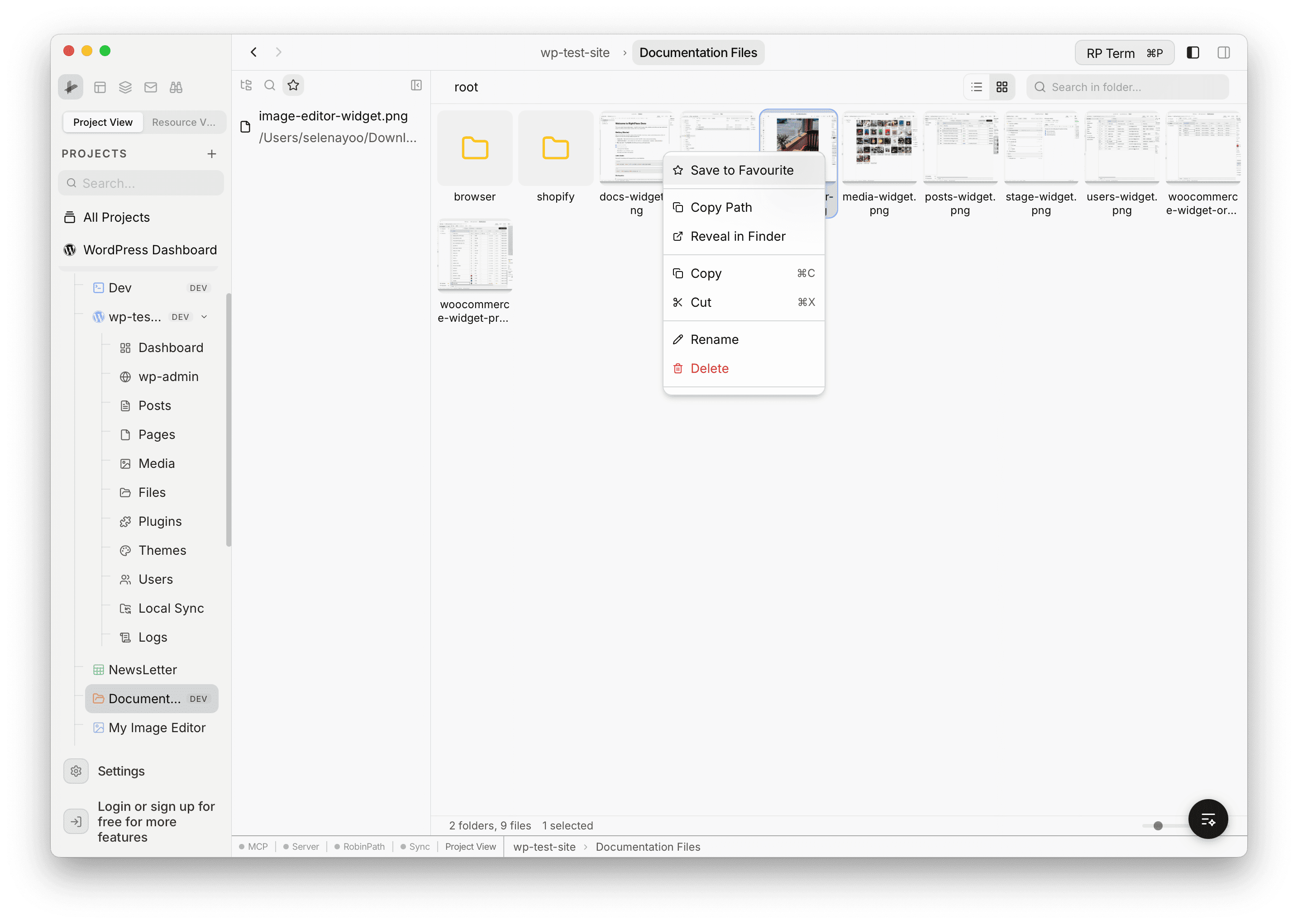
File context menu:
- Save to Favourite / Remove from Favourite: manage bookmarks
- Copy Path: copy the full file path to the clipboard
- Reveal in Finder: show the file in the native file explorer
- Copy (Cmd+C) / Cut (Cmd+X): clipboard operations
- Rename: start inline rename
- Delete: delete with confirmation
Folder context menu:
- Open: navigate into the folder
- New File / New Folder: create inside the folder
- Refresh: reload folder contents
- Save to Favourite / Remove from Favourite: manage bookmarks
- Copy Path: copy the full folder path
- Reveal in Finder: show in native file explorer
- Copy / Cut / Paste: clipboard operations
- Rename: rename the folder
- Delete: recursively delete the folder and all its contents
Empty space context menu:
- New File / New Folder: create in the current directory
- Refresh: reload the current folder
- Paste: paste items from the clipboard
File Preview
Click a file to see its details in a sidebar panel on the right:
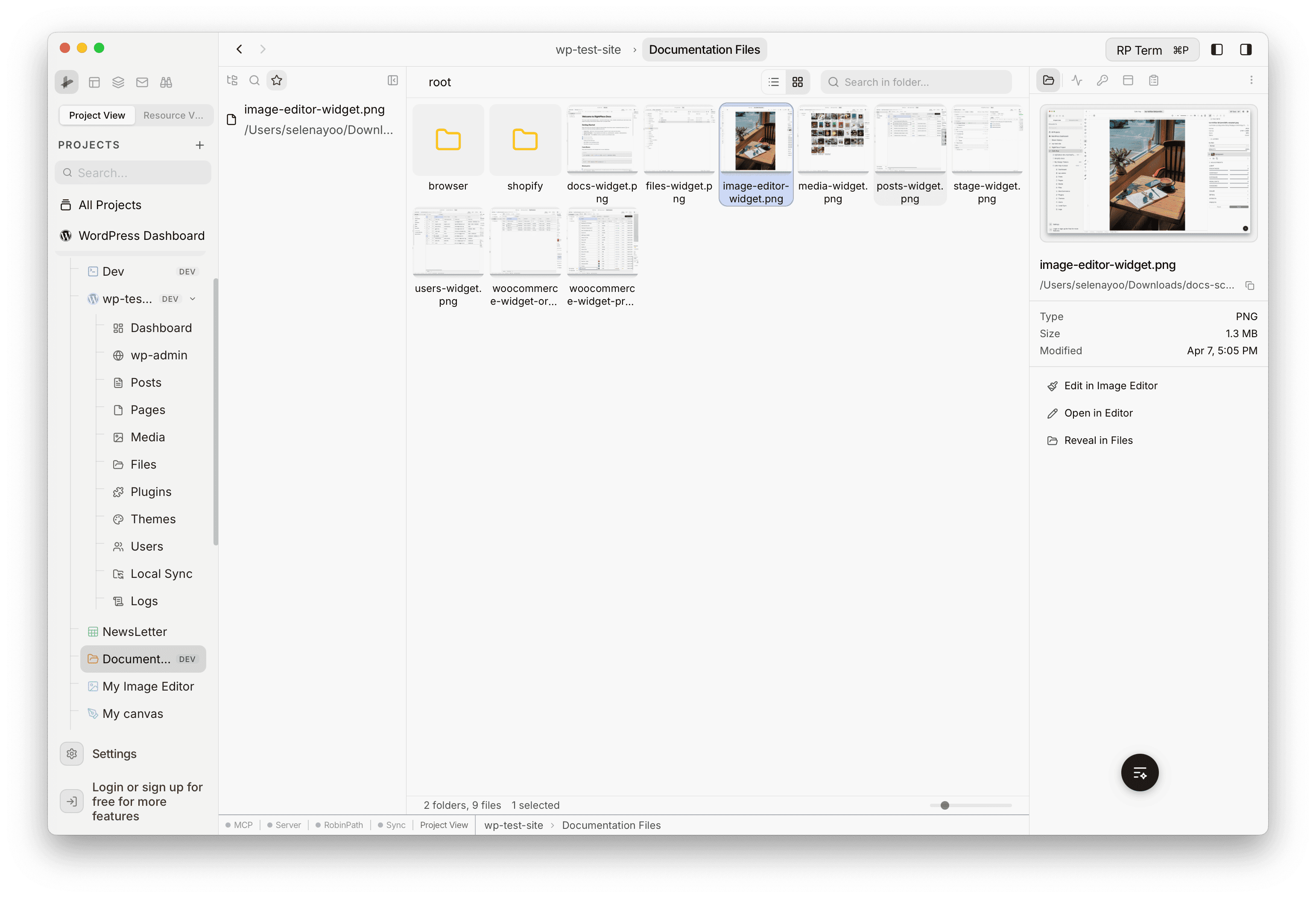
The panel displays:
- Image preview: inline thumbnail for PNG, JPG, GIF, WebP, BMP, ICO, SVG, AVIF
- Video preview: inline player for MP4, MOV, WebM
- File info: name, path (with copy button), type, size, and modified date
Quick action buttons appear depending on the file type:
- Edit in Image Editor: open the image in the built-in Image Editor
- Open in Editor: open the file in the built-in code editor
- Reveal in Files: show the file in the native file explorer
Opening Files
Open in Code Editor
Code and text files can be opened in the built-in editor. Right-click and select Open in Editor, or click the Open in Editor button in the sidebar. Supported file types include:
JS, JSX, TS, TSX, JSON, HTML, CSS, SCSS, Markdown, YAML, XML, SQL, Python, Rust, Go, TOML, Shell, PHP, Ruby, Java, C, C++, Swift, Kotlin, Lua, R, SVG, TXT, LOG, ENV, CSV, and many more.
Edit in Image Editor
Image files can be opened in the built-in Image Editor for cropping, adjusting brightness and contrast, rotating, and more. Click the Edit in Image Editor button in the sidebar. Supported formats: PNG, JPG, JPEG, GIF, WebP, BMP, AVIF, SVG.
Reveal in Finder
Right-click any file or folder and select Reveal in Finder to open the native file explorer with the item highlighted.
Favourites
Bookmark frequently accessed files and folders for quick navigation.
- Right-click any item and select Save to Favourite to add it
- Right-click a bookmarked item and select Remove from Favourite to remove it
- Favourites appear in the navigator sidebar for one-click access
- If a favourite no longer exists on disk it is flagged as missing
Favourites are stored per folder resource and persist across sessions.
Cross-Navigator Transfers
You can copy and paste files between different resource browsers. For example:
- Copy a file from the local folder and paste it into an SFTP server
- Copy from an S3 bucket and paste into a local folder
- Copy from a WordPress site’s file manager and paste locally
The clipboard works across all navigator types in the app - Local, SFTP/FTP, WordPress Files, and Object Storage.
Git Awareness
The file browser respects .gitignore patterns. Files and folders that match ignore rules are tagged with a visual indicator so you can tell at a glance which items are tracked and which are not.
Settings
Open the resource settings to update the linked folder:
- Root path: click Choose Folder to select a new directory. Click Save to apply.
Changing the root path disconnects the current folder and reconnects to the new one.
Session Persistence
The file browser remembers your state across tab switches and app restarts:
- Expanded folders in the tree
- The active folder you were browsing
- Navigator panel width and collapse state
- View mode (table or grid) and grid size
- Favourites list
Widget
Appears when a Local Files or Folder Browser tab is active.
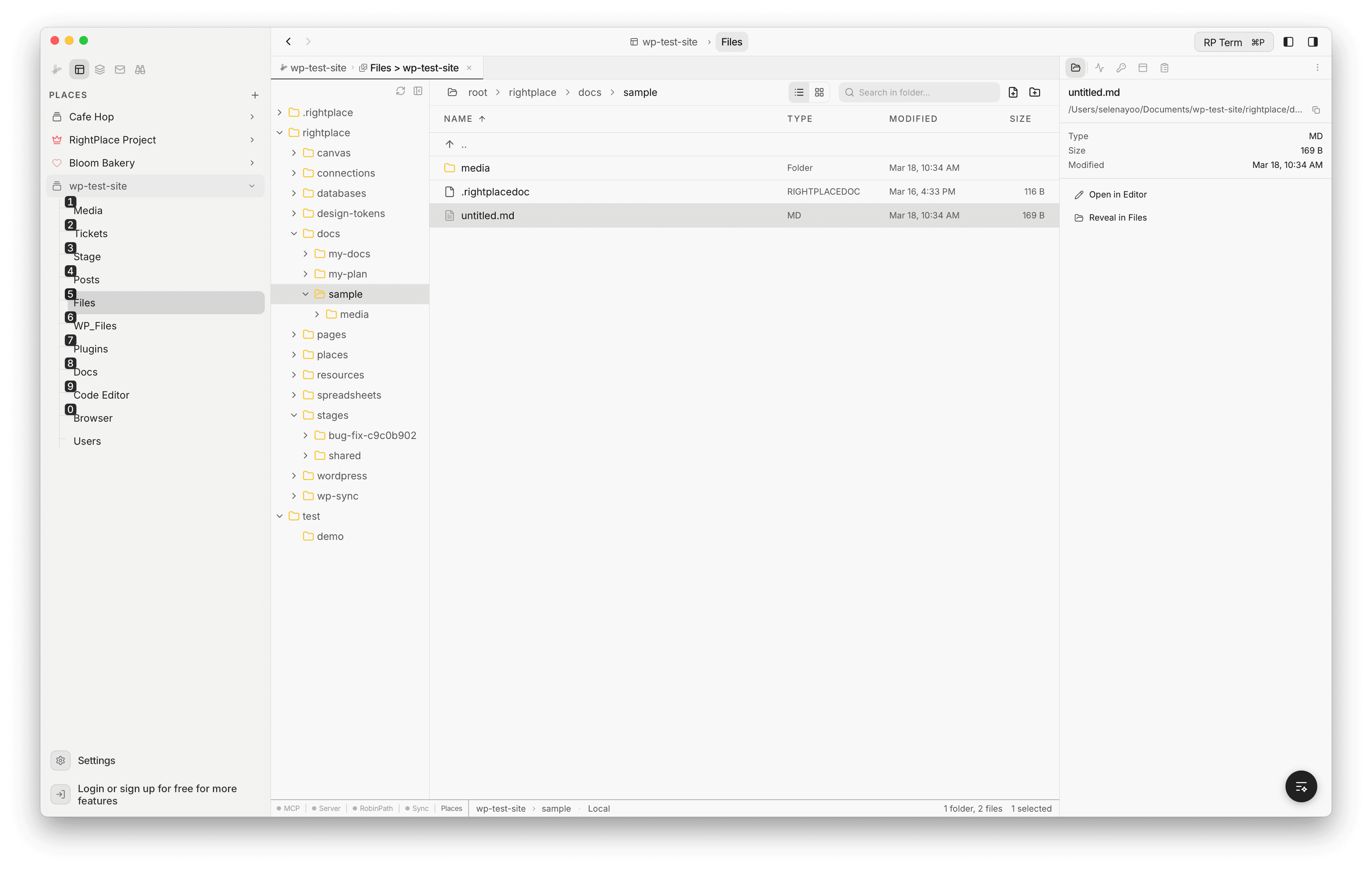
How it works: select a file in the Files view to load its details.
Detail fields:
- File preview (image or video thumbnail when applicable)
- Filename and parent path with copy button
- File size, type extension, and modified date
Quick actions:
- Open in code editor
- Open in image editor (for image files)
- Open externally in the OS default app
Agent tools
Every action this applet exposes as a typed, permissioned tool that agents can discover and run over MCP, the same actions your team uses in the UI.